
Appearance
Spout Input
Spout is a Windows-native GPU texture-sharing framework that lets any Spout-capable application share its rendered output directly as a live video source in Exaplay 3 — with zero latency and zero compression, because the texture never leaves the GPU.
What Is Spout?
Spout (developed by Lynn Jarvis) enables real-time sharing of OpenGL textures between applications on the same Windows PC. Popular Spout senders include:
| Application | Use case |
|---|---|
| Resolume Avenue / Arena | VJ software sending to Exaplay for output |
| TouchDesigner | Generative / interactive content |
| OBS Studio (with Spout plugin) | Streaming software output |
| Unity / Unreal Engine | Real-time 3D content |
| Processing | Creative coding |
Because the texture lives on the GPU, Spout has effectively zero CPU overhead and zero latency — the frame appears in Exaplay the moment the sender renders it.
Adding a Spout Source
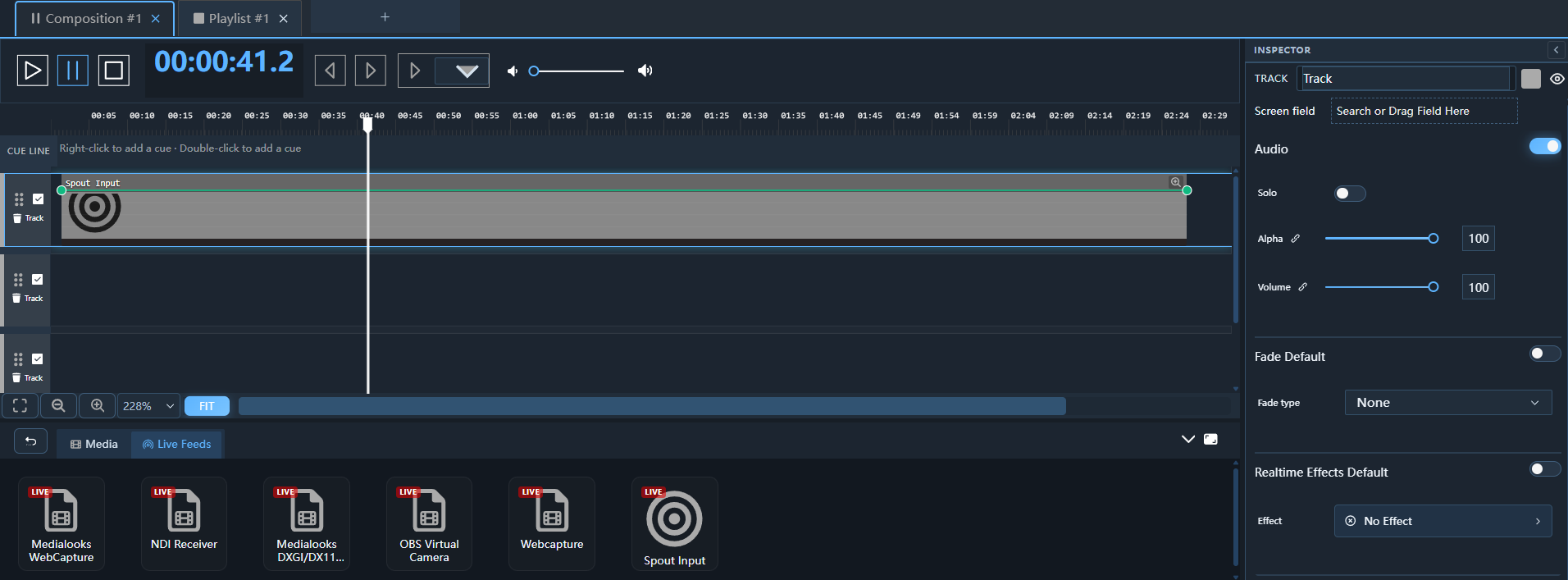
- Open the File Browser → Live Feeds tab.
- A generic Spout Input entry is always visible, even when no Spout sender is running. This allows preprogramming your show in advance.
- Any currently active Spout senders also appear individually (e.g. Spout: MyApp).
- Drag Spout Input (or a specific sender) onto a track in the Timeline.
Tip: Use the generic Spout Input when preprogramming — it connects to whatever sender becomes active later. Use a named sender entry when you need a specific source.
Note: Spout requires
SpoutLibrary.dll, which is included in the Exaplay installation. No separate SDK install is needed.
Selecting a Sender
If multiple Spout senders are active, each appears with its sender name as a separate item in the Live Feeds list. The sender name is set by the originating application.
To switch a running Spout clip to a different sender:
- Select the Spout clip in the Timeline.
- In the Inspector, use the Spout Sender drop-down to choose a different active sender, or select Any Sender to connect to whatever is currently broadcasting.
- The switch is hot — Exaplay seamlessly transitions to the new sender without interrupting playback.
Saving & Loading Spout Clips (VPP)
Spout clips are fully saved in VPP project files:
- The selected sender name (or "Any Sender" mode) is preserved.
- On project load, each Spout clip reconnects to its saved sender automatically.
- If the sender is not yet running, the clip waits and reconnects when the sender starts.
Behaviour When the Sender Disconnects
If the Spout sender stops or closes while Exaplay is using it:
- The output clears to black automatically.
- A warning is logged to the engine log (
Documents\Exaplay3\logs\). - When the sender restarts, Exaplay reconnects automatically without any user action.
Sender Size Changes
If the Spout sender changes its output resolution (e.g. a window resize), Exaplay detects the new dimensions on the next frame and resizes its internal texture buffer automatically. No manual reconfiguration is needed.
Performance
| Metric | Typical value |
|---|---|
| Latency | < 1 frame (GPU direct) |
| CPU overhead | < 1 % |
| GPU overhead | ~0.5 % (texture copy) |
| Maximum resolution | Limited by GPU VRAM |
Comparison: Spout vs NDI vs Capture Card
| Method | Latency | CPU | Cross-machine | Compression |
|---|---|---|---|---|
| Spout | < 1 frame | Minimal | ❌ Same PC only | None (GPU texture) |
| NDI | 1–3 frames | Moderate | ✅ Network | Low (NDI codec) |
| Capture card | 1–4 frames | Low | ✅ HDMI | None (raw) |
Use Spout when the source application runs on the same machine as Exaplay and you need the absolute lowest latency.
Identifying Spout Clips
Spout clips show a distinctive Spout icon (a waveform-style "S" logo) in:
- The File Browser Live Feeds tab
- Timeline segment thumbnails
- The Playlist composition view