
Appearance
Audio
Exaplay 3 supports professional audio output through ASIO and PortAudio, with per-clip mixing and multi-channel routing.
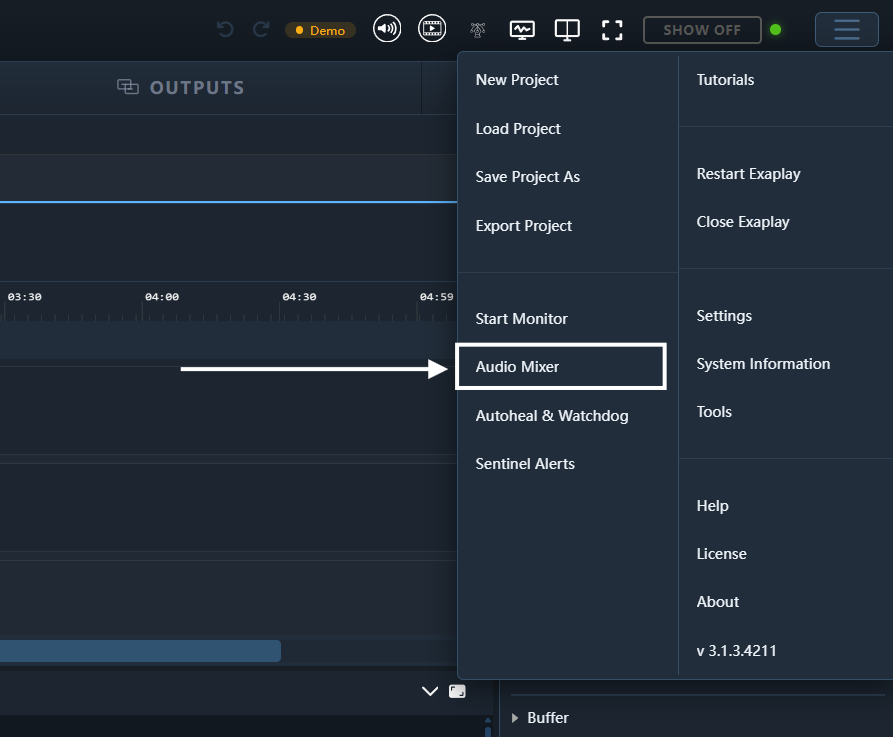
Audio Drivers
| Driver | Use case |
|---|---|
| ASIO | Professional audio interfaces; the lowest latency the device and its buffer size allow |
| PortAudio / WASAPI | Standard Windows audio, any sound card |
Configure the driver in Menu → Settings → Audio (see Audio Settings).
Per-Clip Volume
Each clip has an independent Volume fader in the Inspector, 0–100 %, with a Mute switch beside it. Clips are mixed in software before being sent to the audio driver.
Master Volume
The master volume fader in the Transport bar affects all audio simultaneously. Changes are ramped smoothly to avoid clicks.
Equalizer (EQ)
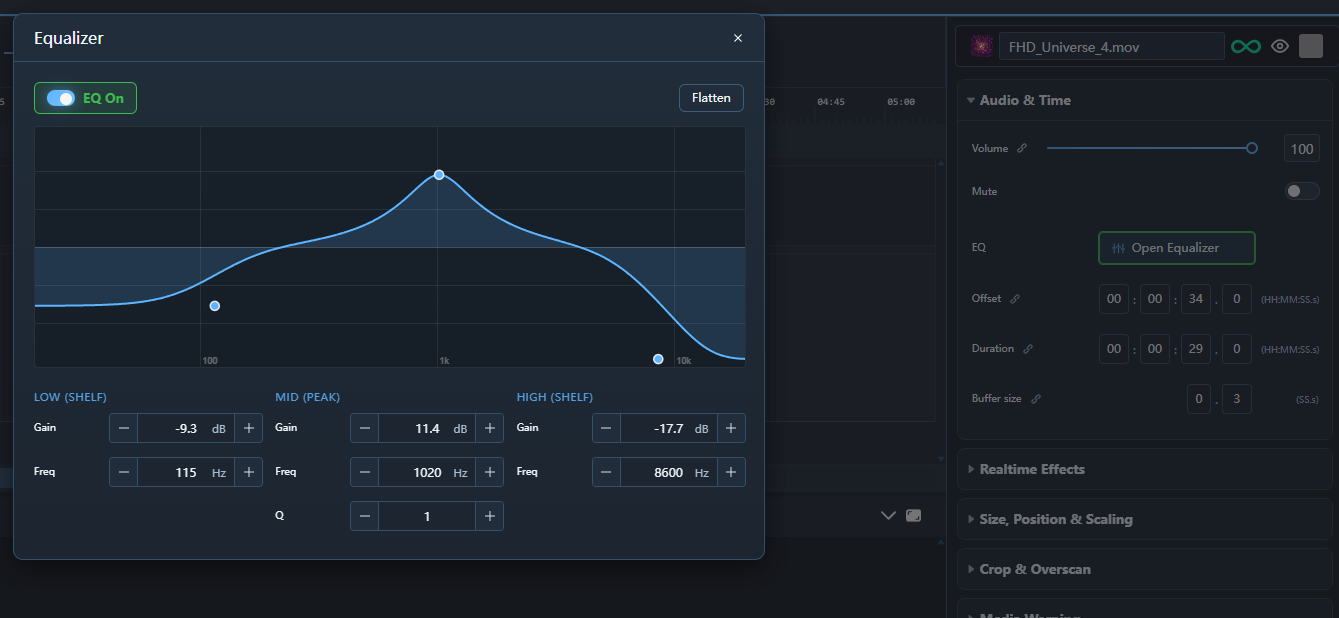
Each clip has its own 3-band EQ. In the Inspector the clip's audio section shows an EQ on/off switch and an Equalizer button that opens the full editor in a popup:
- A large interactive response curve — drag the Low, Mid, and High nodes directly on the graph to shape the sound.
- Numeric controls per band: gain and frequency for all three, plus Q on the Mid band (the Low and High bands are shelves and have no Q).
- Flatten resets all bands to a flat response.
The EQ is off until you switch it on, is applied per clip in the audio path, and is saved with the project.
New in 3.2.
Audio Routing
On ASIO devices with multiple output channels:
- Open Menu → Settings → Audio.
- Assign clips or screen groups to specific output channel pairs.
- Each assignment is saved in the project file.
Timecode Audio (LTC)
Linear Timecode (LTC) can be received on any audio input channel and used to synchronise playback. See Timecode Sync for setup details.