
Appearance
Operator Control View
The Operator Control view is a streamlined interface intended for the person running the show. It hides the composition editor and exposes only the tools needed to execute cues and manage playback.
URL: http://<engine-ip>:8123/control
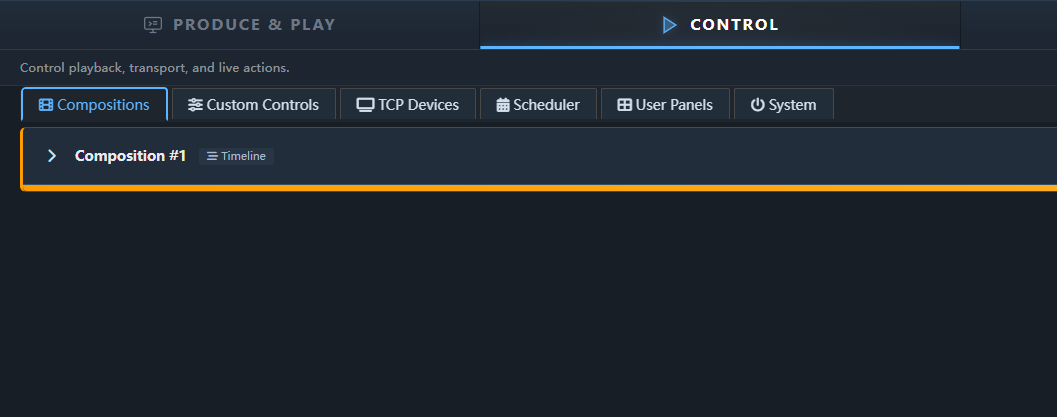
Layout
The Control tab uses the same frame as Produce & Play: the main field on the left (the sub-tabs below), the Inspector on the right, and the On air deck below the main field.
- Inspector — shows the details of whatever is selected in the main field: a composition's cues or media items, a custom control's path and external-control snippet, a projector's commands, a scheduled action, a user panel. Each sub-tab remembers its own selection. Collapse it with the chevron at its bottom edge; the vertical Show Inspector strip brings it back.
- On air deck — one row per composition with its status, playhead and Play / Pause / Stop, plus the master volume, visible whichever sub-tab is open. Clicking a row selects that composition and returns to Playback. The chevron collapses the deck to its bar (the master volume stays); drag the splitter above it to resize.
Tabs
Playback (Compositions)
Every composition in the project is listed as a card. Clicking a card selects it and the Inspector shows its cues or media items.
- A status badge (e.g. Playing, Paused, Stopped) sits next to the composition's name and type (Timeline / Playlist).
- Transport controls — Play, Pause, Stop, plus Previous/Next Cue — and a visibility/alpha slider for the composition.
- The progress bar below the transport controls always shows the playhead position; while a composition is playing or paused you can click it to seek, and hovering shows a time preview at the cursor position before you click.
- The Inspector shows the selected composition's Timeline Cues or Media Items — whichever one is currently live is highlighted (a "PLAYING"/"PAUSED" badge on the active item). Clicking a cue or media item there plays it.
Other tabs
- Custom Controls — parameters pinned from the scene tree, grouped and editable from one place.
- TCP Devices — PJ-Link projectors (see Projector Control) and generic TCP devices, including bulk power on/off and status refresh.
- Scheduler — timeline or calendar view of scheduled cues, PJ-Link commands, custom controls, and system actions. See Scheduler.
- User Panels — quick links to every published User Panel.
- System — remote shutdown/restart of the Exaplay PC.
Some tabs are hidden in Easy Mode to keep the surface simple for non-technical operators.
Sharing with the Operator
The control view is a standard web page — no installation needed on the operator's machine. Share the URL via your venue network. Any modern browser on a laptop, tablet, or phone works.
Security note: The control view has no built-in authentication. Use your network firewall or a VPN to restrict access to trusted devices.