
Appearance
Media Playback
Exaplay 3 is built for smooth, glitch-free playback of large media files at high frame rates.
Supported Formats
| Format | Container | Notes |
|---|---|---|
| HAP | MOV, AVI | GPU-decoded; recommended for 4K+ |
| HAP Q | MOV, AVI | Higher quality HAP; 2× file size |
| HAP Alpha | MOV, AVI | HAP with transparency channel |
| HAP R | MOV, AVI | BC7 / BPTC variant; high-quality GPU-decoded RGB(A) (new in 3.2) |
| NotchLC | MOV | High-quality with alpha; GPU-decoded |
| H.264 / AVC | MP4, MOV | Hardware-accelerated via QuickSync; High 4:4:4 Predictive profile via software fallback |
| H.265 / HEVC | MP4, MOV | Hardware-accelerated via QuickSync; 4:4:4 chroma (RExt) via software fallback |
| Apple ProRes | MOV | Via Medialooks decoder (Windows) |
| PNG / JPEG / BMP | — | Still images |
| TIFF / PSD | — | High-bit-depth stills |
| WAV / AAC / MP3 | — | Audio-only |
Format Families Explained
- HAP family (HAP, HAP Q, HAP Alpha, HAP R) — GPU-decoded intra-frame codecs. Each frame is stored as a GPU-native compressed texture, so decoding is offloaded to the graphics card and CPU load stays low even at 4K+ and high frame rates. HAP is the baseline, HAP Q trades file size for higher quality, HAP Alpha adds a transparency channel, and HAP R is the BC7/BPTC variant for high-quality RGB(A). This is the recommended family for demanding playback.
- NotchLC — a high-quality GPU-decoded codec with an alpha channel, well suited to content authored in Notch and to overlays/transparency.
- H.264 / H.265 — long-GOP delivery codecs decoded on the GPU's fixed-function decoder (NVDEC, QuickSync, AMD AMF, or DXVA). Efficient on disk, but seeking and very high resolutions are heavier than with the intra-frame HAP family; uncommon profiles fall back to software. See the encoding tips below.
- Apple ProRes — decoded via the Medialooks decoder on Windows; convenient for interchange with edit/finishing workflows.
- Image stills (PNG, JPEG, BMP, TIFF, PSD) — single frames; TIFF/PSD carry high bit depth. Useful for logos, backgrounds, and slates.
- Audio (WAV, AAC, MP3) — audio-only assets that mix into the audio path like any clip's audio track.
Codec Recommendations
For the best performance with 4K content:
- HAP Q — highest quality, GPU-decoded, no CPU bottleneck
- NotchLC — excellent for content with transparency
- H.264 with hardware decode — good quality, uses the GPU's fixed-function decoder (NVDEC, QuickSync, AMD AMF, or DXVA)
Avoid software-decoded codecs (standard H.264 without hardware acceleration, MPEG-2) for streams above 1080p/60.
H.264 Encoding Tips for Best Playback
When encoding H.264 content for Exaplay, use these settings for optimal decode performance:
- Profile: High (4:2:0 chroma) — universally supported by hardware decoders
- B-frames: 0–2 — fewer B-frames reduce decode latency
- Keyframe interval: 1–2 seconds — enables fast seeking and buffer fill
- Bitrate mode: CBR or capped VBR — avoids storage throughput spikes
See also: Medialooks H.264 encoding options
Looping
Set the Loop property in the Inspector to:
| Value | Behaviour |
|---|---|
Once | Play once and stop on the last frame |
Loop | Loop the entire clip |
Ping-pong | Play forward then reverse, continuously |
∞ Infinite | Loop without a defined end time |
Trimming In and Out Points
In the Inspector's Time section, In and Out set the in and out points within the source file (new in 3.4) — before that a clip could only be shortened from its end. The clip plays from In and, when it loops or is longer than that region, wraps back to In instead of to the start of the file. Setting In on a fresh clip shortens its Duration to match; a clip you already lengthened or shortened keeps its own duration. Only the trimmed region is decoded.
On the Timeline the same in-point is set by dragging the clip's left edge, or moved without changing the clip's position and length by Alt-dragging its picture (a slip), and a clip is cut in two with Split clip here or Ctrl + K; the clip's thumbnail strip shows which frames it plays — see Timeline › Clips.
Performance Diagnostics
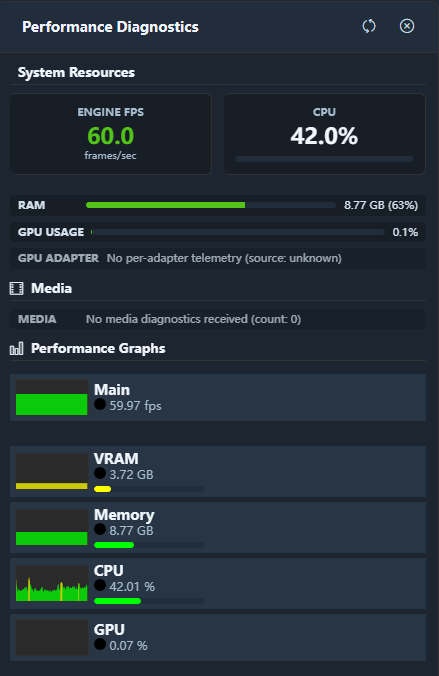
Use the built-in Performance Diagnostics panel (accessible via the header toolbar) to monitor:
- Engine FPS (green ≥ 57 fps, yellow 48–57 fps, red < 48 fps)
- Per-clip buffer health and decode time
- CPU and RAM utilisation
Offline Media
If a media file is missing on load, Exaplay lists the missing and unloadable paths in a dialog as the project finishes loading, and protects the original show — a save writes a new file with a _missingfiles suffix instead of overwriting it. Missing clips carry a red marker on the timeline and in the cue list, and the Inspector names the path the project expects — relink them there or via the clip's context menu (Relink media…; one relink can re-point every missing clip from the same folder). See Missing Media.
Every loaded clip shows its path too: the File block at the top of the Inspector names the path the clip plays from, with Copy path and Replace… (the same dialog, keeping every setting of the clip). Paths are stored absolutely unless portable paths are on (below) — to move a show between machines use Project Export, or re-point the clips there.
Portable Media Paths
By default a clip's source-file is the absolute path it was added from (D:\Shows\Gala\media\opener.mov), so a copied .vpp only opens where the media sits at exactly that path. Switch on Settings → System → Portable Media Paths and every save stores media that sits inside the project's own folder (the folder of the .vpp, any depth) as $[project]/…:
D:\Shows\Gala\Gala.vpp
D:\Shows\Gala\media\opener.mov     →  $[project]/media/opener.mov
D:\Shows\Gala\audio\bed.wav        →  $[project]/audio/bed.wav
E:\Archive\logo.png → E:\Archive\logo.png (outside — unchanged)$[project] resolves to the folder of whichever .vpp is loaded, on the machine that loads it — copy the whole show folder to E:\, a USB drive or another machine and it opens without relinking. The rule for what qualifies is the folder, not the file type: keep the media in (a subfolder of) the project folder and it travels; media elsewhere keeps its absolute path and shows up as missing on a machine without it. The Inspector's File block and the relink dialog show and accept the token form; a bare relative path (media/opener.mov, the form Project Export writes) is resolved the same way.
Notes:
- The rewrite happens on save (manual, autosave, and the multiclient auto-save alike), never on load — an existing show is unchanged until it is saved with the switch on. Turning the switch off leaves already converted references as they are; they keep resolving.
- The switch is per engine (System settings), not per project.
- Multiclient needs none of this: clients play from their own sync folder and a
$[project]/…reference resolves to the client's copy of the show folder, falling back to the file's name in the sync folder — exactly what Copy Files delivers. - An engine older than this one does not know the token and reports such clips as missing — leave the switch off for shows that must open on an older installation.