
Appearance
Scheduler
The Scheduler triggers automatic playback actions at specific times of day or on a recurring schedule — useful for permanent installations, digital signage, and automated broadcast playout.
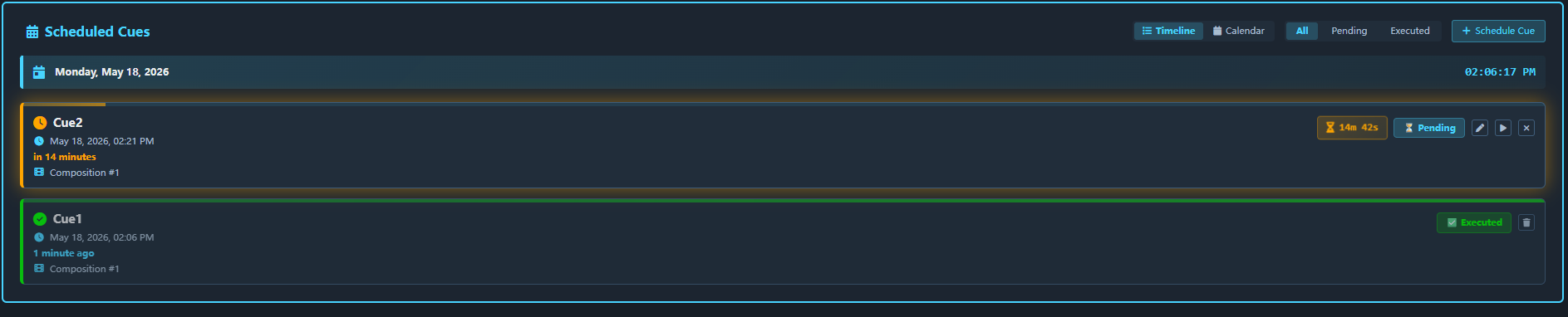
The Scheduler view features a visual timeline with real-time updates: progress bars show elapsed time on running schedules, countdown timers show when the next event fires, and colour-coded status indicators (blue = pending, orange = imminent ≤ 30 min, green = executed, red = overdue) give immediate situational awareness. A calendar view is also available for a monthly overview of all scheduled events.
Accessing the Scheduler
Switch to the 📅 Schedule tab in the Control View (/control), or open it from the Sub-header in the Main Editor.
Scheduled Events
Each scheduled event has:
| Property | Description |
|---|---|
| Name | Label for the event |
| Trigger | Time of day (HH:MM:SS) |
| Days | Which days of the week the event fires |
| Action | What to do (see below) |
| Enabled | Toggle the event without deleting it |
Actions
| Action | Description |
|---|---|
Cue | Fire a specific cue on a composition in the current project |
PJLink Projector | Send a PJLink command (power on/off, mute video, …) to one configured projector |
All Projectors | Send a PJLink command to every configured projector at once |
Custom Control | Trigger or set the value of any item you've pinned to the Custom Controls panel — this is how to schedule things like starting/stopping/pausing a composition, or any other project value (e.g. a blackout toggle), since there is no dedicated "play project" or "fade to black" action |
System | Shut down or restart the Exaplay machine |
There is no standalone "load a .vpp file" action — the Scheduler operates within the currently loaded project. To switch projects on a timer, use the OS Task Scheduler to launch exaplay3.exe -f <project>.vpp instead.
Example: Digital Signage Loop
- Pin a "Start" and "Stop" control for the
Morning_Loopcomposition (and, if you want a blackout, a control for that too) to the Custom Controls panel, then schedule: 08:00Mon–Fri →Custom Control: Start Morning_Loop18:00Mon–Fri →Custom Control: Blackout(orCue: Fade to Blackif you've built one into the composition)09:00Sat–Sun →Custom Control: Start Weekend_Loop22:00Sat–Sun →Custom Control: Stop Weekend_Loop
Scheduler and Auto-Heal
Scheduled events persist across restarts. If the system crashes and Auto-Heal restores it, the Scheduler resumes normally and fires the next pending event at the correct time.
Visual Timeline Features
Live Clock
The Scheduler view shows a live current date/time display, updated every second.
Countdown Timers
For imminent schedules (within 30 minutes), a countdown timer shows exactly how long until the event fires — e.g. 15m 23s.
Status Colours
| Colour | Meaning |
|---|---|
| 🔵 Blue | Pending — scheduled for the future |
| 🟠 Orange | Imminent — fires within 30 minutes (pulses to draw attention) |
| 🟢 Green | Executed — already fired successfully |
| 🔴 Red | Overdue — past the scheduled time but did not fire (engine was not running) |
Quick Filters
Use the All / Pending / Executed filter buttons to show only the events you are interested in.
Calendar View
Switch between Timeline and Calendar using the toggle buttons in the Scheduler header. The calendar view displays a monthly grid with colour-coded cue chips on each day. Navigate between months with the ◀ / ▶ arrows, or jump back to the current month with the Today button. Your chosen view mode is remembered across sessions.
Timezone
The Scheduler uses the Windows system clock and timezone. Ensure the operating system clock is set correctly and synchronised (NTP recommended for time-critical installations).