
Appearance
Main Editor View
The Main Editor is the primary working environment used to build and test a show. It is accessible at the root URL (http://localhost:8123/).
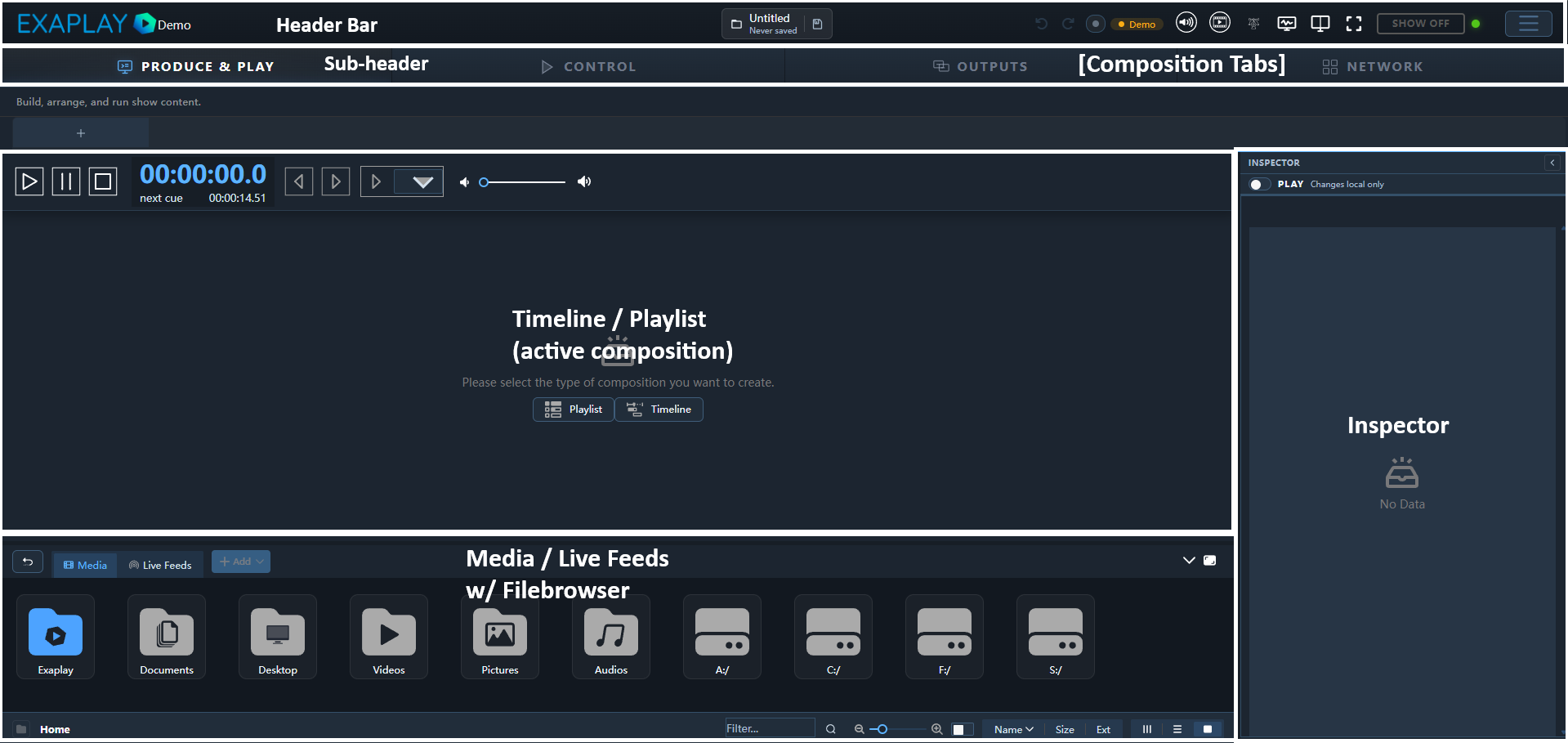
Header Bar

| Element | Description |
|---|---|
| Logo / Brand | Customisable via public/brand/ assets |
| Screen tabs | One tab per configured output screen; click to switch the canvas |
| Transport | Play, Stop, Pause, and timecode display for the active screen |
| Config | Open the system configuration panel |
| Diagnostics | Toggle the Performance Diagnostics overlay |
| Connection status | Green dot = connected to engine; red = disconnected |
Composition Canvas
The central area shows a live preview of the active screen. The canvas scales to fit the available space.
- Click a layer thumbnail to select it and populate the Inspector.
- Double-click a layer to enter in-place editing mode (where available).
- Right-click on the canvas for a context menu with layer options.
Keyboard Shortcuts
| Shortcut | Action |
|---|---|
Space | Play / Pause |
Ctrl+Z | Undo |
Ctrl+Y / Ctrl+Shift+Z | Redo |
Delete | Remove selected clip or cue (opens a confirmation dialog) |
Shift+Delete | Remove one selected clip and close the gap it leaves, so its neighbours end up flush — deliberately skips the confirmation |
Enter | Confirm the pending delete |
F11 | Toggle fullscreen (native browser fullscreen, not an app-level shortcut) |
Timeline-only shortcuts
These are active while the Timeline panel has focus:
| Shortcut | Action |
|---|---|
f | Fit the timeline zoom to show all clips |
+ / - | Zoom in / out |
s | Snapping |
Ctrl+C / Ctrl+V | Copy / paste the selected clip |
Home / End | Jump the playhead to the start / end of the timeline |
Tab / Shift+Tab | Jump the playhead to the next / previous snap point |
Ctrl+M | Toggle compact / normal track view |
Cue hotkeys
Playlist cues can be assigned their own trigger key (F1–F12, optionally with Ctrl/Alt/Shift) — configured per cue, not fixed. See Playlist.
Theming & Branding
Exaplay 3 supports white-label theming. Place custom assets in public/brand/:
| File | Purpose |
|---|---|
logo.png | Replaces the header logo |
splash.png | Splash screen shown on startup |
brand.css | CSS overrides for colours, fonts, etc. |