
Appearance
External Show Control — IN/OUT Commands
This guide explains how to connect Exaplay 3 to an external show control system (ETC Eos lighting console, Medialon, QLab, Crestron, Q-SYS, CueLab, Alcorn McBride, a custom PLC, or any other device that can send network commands). It covers every supported protocol, with tested command examples and a troubleshooting checklist for each direction.
Ready-made examples: Independently versioned starting points for Crestron, Q-SYS (plugin + Lua), AMX, QLab/CueLab, ETC Eos and generic TCP/OSC clients live in the
integrations/directory of the Exaplay source repository — ask VIOSO support for the current package. They are not part of the installer, and each one states whether it was validated in vendor tooling or is illustrative source: only the Q-SYS plugin's Lua carries automated tests, and none of them has been run against a live engine on the vendor's own hardware. Treat them as a head start, not as certified drivers.
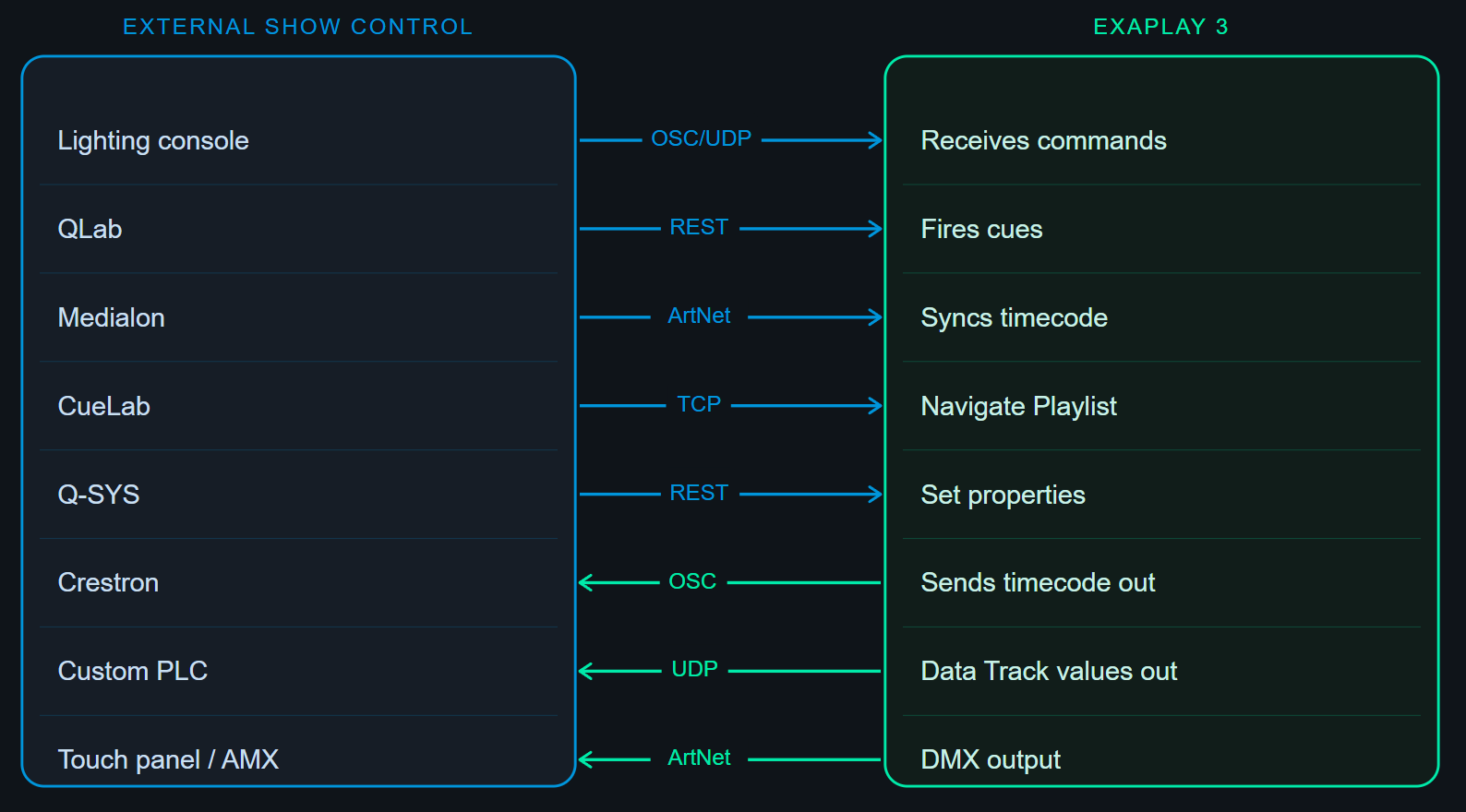
Part 1 — Commands INTO Exaplay (Incoming)
1A — HTTP Control (most flexible)
Any device that can send an HTTP POST request can control Exaplay.
Fire a cue by name:
bash
curl -X POST http://192.168.1.5:8123/cue/trigger \
  -H "Content-Type: application/json" \
-d '{"name": "Scene 1 - Opening"}'Scoping to one composition: without a scope,
/cue/triggerfires the first matching cue across all compositions in project order. If several Timelines share a cue name (e.g. every act has a "Blackout" cue), add"comp": "comp_act2"(orcomp-uid) to disambiguate.
The same "trigger cue X in composition Y" action looks different on each protocol — the cue argument always accepts either the index or the cue name:
| Protocol | "cue 5 in comp_act2" | "cue Blackout in comp_act2" |
|---|---|---|
| TCP / UDP dotted (primary) | comp_act2.cue.go=5 | comp_act2.cue.go=Blackout |
| TCP / UDP classic | set:cue,comp_act2,5 | set:cue,comp_act2,Blackout |
| HTTP | POST /project · {"req":"cue.go","comp-uid":<uid>,"cue":5} | {"req":"cue.go","comp-uid":<uid>,"name":"Blackout"} |
| OSC | /exaplay/comp_act2/cue 5 | /exaplay/comp_act2/cue "Blackout" |
Play a composition by name (shortcut — no UID lookup required):
bash
curl -X POST http://192.168.1.5:8123/composition/play \
  -H "Content-Type: application/json" \
-d '{"name":"Main Show"}'Transport control (play/pause/stop/seek by UID), Playlist navigation, and setting any property value (e.g. layer opacity) all go through POST /project with the matching req. Full endpoint list, request/response bodies, and error responses: HTTP REST API.
Stop all playback:
bash
curl -X POST http://192.168.1.5:8123/stopTip: To find the correct path for any property, open it in the Inspector, click the 🔗 link icon, and read the path in the panel options.
1B — OSC (Open Sound Control)
OSC is supported by virtually every professional show control system.
Exaplay OSC listen port: 8000 (default). OSC receive is always active — there is nothing to enable; the port is changed under Menu → Settings → Communication → OSC Listen.
The address pattern is /<prefix>/<composition>/<command> — the prefix defaults to exaplay and <composition> is either the composition's ID (its variable name, e.g. comp1) or its name (case-insensitive; use _ in place of spaces, e.g. Main_Screen for "Main Screen"). If a reference matches both, the ID wins.
| OSC Address | Arguments | Action |
|---|---|---|
/exaplay/<comp>/play | (none) | Start the named composition |
/exaplay/<comp>/start | (none) | Start the named composition (alias for play) |
/exaplay/<comp>/pause | (none) | Pause the named composition |
/exaplay/<comp>/stop | (none) | Stop the named composition |
/exaplay/<comp>/cuetime | f or i (seconds) | Seek to position (client instances only) |
/exaplay/<comp>/cue | i (index) or s (name) | Fire a cue by index or name in a Timeline or Playlist |
/exaplay/global/start | (none) | Start all compositions (play all) |
/exaplay/global/stop | (none) | Stop all compositions (stop all) |
/exaplay/global/showmode | s (on/off/toggle) or i/f (1/0) | Set global Show Mode |
/exaplay/global/videomute | s (on/off/toggle) or i/f (1/0), optional second f (fade seconds) | Blank every output to black (and back), over the blank fade time |
/exaplay/global/blankfade | f or i (seconds, 0–60) | Set the blank fade time without blanking |
/exaplay/global/identify | s (on/off/toggle) or i/f (1/0) | Label every output window on the wall (Identify) |
/exaplay/global/showguides | s (on/off/toggle) or i/f (1/0) | Outline every screen and field on the wall (Outlines) |
/exaplay/global/restart | (none) or s (project/clean) | Restart exaplay (reload current project, or clean for empty) |
/timecode (configurable) | f, i, or s (HH:MM:SS:FF) | Drive timecode-slaved compositions |
Note: to fire a cue by name without naming a composition (searched across all compositions), use the HTTP endpoint
POST /cue/triggerinstead.
What a complete OSC command looks like — every message is one UDP packet to <engine-ip>:8000 containing the OSC address and (optionally) one argument. With the default prefix exaplay, a composition comp1 named "Main Show" and a Playlist comp2 named "Lobby":
/exaplay/comp1/play                  # start comp1 (no argument)
/exaplay/Main_Show/play              # the same, addressed by name ("Main Show")
/exaplay/comp1/start                 # start comp1 (alias for play)
/exaplay/comp1/pause                 # pause comp1
/exaplay/comp1/stop                  # stop comp1
/exaplay/comp1/cue 5                 # trigger cue index 5 in comp1 (int argument)
/exaplay/comp1/cue "Blackout"        # trigger the cue named Blackout in comp1
/exaplay/Lobby/cue 2                 # play Playlist item 2 (1-based position)
/exaplay/Lobby/cue "Act 1"           # play the Playlist item named "Act 1"
/exaplay/comp1/cuetime 12.5          # seek comp1 to 12.5 s (client instances only)
/exaplay/global/start                # global command: start ALL compositions
/exaplay/global/stop                 # global command: stop ALL compositions
/exaplay/global/showmode "on"        # global command: Show Mode on
/exaplay/global/restart "clean" # global command: restart with empty projectTo control a different composition, only the second address segment changes — e.g. /exaplay/comp2/play starts comp2. The composition's Inspector shows a ready-to-copy address in its Show Control section (the inline ID field holds the number part of the id: ID 11 → comp11); the TCP/UDP command get:complist lists every composition's id and name.
Index semantics for
/cue: on a Timeline the argument is the cue's variable index; on a Playlist it is the 1-based list position — both identical to TCP/UDPset:cueand HTTPcue.go. A string argument is matched against the cue/item name within that composition. (Backward compatibility: Playlist/cuehistorically matched the item's internal variable index; when a numeric argument doesn't resolve to a position, the engine falls back to that legacy match, so old integrations keep working.)
Example — ETC Eos console firing cue 3 in comp1:
In the Eos Macro editor, add a Network command:
/exaplay/comp1/cue 3
UDP to 192.168.1.5:8000Example — Qlab sending OSC:
- In Qlab, add a Network cue.
- Set Type to OSC message.
- Set destination to
192.168.1.5:8000. - Set message:
/exaplay/comp1/play(or by name:/exaplay/Main_Show/play).
Example — Show Mode ON/OFF via OSC:
/exaplay/global/showmode "on"
/exaplay/global/showmode "off"
/exaplay/global/showmode "toggle"Example — Blank (fade to black) via OSC:
/exaplay/global/videomute "on"        # fade every output to black
/exaplay/global/videomute "off"       # fade back up
/exaplay/global/videomute "on" 3.0    # …over 3 seconds, just this once
/exaplay/global/blankfade 3.0 # set the fade time for later blanksBlank dims the picture while the output windows stay where they are, over the seconds in the field next to the blank button in the header (0 = a hard cut). Show Mode is the other switch: it puts the output windows up or takes them down, with no fade. On a multi-client rig the master mirrors both the blank and its fade time to every client, so the whole wall fades as one.
Example — Identify via OSC:
/exaplay/global/identify "on"
/exaplay/global/identify "off"
/exaplay/global/identify "toggle"Identify draws a labelled frame on every output window — the output's name, the machine rendering it, the resolution, and the pinned calibration channel if it has one — so you can see which physical projector or screen is which. It is the same button as Identify in the Stage tab.
On a multiclient rig it is a property of the whole rig: send it to the master and every paired client labels its own outputs too. Sending it to a client directly labels only that machine. Identify draws over live content, so turn it off before going on air.
Example — Outlines via OSC:
/exaplay/global/showguides "on"
/exaplay/global/showguides "off"
/exaplay/global/showguides "toggle"Outlines is Identify one level up: every screen draws its own box on the wall with its name, and every field on that screen draws its box and name inside it — Identify says which projector you are looking at, Outlines says which rectangle of the picture. It is the same button as Outlines in the Stage tab, and it follows the same rig rule: sent to the master, every paired client outlines the screens it renders. It draws over live content too, so turn it off before going on air.
Example — Restart exaplay via OSC:
/exaplay/global/restart              # restart and reload the current project
/exaplay/global/restart "project"    # same as above (explicit)
/exaplay/global/restart "clean" # restart with no project loaded1C — Art-Net / sACN DMX input (console → Exaplay)
A lighting desk can drive Exaplay directly over Art-Net or sACN (E1.31) DMX: patch Exaplay as a 12-channel fixture and the desk's buttons and faders play, stop, cue and seek the show.
- Open Menu → Settings → Communication, switch Art-Net Input (UDP
6454) and/or sACN (E1.31) Input (UDP5568, multicast joined per mapped universe) on. - Press Patch Exaplay Control fixture…, pick the protocol, universe, start address and composition.
- Patch the same 12-channel fixture on the console at that address — channels 1–8 are Play, Pause, Stop, Next, Previous, Cue Go, Cue Selection and Show Mode, 9/10 a 16-bit Seek, 11/12 a 16-bit numeric property.
Individual rows can be added and learned from the console as well. See Art-Net DMX input for every mode and action.
ArtNet timecode (OpTimeCode) is a different thing: to chase a running timecode set Settings → Timecode → Timecode Mode to Art-Net Timecode (slave) — or use OSC, LTC, or MTC (see Timecode Sync).
1D — LTC (Linear Timecode via Audio)
- Connect the LTC output from your console to an audio input on the Exaplay ASIO interface.
- Open Menu → Settings → Audio → Timecode Input.
- Select the channel, set the frame rate to match the console.
- The Transport bar shows TC: Locked when the signal is detected.
1E — TCP Text Protocol
Exaplay accepts persistent TCP connections carrying simple comma-delimited or dotted-path commands. This is ideal for Medialon, Alcorn McBride, Crestron/AMX, and any custom PLC that works natively with raw TCP sockets.
Default port: 8100 (configure in Menu → Settings → Communication → TCP Listen)
→ get:complist
← comp1,Main Show
← END

→ play,comp1
← OK

→ play,Main Show
← OK                        # the composition's name works in place of the id

→ set:cue,comp1,5
← OKEvery command is a single ASCII line terminated by \r or \r\n, answered with one response line (OK, a value, or ERR,<reason>). Full command reference — dotted vs. comma syntax, transport, cue triggering, Playlist navigation, volume/alpha/loop, status queries, global commands, and error codes: TCP Command API.
If UDP control listen is enabled (default port 8200), the same text commands work as fire-and-forget UDP datagrams. See the UDP Command API for details.
Part 2 — Commands OUT of Exaplay (Outgoing)
2A — OSC Output
Exaplay can transmit its current playback position and custom events to any OSC listener.
Configure OSC output:
- Open Menu → Settings → Communication and add the destination to OSC Clients (one
host:portper line, e.g.192.168.1.20:9000). - Choose the Timecode OSC Address pattern (Timecode settings).
Exaplay sends /timecode/hh/mm/ss/ff to the configured destination on every frame during playback.
Custom OSC via Data Tracks:
Any Data Track can output to an OSC address. This lets you send a value (float) to any OSC address at any moment in the timeline:
Data Track "LightingMaster"
  Output Type: OSC
  OSC Address: /eos/fader/1/value
  Destination: 192.168.1.20:8000

Keyframes: fade from 0 to 1.0 over 5 seconds2B — ArtNet DMX Output
Exaplay can drive lighting fixtures, dimmers, and LED controllers directly over Art-Net, independent of any lighting console. This is useful for installations where Exaplay is the only show control system.
See ArtNet & DMX Output for the full guide.
2C — UDP Output
Any Data Track can output raw UDP datagrams to any device that accepts them:
Data Track "MotionRig"
  Output Type: UDP
Destination: 192.168.1.30:9500The current interpolated value is sent as a 4-byte big-endian float on every frame.
2D — Drive Exaplay's own values from a Data Track
The same curve can target Exaplay itself — the properties the Inspector edits and the dotted set: command addresses — so a timeline moves a clip, rides a volume or sweeps a generative source's parameter without any external controller:
Data Track "PanAcross"
  Output Type: Exaplay value
  Target: comp1.media3.mapping.x
  Out Min / Out Max: 0 / 1920

  Keyframes: ramp from 0 to 1 over 5 seconds
  → the clip travels from the left edge to the right edge of a Full HD screen

Data Track "DuckMusic"
  Output Type: Exaplay value
  Target: comp1.audio.volume
  Out Min / Out Max: 0 / 100

Keyframes: 1 → 0.2 over 1 second while the announcement plays, back to 1 afterThe Target field completes the dotted path as you type it, and the ⚡ wizard picks it from the project tree: click the clip, and the values an operator drives are listed by name — opacity, volume, position, size, rotation, visibility, and the generative parameters that clip runs. Out Min / Out Max are filled in with the value's own range, so a volume is 0–100 without you typing it and Position X on a 1664×832 wall is 0–1664 rather than 0–1. Anything else the object carries is typed instead of picked. Scaling can also be a plain Factor (value × factor + offset) or As drawn. An on/off property (a clip's show) switches at the middle of the curve's range. When the composition stops, the property is back at the value it had before the curve touched it (Restore on stop). See Data Tracks — Driving Exaplay's own values.
2E — Named routes: $Variables instead of an IP in every cue
A cue's OSC/TCP/UDP/ArtNet line and a Data Track's Address field all take a $Name in place of the address. The name is resolved when the command is sent, so re-addressing a lighting desk is one edit, not one edit per cue.
Define the routes. Three places, searched from the inside out — the first one that defines a name wins:
| Where | Scope | Travels with |
|---|---|---|
| Composition Inspector → Variables | that composition | the show |
| Menu → Settings → Project → Variables | the whole show | the show |
| Menu → Settings → System → Global Variables | this machine | the machine |
One definition per line, # or // start a comment:
Console   = 10.10.10.10:8000
MediaRack = 192.168.1.30:9500The spacing you type around the = is not part of the value; a trailing space is (a variable standing for a device command may end in one).
Use them. Anywhere a cue script takes an address, and in a Data Track's Address field:
OSC> $Console, /cue/5/go, i:1
TCP> $MediaRack, PLAY 3\rA variable can also stand for part of a longer string — write ${Name} when it is not the whole field:
OSC> $Console, /cue/${ActNumber}/goCarrying the show to another venue: ?=. A plain = in the project wins over the machine's Global Variables, which is what you want while the routes belong to the show. Write ?= instead and the definition becomes a default: the show still runs on its own, and any machine that defines the same name in Global Variables overrides it — no edit to the show file.
# in the project's Variables
Console ?= 10.10.10.10:8000     # our own desk

# in the venue's Global Variables — this machine wins
Console = 172.16.4.9:8000A route that resolves to nothing is never half-sent. The engine refuses the send, writes the missing name to the log, and shows it in the Monitor as an ERROR row (a Data Track says the same in its Status field). Before a show, Menu → Check Project lists every $Name a cue or Data Track uses that this machine does not define — which is exactly the state a show authored elsewhere arrives in.
In a TCP/UDP message body, a leading
$is your device's text, not a variable. Protocols that open with one (NMEA sentences, some desks) are sent exactly as before and are never refused; only the explicit${Name}form is read as a reference there. Addresses have no such ambiguity and are always checked.
Address only, so far. Variables are substituted in cue script lines and in a Data Track's address — not in the OSC Clients list, which is the broadcast/timecode fan-out and takes literal
host:portlines.
2F — Set a value from a cue, without knowing the syntax
A cue script can set any property Exaplay has — the same set: line the TCP API uses:
comp1.set:audio.volume=80              a composition's volume
comp1.track1.media1.set:image.alpha=50 a clip at half opacity
comp1.media3.set:mapping.x=50% a clip at the middle of its fieldYou do not have to type it. In the cue's Exaplay Script field press ⚡ Wizard → Browse, click the composition or the clip in the tree, and pick Set a value…:
- Value lists what an operator drives, by name and with its current value: Opacity, Volume, Position X / Y, Size W / H, Rotation, Visible — plus every parameter of the generative source that clip runs. The list describes the object you clicked, so a composition offers its own opacity and volume and no position.
- Set to takes the value, with the range under the field:
0–100 %for an opacity,0–1664 pxfor a position on a 1664×832 wall (read from the clip's own field or screen — not a guess). Position and size can be given in px or %; the percent is measured against the same surface. - Other value takes anything else this object carries — a colour correction, a crop corner, an EQ band — as its own
set:path.
The preview shows the finished line, and Apply puts it in the cue. The same line also works verbatim over the external TCP or UDP port, so a cue you built here can be copied into a lighting desk or a show controller.
Part 3 — Verifying Communication with the Monitor
The Monitor tab is the single most important tool for diagnosing show control integration issues.
How to Use the Monitor Tab
- Open the Control View (
/control). - Click the 📡 Monitor tab.
- Trigger a command from the external system.
- Check the Event Log for an entry.
What Good Looks Like
| Protocol | Event Log entry |
|---|---|
| HTTP trigger | POST /cue/trigger — 200 OK from 192.168.1.20 |
| OSC received | OSC /exaplay/comp_main/play from 192.168.1.20:8000 |
| ArtNet DMX sent | ArtNet OpDmx → Universe 0 → 192.168.1.50 |
| OSC sent (outgoing) | OSC /eos/fader/1/value 0.75 → 192.168.1.20:8000 |
If an expected entry is missing, the packet never reached Exaplay — see Part 4.
Part 4 — Troubleshooting
No incoming commands received
| Check | What to do |
|---|---|
| IP address | Open Monitor tab → Host Information card → confirm the correct IP address |
| Port | Confirm the sending device is targeting the correct port (REST: 8123, OSC: 8000, TCP: 8100) |
| Firewall | Allow inbound UDP 8000 and TCP 8123, 8100 in Windows Defender Firewall |
| Subnet | Both devices must be on the same subnet (e.g. 192.168.1.x / 255.255.255.0) |
| OSC address | OSC addresses are case-sensitive — /exaplay/comp_main/play ≠ /Exaplay/comp_main/play |
Windows Firewall — allow Exaplay ports:
batch
netsh advfirewall firewall add rule name="Exaplay HTTP" dir=in action=allow protocol=TCP localport=8123
netsh advfirewall firewall add rule name="Exaplay TCP Control" dir=in action=allow protocol=TCP localport=8100
netsh advfirewall firewall add rule name="Exaplay OSC" dir=in action=allow protocol=UDP localport=8000
netsh advfirewall firewall add rule name="Exaplay UDP Control" dir=in action=allow protocol=UDP localport=8200ArtNet timecode not locking
Timecode Mode must be Art-Net Timecode (slave) (Settings → Timecode, then Apply & Restart Timecode) — in any other mode incoming Art-Net TC is shown as status only. Check the console sends OpTimeCode to this machine (broadcast or unicast) on the Art-Net port (UDP 6454, Windows Firewall inbound), that the composition is in a timecode slave mode, and Monitor for artnet:timecode events. Art-Net DMX input (a console pressing Play) is a separate switch — see 1C above.
ArtNet DMX input does nothing
Settings → Communication shows the listener's own status line: no DMX yet means no packet reached the port (subnet, broadcast/unicast target, firewall on UDP 6454, zero-based universe); port could not be opened means another Art-Net node owns the port on this machine; this machine is a CLIENT means the console is patched to a client — patch the master. A row whose Live value moves but whose action never runs has no target composition.
OSC going out but console not receiving
| Check | What to do |
|---|---|
| Destination IP | Confirm the console's IP in Menu → Settings → Communication → OSC Clients |
| Destination port | Confirm the console's OSC receive port matches the configured destination port |
| Console OSC enabled | Many consoles require OSC receive to be explicitly enabled |
| Firewall on the console machine | Ensure the console's firewall allows incoming UDP on the OSC port |
| Monitor Event Log | Outgoing OSC messages should appear in the log — confirm they are being sent |
HTTP control returns 404 or connection refused
| Check | What to do |
|---|---|
| Engine running | The engine (not just the UI) must be running — check the tray icon |
| Port | HTTP control uses port 8123 — ensure no other app is using this port |
| Endpoint path | Check the exact endpoint path (case-sensitive); verify the property path in the Inspector if needed |
| JSON format | Request body must be valid JSON; Content-Type: application/json header is required |
Part 5 — Quick Reference
Incoming commands summary
| Protocol | Port | Enable in |
|---|---|---|
| REST HTTP | 8123 (TCP) | Always on |
| OSC | 8000 (UDP) | Always on — port set in Settings → Communication → OSC Listen |
| LTC | Audio input channel | Settings → Timecode (mode LTC (slave)) |
| TCP Text Protocol | 8100 (TCP) | Settings → Communication → TCP Listen |
| WebSocket events | 8123 (WS) | Always on (same port as HTTP) |
Outgoing commands summary
| Protocol | Port | Enable in |
|---|---|---|
| OSC output | Configurable UDP | Settings → Communication → OSC Clients |
| ArtNet DMX out | 6454 (UDP) | Data Track → Output Type: ArtNet |
| ArtNet DMX in | 6454 (UDP) | Settings → Communication → Art-Net Input |
| sACN DMX in | 5568 (UDP) | Settings → Communication → sACN (E1.31) Input |
| ArtNet timecode in | 6454 (UDP) | Settings → Timecode → Art-Net Timecode (slave) |
| UDP raw | Configurable | Data Track → Output Type: UDP |
Part 6 — Integration Examples by System
ETC Eos / Ion
- Exaplay listens for OSC on port
8000by default — nothing to enable. - In Eos, create a Macro with a Network cue: OSC
/exaplay/comp1/cue 1→ target192.168.1.5:8000. To trigger a cue by name (any composition), use a Network cue of type String sending an HTTPPOSTtohttp://192.168.1.5:8123/cue/triggerwith body{"name":"My Cue"}instead. - For bidirectional: configure Eos OSC Tx to send timecode, and Exaplay OSC Rx to receive it.
Qlab (Mac)
- Add a Network cue in Qlab.
- Select OSC or HTTP based on preference.
- For OSC: target
192.168.1.5:8000, address/exaplay/comp1/play(or/exaplay/comp1/cuewith an integer argument to fire a specific cue). - For HTTP (fires a cue by name across all compositions): target
http://192.168.1.5:8123/cue/trigger, method POST, body{"name":"My Cue"}.
Medialon / Alcorn McBride, Crestron / AMX, Q-SYS (QSC), CueLab
All four connect over the same TCP Text Protocol (some also support REST HTTP or OSC as an alternative) described in 1E above — a persistent socket to port 8100 sending ASCII commands like play,comp1\r (or by name: play,Main Show\r). Ready-to-use client code (SIMPL+/SIMPL# for Crestron/AMX, Lua for Q-SYS, TCP Device config for Medialon/Alcorn, OSC/REST setup for CueLab) and the full command table live in one place: TCP Command API → Connecting from Common Show Control Systems.
CueLab can additionally receive Exaplay's timecode back over OSC, for bidirectional sync:
- In Exaplay, open Menu → Settings → Communication → OSC Clients.
- Set destination to
<CueLab machine IP>:<CueLab OSC Rx port>(check CueLab Settings → Network → OSC Input). - With Timecode Mode = Master (send TC), Exaplay sends an OSC bundle to
/timecode(the address is configurable) on every tick, carrying three arguments:float32seconds,int32framerate, and theHH:MM:SS:FFstring — CueLab can use this to auto-follow Exaplay's timeline. See Timecode Sync.
Summary Checklist
- [ ] Engine IP address confirmed (Monitor tab → Host Information)
- [ ] Firewall rules added for ports 8123 (TCP), 8100 (TCP) and 8000 (UDP)
- [ ] OSC listen port confirmed (default
8000, always on) - [ ] OSC Clients configured with the correct destination IP/port (if sending telemetry out)
- [ ] LTC audio channel and frame rate configured (if using LTC)
- [ ] HTTP control tested from the external system
- [ ] Monitor → Event Log shows incoming commands from the external system
- [ ] Monitor → Event Log shows outgoing commands to the external system
- [ ] Full show run-through with all external triggers verified