
Appearance
Experience Designer (VIOSO) Integration
Exaplay 3 and VIOSO Experience Designer work together in two ways, and both need no extra software on the Exaplay side:
- The venue in 3D — the Stage's Space (3D) tab remembers which Designer scene belongs to this show and opens it (in development; behind Debug Mode). See The Space (3D) tab.
- The live picture on the 3D surfaces — Exaplay streams any screen as an MJPEG texture the Designer maps onto a 3D object.
Exaplay draws no 3D of its own: the Designer is the 3D view, and it keeps the room, the projectors and the calibration. Exaplay stores only which scene belongs to which show.
How It Works
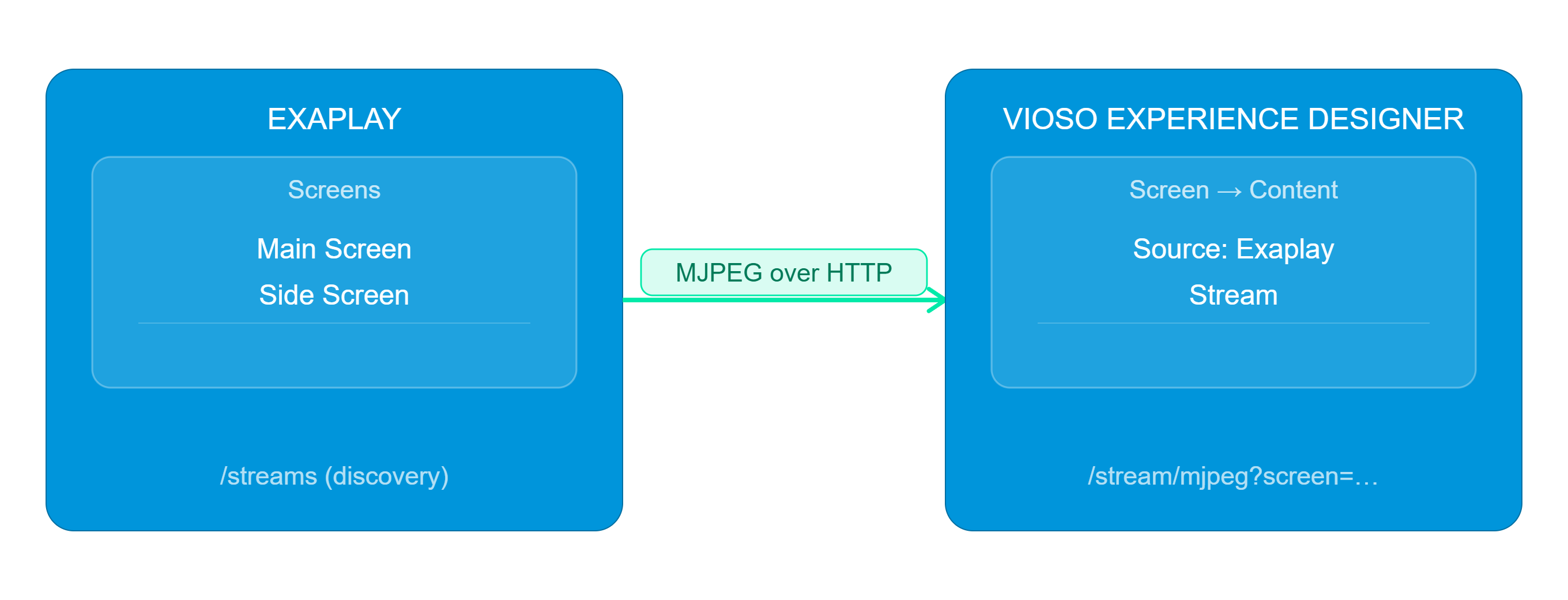
Exaplay exposes:
- A discovery endpoint (
GET /streams) that lists every screen in the current project with its varname, dimensions, and stream URL. - One MJPEG endpoint per screen (
GET /stream/mjpeg?screen=<varname>) that the Experience Designer pulls as a live texture.
The Space (3D) tab — the venue in 3D, inside Exaplay
Stage → Space (3D) is where a show says which 3D scene belongs to it. Exaplay draws no 3D itself: the Experience Designer already owns the room, the projector library, the frustums and the photometric analysis, so the show only remembers which scene is its own and opens the Designer on it.
In development — switch on Debug Mode to see the tab
The tab is hidden unless Settings → Interface → Debug Mode is on, next to the other in-development Stage features. Two things are not settled yet: the live picture on the 3D surfaces needs a Designer plan that includes Exaplay 3, and the stream only reaches the Designer when the browser runs on the engine machine (see below).
Linking a scene to a show
- Turn on Debug Mode in Settings → Interface.
- Open Stage and pick the Space (3D) tab.
- The first time, the tab says No 3D scene yet. Press Open the Experience Designer — it opens in its own browser window, where you sign in to VIOSO as usual.
- Open (or create) the scene for this venue there. Exaplay picks up whichever scene you open and remembers it with the show — the tab then names it, and the button opens straight onto it.
The link is stored in the project file, so it travels with the show. Unlink removes the link only — the scene itself is untouched.
The Designer opens in a window, not inside the tab
Signing in to VIOSO cannot happen inside an embedded frame: the browser keeps a separate, empty login for a page embedded in another site, so the Designer would bounce to the VIOSO login and that login refuses to be shown inside another page ("auth.viosoplatform.com refused to connect"). A normal window signs in normally. That is why the window is the way in, and why the scene has to be picked there rather than from a list inside Exaplay.
If you already have the project's link or id from somewhere else — a self-hosted Designer, a colleague — the fold Or enter a project link or id takes either. A link from a self-hosted Designer also points this show at that Designer.
Showing the live picture on the 3D surfaces
Inside the Designer, select a screen, open its Content settings and switch the content type to Exaplay Stream (see the workflow below). That binding is stored in the Designer's own project, so each surface keeps its live picture on every later visit — there is nothing to set up again in Exaplay.
The picture needs the engine to be reachable from the Designer
Browsers block a secure page from loading an insecure stream, with one exception: http://localhost. So the live picture works when the browser runs on the engine machine. Streaming from a different machine on the network is not supported yet.
Showing the scene inside the tab (self-hosted Designers)
Under Advanced the tab offers Try embedding here. It is off by default because the hosted Designer cannot be embedded for the sign-in reason above; a self-hosted or development Designer that signs in differently can be, and then the scene is drawn in the Stage itself. If the attempt is refused, the tab says so after a few seconds and offers the window instead — it never leaves a blank rectangle without an explanation.
Opening the Integration Panel
The stream table below is a separate page — open it by browsing directly to:
http://<engine-host>:8123/experience-designerNot the same as the burger-menu "Experience Designer" item
The Experience Designer entry in the burger menu is a shortcut that opens designer.vioso.com directly in a popup — it skips this streams-table page entirely. Use the URL above to reach the panel described below.
Workflow
- In Exaplay, open the integration panel as above. Note the Available preview streams table — every screen in the project gets one MJPEG URL.
- Click Open designer.vioso.com. The Experience Designer launches in a new browser tab.
- In the Experience Designer:
- Select a Screen object.
- Open its Content settings.
- Change the content type from None / Image File to Exaplay Stream.
- The Experience Designer auto-discovers all available streams from the Exaplay instance and lets you pick which screen drives which 3D object.
The mapping is live — anything that plays back on the chosen Exaplay screen (Timeline, Playlist, scheduler) shows up immediately on the 3D object's surface.
Stream Table Reference
The Available preview streams card lists, for each screen in the current project:
| Column | Meaning |
|---|---|
| Name | Human-readable screen name from the project. |
| Varname | Internal variable name used in the URL. Always lowercase, no spaces. |
| Size | Render resolution of the screen in pixels. |
| MJPEG URL | Read-only field with the full HTTP URL. The Copy button puts it on the clipboard so you can paste it into the Experience Designer manually if auto-discovery is unavailable. |
Click the ↻ Refresh button at the top of the card to re-query the engine after adding or removing screens in the project.
The Discovery endpoint shown at the bottom of the card is the URL the Experience Designer uses internally to enumerate streams (http://<engine-host>/streams). It can also be called from custom integrations.
URL Format
Both endpoints are plain HTTP and require no authentication on the local network:
GET http://<engine-host>:8123/streams
GET http://<engine-host>:8123/stream/mjpeg?screen=<varname>The MJPEG stream is a standard multipart/x-mixed-replace boundary stream that any modern browser, Experience Designer build, or third-party MJPEG client can consume.
Tips
- Frame rate of the MJPEG stream tracks the rendering frame rate of the source screen — there is no separate "preview fps" knob for this integration.
- This is a separate endpoint from Output Preview, which polls single JPEG snapshots (
/cmd?req=screen_preview) rather than pulling a live MJPEG stream. Several consumers can pull the same screen's MJPEG stream concurrently. - If the Experience Designer cannot reach the Exaplay machine, check that both are on the same subnet and that the engine's HTTP port (default
8123) is not blocked by Windows Firewall. - To use the integration over the internet, expose the engine's port through a VPN or reverse proxy — direct exposure of
8123to the public internet is not recommended.
Related Pages
- Output Setup — configure the screens that show up in the streams list
- Projection Mapping — VIOSO warp/blend workflow for direct output
- Network Settings — engine port and listen-address configuration