
Appearance
Tab Navigation & Views
Exaplay 3 has two levels of tab navigation: the main view tabs in the header bar and the sub-header tabs inside the Main Editor view.
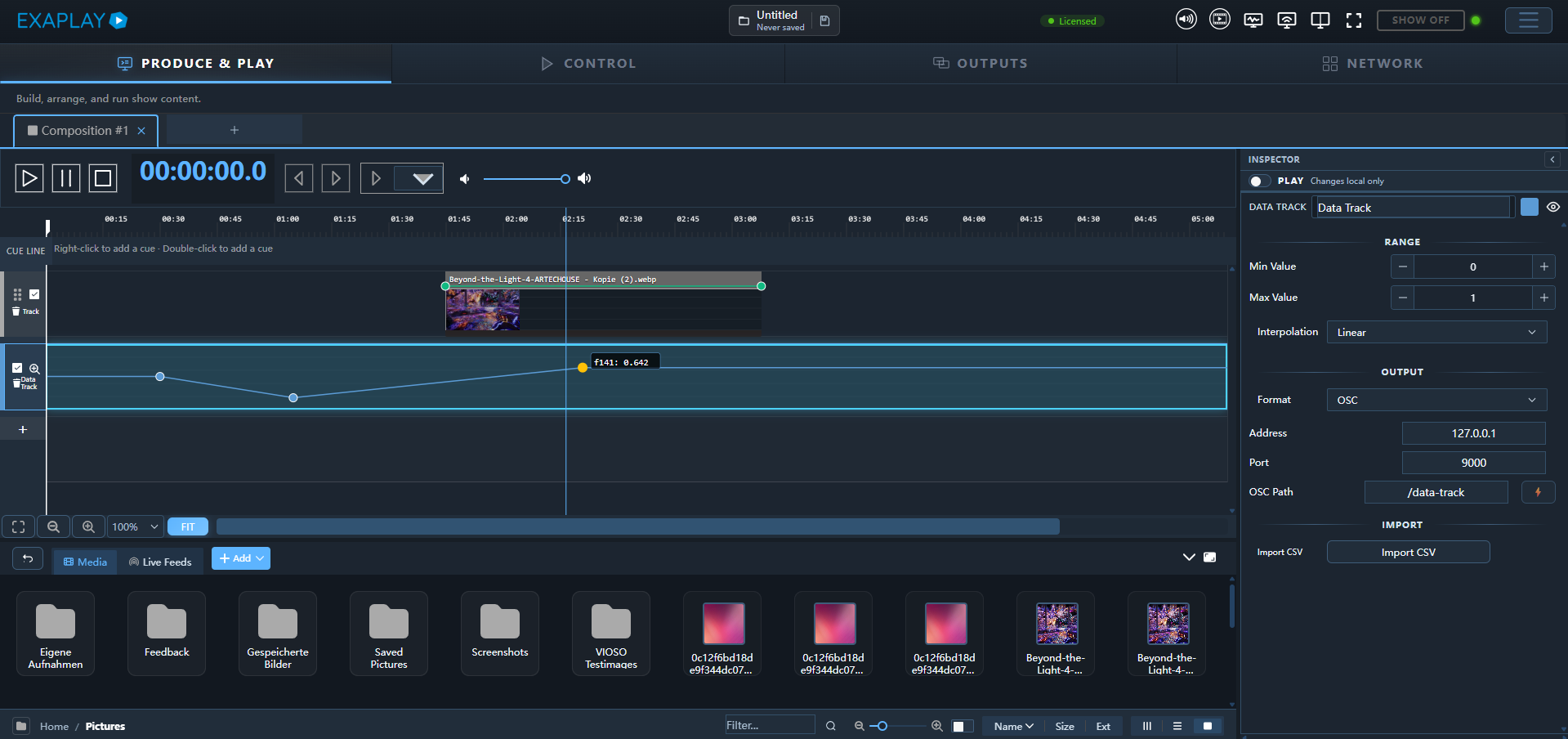
Main View Tabs (Header)
The header bar contains the tabs that switch the entire page:
| Tab | Path | Purpose | Visibility |
|---|---|---|---|
| PRODUCE & PLAY | / | Full composition editor — programming and design | Always |
| CONTROL | /control | Operator control view — show running | Hidden in Control Buddy mode |
| STAGE | /outputs | Screens, the fields on them, and the outputs they are mapped to | Hidden in Easy Mode |
| NETWORK | /systems | Networked Exaplay instances — discovery, sync, and multi-client management | Hidden in Client Mode and in Easy Mode |
The tab is labelled STAGE; its route is still /outputs, which is why bookmarks and the URL bar say outputs.
Geometric warping is edited per screen field inside the STAGE view. Edge blending is not edited in Exaplay at all — it arrives with the VIOSO calibration file. See Projection Mapping & Warp/Blend.
The active tab is highlighted with the primary accent colour and a glowing underline.
Visibility Rules
Not every machine shows the same top-level tabs:
- Client Mode hides the NETWORK tab, and the machine becomes read-only for show editing
- Control Buddy Mode hides the embedded CONTROL tab from the main editor shell
- Easy Mode hides both STAGE and NETWORK, leaving PRODUCE & PLAY and CONTROL. It also trims advanced controls inside the views that remain (clip buffers, media info, custom controls, TCP devices) and relabels some tabs. It has no switch in the Settings window:
ui.easy-modeis set in the machine'sconfig_system.json, normally as part of a turnkey install
Sub-Header Tabs (Inside PRODUCE & PLAY)
When you are in the PRODUCE & PLAY view, the sub-header below the header shows the composition tabs. Each composition is either a Timeline or a Playlist:
| Composition type | What it shows |
|---|---|
| Timeline | Clip arrangement across tracks and time |
| Playlist | List of discrete show cues |
Click any composition tab to switch to that composition's editor. The Media & Live panel sits at the bottom of the editor, below the active Timeline or Playlist.
Control View Tabs
Inside the Operator Control view (/control) a horizontal tab bar provides access to:
| Tab | Purpose | |
|---|---|---|
| Compositions | Composition and Playlist playback controls | Playback in Easy Mode |
| Custom Controls | Parameters pinned from the scene tree | Hidden in Easy Mode |
| TCP Devices | PJLink projectors and generic TCP device control | Hidden in Easy Mode |
| Scheduler | Time-based automatic scheduling | Schedule in Easy Mode |
| User Panels | Build and manage end-user panels | Custom Panels in Easy Mode |
| System | Remote shutdown / restart of the Exaplay PC |
Stage View
The STAGE view is one surface — a canvas, a panel under it and an inspector, the same shape as the Produce tab with its media pane under the timeline. It was previously split into two sub-sections ("Screens & Fields" and "Outputs"), each drawing labelled rectangles that meant different things; they are now merged, so a rectangle always means the same thing.
| Part | Purpose |
|---|---|
| Canvas | One zoomable workspace whose picture follows the panel's tab. On Mapping to outputs it shows every output on every machine as a box, with a coloured outline per screen around the outputs it owns — assign and lay out outputs there. On Screens & Fields it shows every screen as its own canvas, with the screen's fields inside — moved, resized, rotated and warped right there — and no outputs at all; the screen's badge (its name tab) or the canvas beside its fields edits the screen on a click and moves it on a drag — freely, a screen without outputs too; the recenter icon fits everything back into view — and the + on a screen assigns outputs to it. The wheel zooms about the cursor, Alt + drag (or the middle button) pans, the % button fits everything, and the ? button opens a short legend. A screen with no output yet is parked on a shelf below the others so its fields still have a home. Tools that need a room of their own (the content mask) open in a modal |
| Panel | Two tabs under the canvas, in the order a show is built: Screens & Fields — the screens listed one under the other, each with its fields under it, both reorderable by drag; + Screen and + Field (naming the screen it goes to) in the bar (the tab the panel opens on); Mapping to outputs — last, a plain list of this machine's outputs and of every remote machine's, with + Output / + NDI in the bar, where outputs are mapped onto the screens. The tab is what the canvas shows; on Screens & Fields the fields take the mouse and the screen is picked (or moved) by its badge or the canvas beside them. Resizable, collapsible |
| Inspector | The editor for whatever is selected — a screen, a field, or an output |
Selecting something decides what the inspector shows, and only one thing is ever selected: picking an output releases a selected screen, and vice versa. Selecting never switches the panel's tab.
Network View
The NETWORK view shows all Exaplay instances discovered on the local network. See Multi-Client Setup for a full guide.
Key features:
- Systems list — auto-discovered remote Exaplay instances with UP/DOWN status
- Copy Files — copy the sync folder contents and the current project to all online clients (streamed, resumable transfers)
- Per-remote status — see the outcome of the last Copy Files run (syncing, ok, error) for each machine
User View Tabs
The User View (/user) shows a dynamic tab strip — one tab per User Panel configured by the operator. Tabs are colour-coded with the panel's accent colour.
If no panels have been configured, the User View shows a prompt to visit the Control Panel to create panels.
Direct panel links can also open a single panel immediately using its readable URL, for example:
http://<engine-ip>:8123/main-stage-controls_panel.htm