
Appearance
Audio Settings
Configure the audio output in Menu → Settings → Audio. Changes on this tab are applied when you press Save settings in the Settings window — no restart is needed.
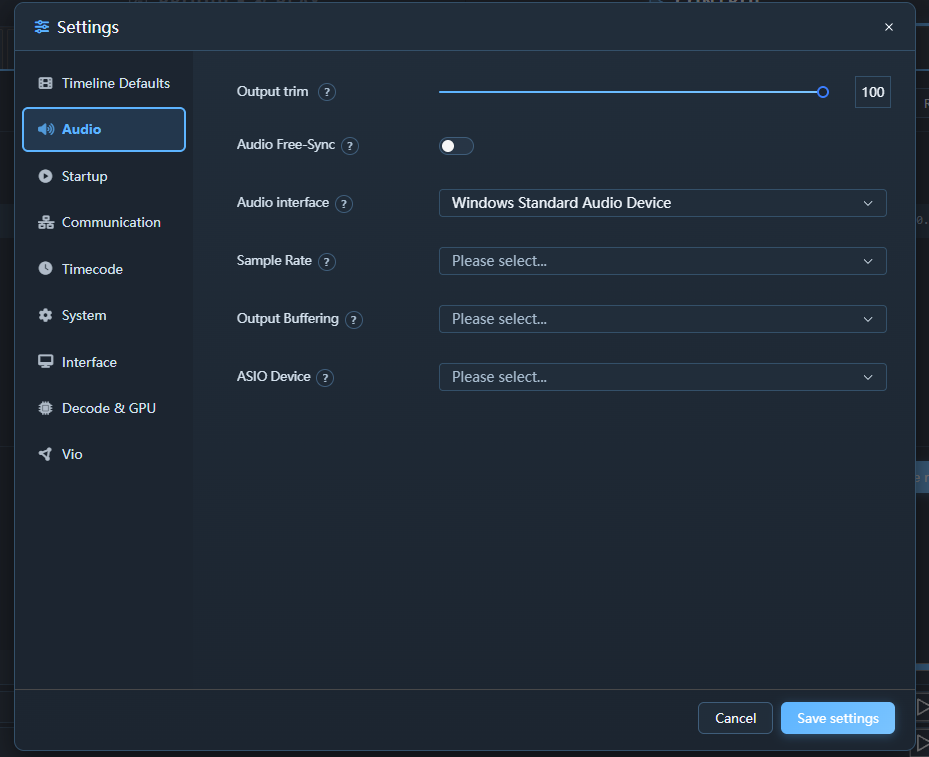
Output trim
| Setting | Description | Default |
|---|---|---|
| Output trim | A permanent correction of everything Exaplay plays on this machine, 0–100 %, kept across restarts | 100 % |
The level you ride during a show is the Master volume in ☰ → Audio Mixer; the trim multiplies with it and with every other level in the chain (composition, track and clip volume). The fader in the Transport bar is a different control — the Composition volume (hover it for its tooltip), it sets the volume of the active composition (see Audio → Volume levels).
Audio Interface
| Option | Description |
|---|---|
| Windows Standard Audio Device | The Windows default playback device, opened through PortAudio (WASAPI where available). Works with any sound card. This is the default. |
| ASIO | Low-latency professional audio interfaces. Pick the driver under ASIO Device. |
Recommendation: use ASIO for multi-channel interfaces and whenever low latency matters.
Windows Standard Audio Device
Exaplay plays to whichever device is set as the default playback device in Windows — there is no device list on this tab; choose the device in the Windows sound settings.
Extra settings appear only for this interface:
| Setting | Options | Default |
|---|---|---|
| Sample Rate | Auto from device, 44.1 kHz, 48 kHz, 96 kHz | Auto from device |
| Output Buffering (Debug mode only) | Device default, 10, 20, 30, 50 or 100 ms | Device default |
Use Sample Rate to match your media when Windows reports a different default (for example force 48 kHz for 48 kHz media). Leave Output Buffering on Device default unless the diagnostics show late audio callbacks together with actual underruns — more buffering adds delay between pressing Play and hearing audio.
ASIO
Select the driver in the ASIO Device drop-down. A new choice takes effect as soon as you press Save settings — the engine closes the previous driver and opens the new one while it runs, no restart needed (a driver that cannot be opened yet is retried on its own). The sample rate and buffer size are set in the ASIO driver's own control panel (the vendor's software), not in Exaplay; Exaplay follows the rate the driver runs at.
With ASIO selected, the Inspector shows a First Ch selector for clips, tracks and compositions (see Audio → Output channel routing), and Menu → Audio Mixer shows one fader and level meter per ASIO output channel.
ASIO driver loading (3.2): the ASIO loader is fault-tolerant — a single faulty or misbehaving ASIO driver no longer hides all of the other available audio devices, so the rest of your interfaces still appear in the device list. A driver whose name is not valid text is named under Not selectable here instead of appearing in the drop-down.
For a Dante network, select Dante Virtual Soundcard (set to ASIO mode) or your Dante card's ASIO driver here — see Dante Audio.
If a clip's sample rate does not match the output rate, a warning naming the file is shown at the bottom of this tab.
Audio Free-Sync
Audio Free-Sync lets audio run free on the soundcard clock instead of being continuously re-synced to the engine/transport playhead. Each play still starts aligned; after that there is no periodic cue-snap, which removes the small resync click you can otherwise hear — this works best for shorter clips.
| Setting | Description | Default |
|---|---|---|
| Audio Free-Sync | Run audio on the soundcard clock — no resync click | Off |
Leave it off for long-form content where the audio must stay locked to the timeline; turn it on for short cues where a click-free start matters more than perfect long-term lock.
New in 3.2.
Timecode Input (LTC)
LTC is not set up on this tab. Set Menu → Settings → Timecode → Timecode Mode to Receive LTC, Linear Timecode; the input device (Windows audio) or input channel (ASIO), the sample rate and the frame rate are chosen there. See Timecode Sync → Receive: LTC.