
Appearance
Sentinel — Remote Alerting
Sentinel pushes an alert to the people who run an installation the moment the engine stops or falls into a crash loop. It is designed for permanent installations, digital signage, and unattended attractions that run for months or years without an operator present.
Where Auto-Heal & Watchdog recovers the system locally, Sentinel notifies you remotely. The two are complementary: Auto-Heal fixes what it can on the box, and Sentinel tells you about anything that needs a human.
How It Works
Exaplay already collects the signals that matter — crash events in the Watchdog, FPS/CPU/RAM/VRAM in Auto-Heal, machine load in the service. Sentinel watches the liveness signals and, when the engine stops or keeps crashing, sends a notification to your VIOSO Cloud account.
Alerts come from one place:
- The Watchdog raises liveness alerts (engine down, crash loop). It runs in Exaplay 3 Service, a separate program from the engine, so it is still there when the engine itself has crashed — which is why it owns the alerts that matter most.
The engine used to raise a set of soft alerts as well (low FPS, low disk, missed schedule). All three are retired — see Retired alerts.
Alert Events
| Event | Severity | Raised when |
|---|---|---|
engine.down | 🔴 Critical | The Watchdog detects the engine process has stopped |
engine.crashloop | 🔴 Critical | The engine died within 5 minutes of starting three times in a row — the Watchdog stops restarting it |
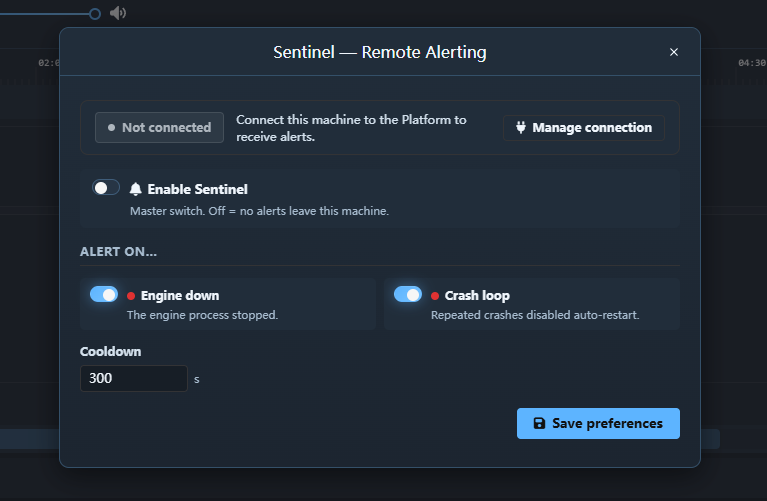
Each event type can be enabled or disabled independently (Engine down and Crash loop in the dialog). Both are owned by the watchdog service, so they keep working when the engine is gone and they do not depend on Auto-Heal or Watchdog restart being enabled. A hang that the Watchdog ends by terminating the engine is reported as engine.down too.
There is no engine.restored alert: recovery is derived from the next heartbeat instead. engine.running = true closes the open engine.down / engine.crashloop incident, and operators subscribed to Resolved Alerts on the Cloud get that notification — one resolution path rather than a second alert Exaplay has to wire up and throttle separately.
Retired alerts
Earlier versions offered three more alerts. They have been removed, because none of them could reliably do what its name promised — and an alert that never fires reads as coverage you do not have.
| Event | Why it is gone | Where the information is now |
|---|---|---|
health.fps_low | The check never received a frame-rate value, so it could not fire. Its Low-FPS threshold went with it | The frame rate still reaches the Cloud in the heartbeat |
health.disk_low | It measured only the system drive, never the content drive that actually fills up, and the Cloud could not close the incident it opened. Its Low-disk threshold went with it | Free disk space is shown under Storage in the Performance Diagnostics panel |
schedule.missed | It stayed silent whenever a browser ran the schedule — the case it existed for. The engine now runs the schedule itself, but this alert has not been connected to it | A scheduled item that could not be carried out is marked Failed, and one more than 15 minutes late Missed, in the Scheduler and logged |
A setting for one of these events left over from an older installation has no effect and is written back as off the next time you save the Sentinel preferences.
Delivery
There is one transport: every alert goes to your VIOSO Cloud account over the machine's pairing. Sentinel has no channels of its own — no webhook URL, no mail server, no recipient list on the machine.
Where the notifications reach you is a Cloud account setting, not an Exaplay setting. Exaplay's job ends at delivering the event. Who gets told, through which medium, and which subscriptions apply (for example Resolved Alerts) is configured once in your Cloud account and covers every paired machine, instead of being re-entered on each box.
Sentinel therefore requires an active pairing. Without one there is nowhere for an alert to go: it is queued on disk and delivered if and when the machine is paired. See VIOSO Cloud → Pairing a machine.
If the network is down
Alerts are not lost when the link is down. A failed send lands in an on-disk retry queue:
| Situation | What happens |
|---|---|
No route / DNS / TLS failure, 5xx, 429 | Retried with a backoff of 30 s → 60 s → 2 min → 5 min → 15 min, then every 15 min |
Token invalid, revoked, or instance mismatch (401 / 403 / 409) | The alert parks in the queue for an hour instead of hammering a connection that cannot work — a new alert exactly like one that was already queued — and the connection badge turns to Connection error or Connection revoked. Pair the machine again and the parked alerts are delivered. (The Send test alert button is the exception: it shows you the error and is not queued.) |
Malformed payload (422) | Dropped, and logged. Retrying a client bug forever helps nobody |
| Queue limits | 1000 items max; anything older than 7 days is discarded |
Two consequences worth planning around: an alert can arrive later than the event it describes (the timestamp in the envelope is when it happened, not when it was delivered), and a machine that was offline will flush its backlog on reconnect. The heartbeat works the other way — it is never queued, because a stale liveness signal is worse than a missing one; a failed heartbeat is dropped and the next interval tries again.
Log out / Disconnect discards the queue — the alerts the engine and the Exaplay Service were still holding for that pairing are dropped, so a later pairing does not receive them. Alerts raised after the machine was unpaired are queued as usual and delivered once it is paired again.
Turning the Sentinel master switch off holds queued alerts on disk rather than discarding them; they flush once it is back on. An event that happens while the switch is off is not recorded at all. The heartbeat is independent of that switch (see the note under Configuration).
Pairing comes first
Sentinel is not configured with a destination — it inherits one. Linking a machine to the Cloud is a one-time login that is separate from Sentinel, because the same connection also carries heartbeat monitoring, remote access and the Exaplay Cloud media library. It therefore lives behind the VIOSO Cloud entry of the ☰ menu rather than inside the Sentinel dialog. Once paired, the entry's dot turns green.
→ VIOSO Cloud — pairing a machine covers the flow, the connection states, and how to unpair.
The Sentinel dialog shows a read-only connection badge with a Manage connection shortcut to that dialog, so you can tell at a glance whether alerts can currently be delivered.
Setting Up Alerts
- Pair the machine with the Cloud if it is not paired yet.
- Open the ☰ menu, point at VIOSO Cloud and choose Sentinel alerts (the pairing dialog links to it as well).
- Switch Enable Sentinel on.
- Choose which events you want to be alerted about, and set the cooldown.
- Click Save preferences, then use Send test alert in the account dialog to verify, on-site, that the message actually arrives before you leave. The test alert proves the path to the Cloud and your notification settings there; it is sent even while Enable Sentinel is off, so it does not check the switch.
Configuration
| Setting | Description | Default |
|---|---|---|
| Enable Sentinel | Master on/off for all alerting | Off |
| Cooldown | Minimum seconds between repeats of the same event | 300 |
| Site name | Label every alert is signed with (e.g. Main Lobby — Acme HQ). Entered when pairing, not here — it is required before a machine can pair | (none; falls back to Exaplay Installation) |
Planned-stop grace (sentinel.planned-stop-grace-sec) | Window after a service-initiated engine stop/restart in which an engine exit is treated as planned rather than as a crash (10–600 s) | 90 |
Enable Sentinel, the event switches and Cooldown live in the Sentinel alerts dialog (☰ → VIOSO Cloud → Sentinel alerts). The site name belongs to the pairing dialog (☰ → VIOSO Cloud) — see VIOSO Cloud.
Note: the Enable Sentinel switch governs alert delivery only. The Cloud heartbeat — the periodic liveness signal the watchdog service sends once an instance is paired — is independent of this switch and cannot be turned off on its own. As soon as a pairing is active the service sends an immediate heartbeat (carrying engine info) and then keeps heartbeating in the normal rhythm for the life of the pairing; unpairing the instance is what stops it. The same applies to the engine-side half: the engine refreshes the status it hands to the heartbeat for every paired instance, whether or not alerting is on.
Throttling
To prevent alert storms (for example, an engine that crashes repeatedly), Sentinel applies a cooldown per event type: once an event fires, the same event will not fire again until the cooldown elapses.
Planned Restarts & Reboots
engine.down is meant for unexpected exits. Planned downtime is recognised and does not alert:
- System shutdown / reboot / logoff — including the scheduled reboot — kills the engine before it can write its graceful-exit marker. The watchdog detects the ending session and treats the engine exit as planned: no
engine.down, no crash counting, no restart attempt. (Previously this produced a false down → resolved pair on the Cloud after every machine restart, because the queued alert was delivered right after boot and the first heartbeat then resolved it.) - Service-initiated stop/restart (tray menu,
/wdogcommands, multi-client Start/Restart Exaplay) arms the planned-stop grace window. Any engine exit inside that window — even one that needed the force-terminate fallback — is treated as planned. The window is consumed as soon as the engine is seen running again, so a genuine crash of the relaunched instance still alerts normally. The default of 90 s covers the worst-case teardown (20 s close wait plus the engine's 60 s shutdown failsafe); extend it viasentinel.planned-stop-grace-secif your shows tear down slower.
The Cloud heartbeat pauses for the duration of a reboot and resumes immediately once the service is back (the first post-boot heartbeat is sent right away). Whether that gap raises an instance offline incident is decided by the Cloud's own offline threshold, which should be set comfortably above a normal reboot duration.
Sentinel, Auto-Heal & the Scheduler
Sentinel observes the other unattended-operation features rather than replacing them:
- When the engine stops unexpectedly, Sentinel sends
engine.down— whether or not the Watchdog restarts it; the next heartbeat after a restart resolves it. - When a crash loop disables auto-restart, Sentinel sends
engine.crashloopso a human knows to intervene. - The Scheduler and the Auto-Heal health checks no longer feed Sentinel — see Retired alerts for what they used to send and where that information lives now.
See Auto-Heal & Watchdog, the Scheduler, and the Permanent Installations workflow for the complete unattended-operation picture.