
Appearance
Generators
Generators (realtime sources) are generative clips — GPU shaders that draw their picture instead of decoding a file. You drag one onto a timeline, a playlist or a screen exactly like a video, and it behaves like any other clip: it has a duration, opacity and volume curves, mapping, effects and warping.
They are useful where a video file would be wasteful or inflexible — a colour wash behind a logo, a dome fill, a countdown, an audio-reactive backdrop, or a test pattern while a rig is being aligned.
Adding one
Generators live next to your media, in their own tab:
- Media Browser (Produce & Play, the panel under the timeline) → the Generators tab.
- Media Pool in the Show view → the same tab.
Drag a card onto a timeline track, a playlist row, or a screen. The clip is self-describing: its source file is a synthetic token ($[realtime]/<id>), so there is no file on disk to copy, and on a multi-client rig nothing has to be transferred — every engine renders its own copy.
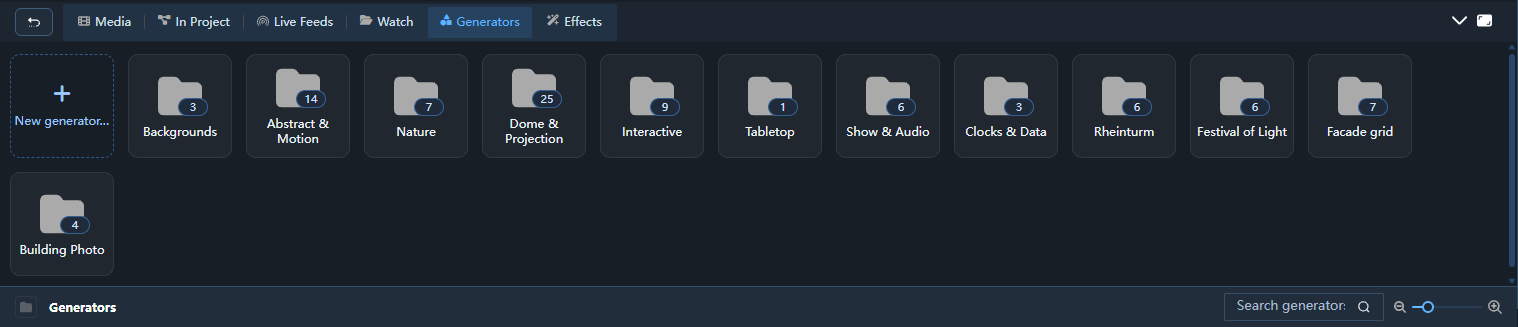
The tab opens on folders — Backgrounds, Abstract & Motion, Nature, Dome & Projection, Interactive, Tabletop, Show & Audio, Clocks & Data, Rheinturm, Festival of Light, Facade grid and Building Photo, plus My Generators once you have written your own. Click a folder to see its generators; the bar at the bottom shows where you are, goes back, searches every folder and sets the card size, as it does for your media. Cards show a still "hero frame". Rest the pointer on one for a moment to see it animate — sweeping across the grid starts nothing, so a large catalog never slows the page down.
Catalogue
91 sources, by category (the browser folds these into the twelve folders above — Generative, Geometric, Ambient, Textured and Space are all under Abstract & Motion, Dome and Projection under Dome & Projection, Show FX and Audio under Show & Audio):
| Category | Sources |
|---|---|
| Background | Solid Color, Gradient, Pattern |
| Generative | Plasma Field, Warp Tunnel, Petal Vortex, Line Tunnel, Fractal Bloom |
| Ambient | Aurora, Color Wash, Silk Drift, Cloud Flight |
| Organic | Liquid Marble, Fire, Open Ocean, Blossom Drift, Flower Field, Camouflage, Big Buck Bunny |
| Geometric | Voronoi Cells, Hex Pulse, Crystal Shatter |
| Space | Starfield |
| Dome | Dome Grid, Dome Night Sky, Dome Zenith Waves, Dome Aurora, Dome Hyperspace Tunnel, Dome Aurora Nebula, Dome Fluid Flow, Dome Fire Sphere, Dome Deep Space, Dome Sky Explorer, Dome Underwater, Dome Warp Flight, Dome Cathedral, Dome Fireworks, Dome Gallery, Dome Logo, Dome Polaroids, Dome Vio, Dome Plasma Ball, Paint the Dome, Dome Bubble Party, Dome Asteroid Defense, Dome Neon Ink |
| Projection | Depth Relief, Depth Parallax |
| Textured | Texture Kaleidoscope |
| Interactive | Water, Ripple Pool, Neon Ink, Plasma Globe, Vio, Tracked Figure, Koi Pond, Shark Lagoon, Desert Footprints |
| Tabletop | Tasting Table |
| Data | Countdown, Digital Clock, Neon Clock |
| Audio | Spectrum Bars, Oscilloscope |
| Show FX | Laser Sweep, Strobe, Sonar Pulse, VIOSO Sticker |
| Rheinturm | Rheinturm Helix, Rhine Level, Tower Pulse, Kintsugi, Harbour Lights, Many Lights |
| Festival of Light | Colour Sweep, Pronorm Glow, Rainbow Flow, Liquid Colour, Light Curtain, Uplight Spots |
| Facade grid | Window Cascade, Pronorm Light Lines, Deep Facade, Stained Glass, Facade Fireworks, Paint Pour, Starship Console |
| Building Photo | Photo Mask Wash, Edge Trace, Relight, Window Glow |
Every source in the catalog is Exaplay's own. One of them builds on somebody else's work and says so: Big Buck Bunny uses a still from the Blender Foundation's open movie, credited on the generator itself (below) — and so does VIOSO Sticker, which cuts the same rabbit out of the film (its dinosaurs are Charles R. Knight's paintings, which are public domain).
Rheinturm Helix, Rhine Level, Tower Pulse, Kintsugi, Harbour Lights and Many Lights are made for projecting onto Düsseldorf's Rheinturm. They share one model of the tower — 240.5 m to the tip, the shaft tapering from 17.4 m to 8.6 m, the basket's 35.5 m roof at 179.4 m, the two antenna platforms and the spire — so every pattern knows its height on the tower and wraps around the round shaft as the projector sees it. The fit is in metres on the tower, because a projection rarely covers all of it: Canvas bottom and Canvas top are the heights the canvas's lower and upper edges meet (0 and 240.5 m for the whole tower; below 0 or above 240.5 when the canvas reaches past the foot or the tip), Tower centre puts the axis and Tower width scales the tower across when the canvas is not square to it. Every climb runs over the part that is projected — a Water level, Growth or Build of 1 ends at the top of the projection, not at the antenna. Roundness darkens towards the silhouette (keep it low on the real tower, the concrete does that itself) and Mask to tower keeps the sky dark. Helix winds light ribbons up the shaft, Rhine Level floods it to a bindable Water level (drive it from a variable), and Tower Pulse sends audio-reactive rings up into the basket. Kintsugi turns the tower into dark glazed ceramic mended with gold: molten seams climb from the foot as far as Growth says (bind it, or set Auto cycle to let it climb, fade and begin again). Harbour Lights turns the tower into the Rhine at night, the harbour's lights reflected in streaks that bend and break on the ripples. Many Lights builds the tower brick by brick from many small lights, each with its own colour, until a wave runs over the finished whole — its defaults are the NRW colours, and Build can be bound or cycled like Growth.
The Festival of Light sources are colour for illuminating any building. They carry no model of the architecture — big, saturated, slow shapes with no fine detail to land in the wrong place — so they read on a church, a tower block or a bridge alike, and the mapping (or a mask) decides where the light goes. Colour Sweep moves broad bands of colour across the building in any direction, hard-edged or melting; Pronorm Glow is a blue haze rising up the facade with bands of light travelling through it (a nod to Pronorm, who bring projection to light festivals round the world — in their blue by default); Rainbow Flow lets the whole spectrum flow across it; Liquid Colour folds colour into colour like ink in water; Light Curtain sends streaks of light rising or raining down; and Uplight Spots sweeps soft coloured spots over the front, like moving heads, with the warm wash of uplighters along its foot.
The Facade grid sources are for a facade with a regular grid of windows. They share one model of an elevation: Floors and Window columns make the grid, Window width and Window height the size of each opening within its cell, and Ground floor, Roof and Side margin the plain stone around the grid — set them to the building as your mapping flattens it. Every pixel then knows whether it is glass or wall, which floor and column it is in and how far it is from the nearest window frame, so the looks work with the architecture: Window Cascade lights the windows in waves, rings, floor by floor or as an equaliser; Pronorm Light Lines draws every frame, cornice and pilaster in light and runs pulses along them (a nod to Pronorm, who bring projection to light festivals round the world — in their blue by default); Deep Facade turns the flat wall into deep stone with recessed windows and a moving light; Stained Glass fills the windows with leaded, slowly changing glass; Facade Fireworks bursts over the roof and mirrors in the glass; Paint Pour runs coat after coat of paint down the front; and Starship Console turns the building into the console of a starship bridge — the ground floor, roof and side margin become its frame (a sidebar of numbered blocks bending into the bars through rounded elbows) and every window a panel: a lit button, a bank of meters, a readout or a sensor sweep, on black, so Transparent background keys it cleanly over other content. Alert floods it with a pulsing red (or yellow, with Alert colour) and runs bars of light up the floors; bind it to a variable and a cue can call a red alert.
The Building Photo sources read the building from a photo of it. Pick a picture taken from (near) the projector's position as Building photo — browse the engine's disk, or drag one from your desktop onto the field (it is uploaded, and a WebP is converted to JPEG on the way) — then line it up with the canvas: Offset X / Y, Scale, Stretch and Rotation. From the photo the shader finds the building. Sky says how: Auto takes the colour along the photo's top edge as the sky, which tells a pale facade from a pale sky by day and a lit one from the black sky at night; Brighter and Darker go by brightness alone. Sky threshold and Softness set the cut, and Crop left / right / top / bottom cut away anything that is never building, such as a bright horizon. Photo Mask Wash colours only the building and keeps its light and shade; Edge Trace draws its real lines — windows, cornices, the roofline, its outline — in light; Relight reads the photo's light and dark as relief and moves a sun round it; and Window Glow finds the windows (darker than the wall by day, or lit at night with Lit windows) and switches them on. Without a photo they show a drawn stand-in building.
Crystal Shatter fractures the frame into convex shards and drifts them from ice to ember. Fracture sets how many times the pane is cut (a handful of large shards up to a dense crystalline field), Facet tilt how much each shard catches the travelling light, and Heat biases the whole pane towards the Ember colour — bind that one to the audio level and the glass heats with the music.
Open Ocean and Plasma Globe react to the pointer — drag across the preview to steer across the swell, or to pull the arcs towards your finger. The pointer is a parameter of the clip, so what you steer in the preview is what the output shows (see Interaction below). Open Ocean is the most expensive source in the catalog (it resolves a wave surface per pixel), so check the engine's frame rate before putting it on a large output.
The Dome and Projection sources are authored in fisheye/dome space.
Dome Sky Explorer is the real night sky for a place and a time — a small planetarium. Set Latitude, Longitude and the UTC offset of the place; the sky then follows the clip's clock, so on its own it shows the sky outside right now. Time offset moves it to another hour (bind it to sweep through a night), and Time-lapse runs the clock faster — 60× turns the sky a minute every second. The stars are real — all of the roughly 9,100 stars of the Yale Bright Star Catalogue, everything the eye can see on a dark night, in their true colours — with a field of fainter stars below them, the Milky Way where it really lies and a few famous deep-sky objects — the Andromeda Galaxy, the Orion Nebula, the Magellanic Clouds. The planets from Mercury to Saturn and the Moon, with its phase, stand where they really are for that date. The Moon wears NASA's Lunar Reconnaissance Orbiter map (Moon size magnifies it); Planet size turns the planets from points into lit discs showing their phase, each wearing a real NASA map — Mercury from MESSENGER, Venus' clouds, Mars from Viking, Jupiter's cloud bands from Cassini, and Saturn's bands from the Solar System Scope library (CC BY 4.0) — with its rings, tilted as they really are on that date. Every … surface field takes another image if you have one (an equirectangular 2:1 map); clear it and the planet is drawn without one. Names fade out by themselves where the picture is too small to read them. Constellation lines and Names fade the 40 figures in and out; Highlight picks one to stand out in gold, and with Pointer picks a constellation on, the one under the pointer (or a tracked hand) is highlighted instead. Grid adds the horizon's altitude/azimuth net or the celestial equator's with the ecliptic; Landscape raises a silhouette of hills and trees round the horizon, and the compass points stand just above it. With Azimuth at 0 south is at the bottom of the frame — the front of the dome for a northern audience — and labels stand upright towards the zenith. Positions are good to a fraction of a degree, which is what a show needs; it is not an ephemeris for navigation.
Date chooses between Now (this computer's clock) and a day of your own: Year, Month and Day, anywhere from 3000 BC to 3000 AD. With a fixed date the sky starts at midnight of that day in the UTC offset's zone, and Time offset is the hour. Years count astronomically — 0 is 1 BC, −6 is 7 BC — and dates are in today's (Gregorian) calendar, also before it existed. The sky precesses with the centuries: in 2600 BC the pole star is Thuban in the Dragon, not Polaris. Daylight & twilight brings the Sun's light in: at 0 (the default) the sky stays night at every hour, as a planetarium usually wants; turned up, the day is blue, the Sun sets with an afterglow in the west and the stars come out one by one as the dusk fades. Dome tilt is for a dome that leans forward: set its angle and the horizon stands where it really is, with the ground below it at the front.
Render resolution (in every generator's inspector panel) is how many pixels the generator draws, as a share of its field on the wall — the picture is scaled up to fill. A generator renders at the size of the field it lies on, so a 4K dome field costs sixteen times a 1080p one. Automatic measures: the engine times each frame of the generator on its own GPU and moves between 100, 75, 50 and 25 % so that a frame stays within its budget — down within a second when it is over, up slowly once it has been well under for a while, and it stops trying a step that did not hold. The heavy ones (the raymarched Dome Cathedral, Dome Gallery, the games with their mothership and bubbles, …) start at 50 %, the rest at 100 %; a strong card on a small dome goes up from there, a modest card on a 4K dome stays down. The label shows the step it is on now, and under it the engine's own word: Renders 2048 × 2048 · 3.1 ms. In a multi-PC dome the master decides and the clients follow, so a span is equally sharp on both sides of a blend. Pick a fixed step when you want it to stay put; 100 % is the sharpest. The engine takes the setting; the inspector's preview does not change.
Console (the button in the generator's inspector panel) opens the planetarium console: a large live picture of the dome beside the settings an operator reaches for during a show — the presets as one row of buttons, When (Now or a date, the time-lapse in steps, daylight), Where (a list of cities, or your own coordinates), Show and Dome. It is the same clip's settings, not a copy: the inspector shows every change made in the console, and the output follows as you go.
Preset (at the top of its panel) sets a whole look in one go: Naked eye, Constellation lesson (every figure named, the pointer picks one), A night in a minute, Planet parade (the ecliptic and large planet discs, a day every 24 seconds), Dark-sky site, City lights, and three places — Southern sky (Cape Town), North Pole and On the equator (Quito) — and four moments: Sunset to starry night (an equinox evening at four minutes a second), Great conjunction (21 Dec 2020), Star of Bethlehem (7 BC), the triple conjunction of Jupiter and Saturn, and Pole star of the pyramids (2600 BC). A preset puts every setting it does not name back to its default, so two presets in a row give the second one, never a mix. Your place (Latitude, Longitude), the UTC offset, the dome's Azimuth, Dome tilt and Dome edge softness, and any surface maps you chose stay as they are — unless the preset is about a place, which then sets Latitude and Longitude. Change any control afterwards and the select reads Custom.
Dome Deep Space is a whole universe for a planetarium: pin-sharp stars in their natural colours, the Milky Way with its dark dust lanes and bright bulge, glowing nebulae, spiral and elliptical galaxies and the occasional shooting star. The brightest stars carry the four-pointed diffraction spikes of a space telescope (Star spikes), and the nebulae are layered like real ones — a hydrogen envelope, a shell of hotter gas and a bright core, with dark dust pillars whose edges glow where a young star cluster lights them. It is built on the sky itself rather than on the picture, so nothing is stretched towards the horizon and the whole sky turns slowly about a pole like the real one — Pole tilt sets how far that pole leans from the zenith (0 turns the sky about the zenith), and the large spiral galaxy sits beside the pole, so it never sets. Stars are drawn the way a planetarium shows them — as points of light, each placed on its exact output pixel, with brightness carried by intensity (real magnitudes, many faint stars and few bright ones) rather than by size, so they stay pin-sharp at any dome resolution and do not shimmer as the sky turns. The finer the output, the fainter the stars it shows: a 4K or 8K dome shows tens of thousands, a small preview only the brighter ones. Nebulae, Galaxies, Shooting stars and Milky Way set how much of each there is, Nebula drift how fast the clouds change, and the three nebula colours (glow, gas and core) tint the layers. It is one of the more expensive sources; check the engine's frame rate on a large dome.
Dome Underwater turns the dome into the view up from the seabed, and it is lit the way water lights things rather than painted. The water absorbs each colour differently — red is gone after a few metres — and scatters the sunlight, so everything is seen through the same water: the surface, the reef and every animal grow bluer and fainter with distance, exactly as they do on a dive. Overhead the sky reaches you through Snell's window, the bright circle you see when you look up underwater. It is not drawn: each pixel is refracted through the moving waves, so the window's edge ripples and breaks up, carries a faint colour fringe, and outside it the surface turns into a mirror that shows the sunlit sand below. Shafts of light come from the waves focusing the sun and fan out from it into the blue. Reef walls stand round the horizon at three distances, the far ones fading into the haze, and a whale shark, sharks, manta rays and shimmering schools of small fish swim overhead. The whale shark is the giant of the scene — some nine metres long, gliding slowly across a third of the dome with remoras under its belly and pilot fish ahead of its mouth — and Whale shark switches it off. They are all seen from below as a diver sees them: dark shapes against the light. A school is a cloud of hundreds of slender fish at different distances, clumping and opening up, with a flash of silver running through it as it turns. Like Dome Deep Space it is built on the sphere, so the animals keep their shape everywhere on the dome. Light mood sets the whole light of the scene. As set is the sliders exactly; Morning, Golden hour and Sunset move the sun lower and warmer (the water swallows warm light, so they warm the scene the way an underwater photographer's red filter does, without taking away its blue), Overcast hides the sun behind a grey sky, roughens the sea and drains the colour, and Moonlit night is a night dive — a moon and stars rippling in the window and plankton that flashes blue-green in the dark. The water's colour, depth and murk stay yours in every mood. Depth sets how far below the surface you are (deeper is darker, bluer and calmer), Water colour is the colour white light turns after 10 m of water (a deep blue for the open ocean, green for a lake or a harbour), Murk how much the water scatters, Waves how rough the surface is (it also sets how strong the light shafts and the ripples on the rocks are) and Sun angle how far the sun stands from the zenith. Sharks, Manta rays and Fish schools set how many animals there are and Swim speed how fast they go (0 holds them still). The fish are sized for a real dome: on a 4K master they are clearly fish, on a small preview they are a shimmer. It is one of the more expensive sources; check the engine's frame rate on a large dome.
Dome Warp Flight makes the dome the forward view of a starship: the zenith is where the ship is heading. In Jump to warp and back (the default) a clip opens with the jump — the stars stretch into streaks, a flash and a ring of light run out to the horizon — streams past at warp under a blue subspace glow with the nacelles' light round the rim, drops out again and coasts at impulse until the next jump; Cycle is the length of that round trip. Warp cruise stays at warp, Impulse never leaves it. Warp factor sets how fast the stars stream (bindable, so a fader or a variable can accelerate the ship) and Streak length how long they are drawn. The streaks are the stars themselves, so dropping out of warp pulls them back to points rather than swapping pictures, and the flight follows clip time only, so every machine of a multi-client dome shows the same frame.
Dome Cathedral puts the audience at the bottom of an endless gothic tower, looking straight up. A ring of fluted columns stands round the horizon, ribs spring from them to an open ring at the crown, and fans of finer ribs between them (Tracery) close into the rings of a star vault. Behind the columns runs a wall of tall stained-glass windows with a rose window above each, and the glass is what lights the space: shafts of coloured light fall in through the dusty air, the columns pick up the colour of the window beside them, and a bright sky shines down through the open crowns. The view climbs slowly up the tower, through one crown after the next, and never reaches the top. The light grows towards the top, the haze thickens with distance so the levels far above dissolve into light, and dust drifting in the shafts close to you moves against the stone as you climb — which is what makes the height read. Like Dome Deep Space it is built in 3D for the sphere, so the architecture keeps its shape all the way down to the horizon. Style makes it Gothic stone, Crystal (glass-blue, lit from inside, its edges catching the light) or Gold (polished, mirroring the windows). Climb speed and Turn set the movement (0 holds it still), Bays how many columns and windows stand round the tower, Light shafts, Window glow and Haze the light, Dust in the light the motes in the shafts, and the two glass colours and Daylight its colours. Light fog (off by default) fills the tower with a dusty haze in which the light becomes visible: light falling from every crown, and coloured beams of sunlight falling steeply from the windows — strongest on the side the sun stands on, and brightest when you look towards where they come from. Fine dust glitters in the light, grain by grain. Ray shape sets the form of that light: 0 is straight, hard-edged rays, 1 is soft cones that open the further they fall, and in between are cones whose edge you can still read (the default, 0.3). Audio react makes the windows pulse with the music. Quality sets how carefully each pixel is traced: lower it if the engine's frame rate drops on a large dome, raise it if fine distant ribs break up.
Dome Fireworks is a fireworks show seen lying on your back under it. Rockets climb from the ground and burst 150 to 250 metres up as peonies, chrysanthemums with glittering tails, golden willows that hang and fall, palms, rings and two-colour dahlias, and the dying stars crackle into white flickers (Crackle). The stars behave like burning stars: they slow down in the air, sink towards a steady falling speed with their tails bending, dim as they burn and go out, and a shell low over the horizon looks dimmer and warmer through the extra air. Every shell is a real burst in the sky, so one overhead fills a large part of the dome and one near the horizon is seen from the side. Each flash lights the sky round it and the drifting smoke, and the trees round the horizon stand black against it. The show follows a fixed schedule of the clip's time: every PC of a multi-PC dome fires the same shell at the same moment, and restarting the clip replays the same show. Shells per second sets how busy the show is — turn it up for a finale; it only decides which of the scheduled shells fire, so moving it live never makes a burst jump. Burst size, Trails and Gravity shape the bursts, Flash and Smoke the light they leave, Clouds a cloud deck high above the show that every burst lights from below in its own colour, Treeline and Stars the night around them, and the three colours and Night sky the palette (the willows are always gold). Dome Gallery lets up to six pictures float round the dome: portraits, logos, sponsors, or people cut out of a PNG. Pick them under Picture 1 to Picture 6 (PNG or JPEG); Pictures sets how many are shown, and an empty slot shows a stand-in portrait so you can judge the motion before the pictures are there. Every picture is a card hanging in the space a few metres away, kept upright towards the top of the dome, swaying and tilting gently in perspective, so it keeps its shape anywhere on the dome and reads the right way round. A picture keeps its own proportions, and a PNG keeps its transparency: a logo or a cut-out person floats with no card round it. Motion is Orbit (a carousel round the dome), Drift (each wanders on its own slow path, nearer and further), Ascend (they rise in a spiral from the horizon to the top, one after another) or Crown (a ring round the top that turns and breathes). Spotlight every brings one picture after the other to the front, larger (Spotlight size), while the others step back into the dark; 0 switches it off. Front turns where the front of your dome is, Height how high the carousel hangs and Picture size how big a picture is. Frame is None, a Rounded card, a Polaroid print, or a Glow outline that follows the shape of a cut-out. A glint sweeps across the pictures now and then and a thin rim of light runs round a framed card (Sheen), the pictures further away sink a little into the air, and the picture in the spotlight is wrapped in turning rays with sparks circling it (Spotlight sparkle). Atmosphere is the space round them: Deep space, a coloured Nebula with dark lanes and stars, an Aurora rippling across the sky, Light rays from a sun at the top, or a Golden rise of warm motes drifting upwards. Glow, Bokeh, Space, Accent and Second colour set its light and colours, and Transparent background shows only the pictures and their glow over whatever plays beneath — another generator or a film. Everything moves with the clip's time, so all PCs of a multi-PC dome show the same picture in the same place.
Dome Logo puts your own logo on the dome as the hero of the room. Pick it under Logo (a PNG with transparency keeps its shape — a wordmark or an emblem floats with no box round it; a JPEG shows as a card). Look is Front (one big logo ahead of the audience, breathing, with light rays fanning out behind it), Zenith (lying overhead and turning slowly, the medallion everybody looks up at), Orbit (copies circling the dome) or Crown (a ring of copies round the top); Copies sets how many for the last two, Size, Direction and Height where and how big, Turn / orbit speed how fast it turns or circles. Colour shows the logo as it is, in White or in the Accent colour — for a dark logo on a dark dome. Round it: a Glow outline that follows the logo's own shape, Light rays, Light shafts cast outward through the letters themselves, a soft Halo, a glass Sheen that sweeps across now and then, and Sparks with comet tails circling it; Depth makes the letters a block standing out of the dome with a shadow behind, Breathing and Sway keep it alive, Audio react lets it swell and the rays flare with the music. Intro is the entrance at the cue: the logo swells up out of a point with a burst of light and a ring running out over the dome (0 switches it off). Reveal every builds the logo up from a rising edge of light, holds it, and dissolves it into squares, once every so many seconds (0 keeps it standing). A click (or an Inputs device mapped to Click) flashes the logo and sends a ring of light out over the whole dome. Atmosphere is Deep space with stars, a coloured Nebula, the searchlight Beams of an opening night, or None — and Transparent background shows only the logo and its light over whatever plays beneath, so it lays over any other Dome generator or a film.
Dome Polaroids shows the pictures your guests send in, as Polaroids floating round the dome — up to eight at a time. Nobody picks these pictures: the engine watches a Folder on its machine (by default Exaplay Photo Wall in Documents, which it creates) and every picture that lands there takes a free card; once the wall is full, the newest replaces the card that has stood longest, after it Stays at least the time you set, one card every couple of seconds — never the whole wall at once. Guests send from their phone: the inspector shows a QR code of the guest page under Guests (/custom-ui/photo-wall.html, served by the engine); a guest opens it, takes a photo or picks one, taps Send to the dome, and the picture is made small on the phone, uploaded, and flies in. Arrival is how a new card comes in (Fly in from below, Grow, or Drop from the zenith), with a New-card spotlight of rays and a ring of light for a few seconds after it lands; Motion is the wall's life (Drift, Orbit, Rise, Crown), Tape and Vintage the paper. Until the first photo arrives the slots show Placeholder cards with a camera on them — the invitation — or nothing. Under On the wall the inspector also shows the wall as it stands, with a thumbnail per slot: hide a picture to take it off the wall (its file stays in the folder; Show all brings them back). The folder is on the engine's own machine; in a multi-PC dome every machine shows the folder on its own disk, so point the guest page at one PC and share that folder. A guest sees the page in their phone's language (English or German; ?lang=de forces it) and ?title= puts your event's name on it.
Black level — on every Dome generator. A projector has no black, and where two projectors of a dome overlap their blacks add up, so a picture that asks for black shows every blend seam and a dark gradient sinks into the projector's own floor. Every Dome generator (the dome games too) therefore has a Black level: a floor under the whole picture, in the tint of its sky colour, that nothing inside the dome goes below. Leave a little, and raise it until the seams of your dome disappear. With Transparent background on, whatever plays beneath owns the black level instead. Everything moves with the clip's time, so all PCs of a multi-PC dome agree.
Dome Bubble Party and Dome Asteroid Defense (in Dome) are two shooting games for a dome — one for children, one for grown-ups. You aim with the pointer and shoot with a click; on a dome, map an Inputs device to Pointer X / Y and Click (a touch screen, a tracked laser pointer, a button box), or press Trigger in the inspector. Each shot counts once, and the score is shown upright at the front (Show the score, Front).
In Dome Bubble Party soap bubbles with a little friend inside — a star, a heart, a fish, a round critter — rise from the horizon towards the top. Pop one and droplets and confetti fly while the friend waves and floats away. Every ten pops the whole dome celebrates with confetti, a blazing rainbow and the number, big. Nobody can lose: a bubble that reaches the top pops by itself. Bubbles, Speed, Bubble size and Wobble set the game, Sky is Day, Sunset or Starry night, Rainbow how bright the rainbow over the front is, and Wand colour the ring of stars where you aim.
In Dome Asteroid Defense the audience lies under the hexagonal shield of a space station. Asteroids and drones come out of deep space and grow as they close in. A shot fires the station's twin lasers at that point: a hit is a fireball, a shockwave and flying debris. A drone is worth more than a rock, and anything shot far out is worth a bonus. Whatever gets through hammers the shield, which flashes, ripples and loses energy; the reticle turns red when it is on a target. The longer the station holds, the more targets come and the faster they fly (Difficulty ramp). When the shield is gone, the final score stands for six seconds and a new round starts; the best score of the session is kept under the score. Shield damage 0 makes a round that never ends, for a free-play corner. Max targets, Speed, Target size and Drones set the game; Planet, Shield colour and Laser colour set the look.
At an event, the games run themselves. While nobody plays, a demo runs: the game plays itself and START glows in the middle, with the best score of the session under it. The first real shot starts a round. Round time sets how long a round lasts (0 = no limit). At the end, a score screen shows the result for six seconds — SUPER!, or P1 WINS / P2 WINS / DRAW with two players; in Asteroid Defense, GAME OVER when the shield is gone and TIME when the time is up. Then the demo starts again. When nobody has shot for Back to demo after seconds, the game goes back to the demo too. Switch Demo when nobody plays off to keep the game always ready to play.
In Bubble Party, a golden bubble is fast and worth five, and a giant bubble takes three shots (the hearts over it show how many are left) and is worth three when it pops. Golden & giant bubbles sets how often they come (0 = never).
In Asteroid Defense, a mothership crosses the dome every Boss every seconds of a round (0 = never). BOSS blinks as it arrives, and it takes Boss crossing time to cross. Each hit is worth a point and takes one of its hit points (the ring around it), and the shot that brings it down is worth a hundred. If it gets away, the shield loses a third. Each mothership in a round is tougher than the last.
Both games keep their state (score, targets, shield) in the generator's own memory and run on the clip's time with fixed random sequences, so they play the same on every run.
Two players. Set Players to 2 — plus a gamepad. Player 1 stays on the pointer and click. A practical choice is an air mouse (a wireless gyro mouse that you point in the air, also good inside a toy blaster): in Inputs, switch on Mouse and map it to the generator's Pointer X / Y and Click. Player 2 plays with a gamepad (an Xbox-style controller): switch on Gamepads and map joy1 X to Player 2 X, Y to Player 2 Y and its click (the A button) to Player 2 fire. The stick moves player 2's crosshair, which stays where you leave it (Player 2 stick speed), and the button fires once for each press. Two mice cannot be two players: Windows moves one cursor for every mouse on a PC. If player 2 sends a position instead (a second tracked pointer, a touch panel), set Player 2 aims with to Pointer. Each player has a crosshair and a score in their own colour (Player 2 colour). In the asteroid game player 1 fires from the left gun and player 2 from the right, and the shield is shared. In Bubble Party the celebration counts the pops of both players together.
Dome Vio puts Vio, Exaplay's own assistant, on the dome — the same swirling glass orb and hexagon eyes as in the header, only big. Vio blinks, glances round and, with Look at pointer on, watches the pointer (or a tracked person mapped to Pointer X / Y); a click makes Vio hop twice and light up. Mood either changes by itself every few seconds or holds one of Vio's faces (calm, joyful, curious, excited, thinking, proud, surprised, sleepy), and Colours dresses the orb in one of the colours the header orb wears for its states. Direction (0° is the front, the bottom of the domemaster), Height and Size place Vio, and Wander lets it drift. Vio is drawn round wherever it floats, so it keeps its shape on the dome. Vio (in Interactive) is the same Vio for any flat output — a screen, a stage, an LED wall — with the same moods, colours and behaviour; Position X / Y and Size place it (bindable, so a tracked person can lead it), and with Transparent background the orb and its glow float over whatever plays beneath. Dome Plasma Ball puts the audience inside a plasma globe: the electrode glows overhead and crackling filaments wander out to the glass. Click on the dome (in the preview, or a click on the output) to touch the glass — a thick filament stays on every touch, up to six at once, the oldest giving way; a drag moves the newest touch and leaves it where you let go. Touch lasts makes the touches fade after that many seconds (0 keeps them until the clip restarts). Filaments, Turbulence, Reach and Glow shape the free filaments; Electrode and Gas the core and the haze. The touches are kept on each machine: a PC that starts later, or a restart of the clip, begins without the earlier ones (the engine's last click is planted again).
Dome Neon Ink is Neon Ink (below, under Interactive) for a dome: the whole sky filled with glowing, marbled neon colour that drifts slowly round the zenith (Spin; negative turns the other way, 0 stops it). It has one input, the pointer: a mouse, a touch, an air mouse, or a tracked hand mapped to Pointer X / Y. Wherever it is, the colour is stirred into whorls that calm again over Settle seconds, and while it moves it pours a trail of light; a click or Trigger blooms a burst of colour. Input set to Nobody leaves the sky to the current and the Wisps alone. Every other setting is Neon Ink's own, plus the Dome generators' Black level (a floor in the Floor colour, so a blend zone never shows its seams) and Dome edge softness.
Paint the Dome turns the whole dome into a canvas painted with acrylics. Wet colours really mix where they meet — yellow into blue turns green, red into white turns pink — a brush dragged through wet paint smears it, thick paint runs in drips towards the horizon, and after Drying time the paint is dry: a stroke over it then covers it, as acrylic does. Brushes are round on the dome, not in the picture, so a stroke near the horizon is as wide as one at the zenith.
Two kinds of brush paint at once. Visitors paint with the pointer: press and drag on the preview, on the Console's large picture, or on the output's pointer — or map a tracked hand to Pointer X / Y and set Visitor brush to Always paints, so the brush is down whenever the hand moves and lifts when it rests. Visitor colour gives each new stroke the next colour (the ring at the pointer shows the colour the brush holds), a fixed colour, or a colour by direction on the dome. Painters (up to six) paint on their own, each stroke in the next colour; set Painters to 0 for visitors only. Their strokes follow the clip's time, so every PC of a multi-PC dome paints the same strokes in the same places.
Medium chooses the paint, for visitors and painters alike:
- Acrylic — opaque body paint that dries in seconds; wet colours mix, dry paint is covered, a stroke leaves a ridge along its edges.
- Paintbrush (oil, thick) — heavier paint with deep relief and gloss, more smear and four times the drying time, so colours stay mixable for long.
- Watercolour — transparent washes: every layer glazes the one under it, wet washes bleed into each other along the paper's fibre, pigment gathers in a dark rim as a wash dries and settles in the paper's grain. Use a light Canvas (the Watercolour on paper preset); on a dark one it reads as ink.
- Neon spray — a spray can of glowing paint: a soft cone of mist with droplets at its edge, a halo round dense paint, runs where it is sprayed thick. Best on a dark canvas (Neon spray at night).
The sound follows the medium too: bristles, a soft wet brush or the hiss of a can.
Brush size (visitors) and Painter brush size go from a fine liner at 0.5° to a broad wash of 40° across the dome; both can follow a signal. Each painter's stroke takes its own brush around that size — from about half to two and a half times it — as far as Brush size variety allows (0: all alike). Every stroke starts from the tip, swells and thins as the brush lifts, and a broad brush shows more bristles than a fine one. Fine brushwork and Broad washes are presets for the two extremes.
Colours in use takes the first one to six of the palette (Primaries uses red, yellow, blue and white, so every other colour is mixed on the dome). Paint per stroke lets a brush run dry along a long stroke, Wet mixing and Smear set how much wet colours blend, Drips how readily thick paint runs, Fades after lets the paint vanish slowly (0 keeps it), and Wipe the dome clears it while it is on — bind it to a variable or a cue to start a fresh canvas. A restart of the clip also starts on a clean canvas. The preview runs when you switch Preview on (a heavy simulation for a browser without a graphics card); pressing on the still picture paints on the output either way. Its sound — bristles on canvas — follows the brushes when the clip's Sound is on.
Depth Relief and Depth Parallax take a depth-map image as a parameter — point them at a PNG or JPEG and they displace the picture from it; without one they fall back to a procedural shape.
Line Tunnel sends thin iridescent lines flowing out of a vanishing point that drifts across the frame. Lines sets how densely they are packed, Warp how far the tunnel's walls wobble away from a circle, and Drift how far the vanishing point wanders.
Fractal Bloom is a Julia-set fractal that never stops changing: its spirals grow tendrils, curl into seahorse shapes and dissolve into glowing dust as the set's constant travels slowly along the edge where it changes the most. Morph sets how far it breathes across that edge, Zoom and Spin frame it, Glow sets how brightly the filaments light up, and the three colours make up the palette. Detail is the iteration count — the picture's sharpness near the filaments and its GPU cost; lower it on a very large output. Audio pulse lets the music push the shape and the glow.
Cloud Flight is the view from an aircraft cruising over a sea of clouds. Daylight picks the light — Dawn, Morning, Noon, Golden hour, Sunset, Blue hour or Moonlit night (with stars and the moon) — and Sun direction turns the sun (or moon) around the aircraft. Choose By time of day and the Time of day slider (0–24 h) moves smoothly through the whole day instead: night, blue hour, dawn, morning, noon, afternoon, golden hour, sunset and back to night, the stars fading in and out and the sun drifting with the hour. Animate it or bind it to a variable, and the sun rises during the show. View looks forward out of the cockpit, sideways out of a window, or through an A320 cabin window, framed by its bezel. Window shade pulls that window's shade down (0 = open, 1 = closed); bind it to a variable and the shade moves with the show. Cloud type picks the shape of the clouds: Cumulus (separate fair-weather heaps, the default), Sea of clouds (a broad, flat-topped, almost closed deck), Towering cumulus (tall, separate towers you can fly between at a middle altitude), Stratus / fog sea (one smooth, softly rolling blanket), Altocumulus (many small puffs in a thin layer), Cloud streets (rows of heaps along the flight) or High cruise (the view from cruising altitude: a vast deck of small cauliflower cells running to the horizon, under a deeper blue sky with a pale band of haze on the horizon — set Sun direction behind you for bright tops over blue valleys). The shadows in every type take the colour of the sky above them — the cool blue of the valleys between the heaps by day, violet at dusk. All the other settings work on top of whichever type is chosen. Airspeed sets how fast the deck streams past, Altitude how high above it you fly (all the way down, you fly through the clouds), Coverage how closed the deck is overall, Density how thick each cloud is — low for thin veils you can see the land through, high for solid, heavy heaps (it also sets how dark their shadows are) — and Puffiness, Haze and Bank shape the rest. Even with Haze at 0 the far distance still fades softly into the horizon, as it does on the clearest day. Light rays fan out from the gaps between clouds in front of the sun, with the clouds' shadows as dark spokes between them — most striking with a low sun. City lights come on as it gets dark: towns glow up through the holes as points of light, taken from the built-up areas of the Ground image (or scattered towns without one), and warm the clouds' undersides. Lightning sets how often a flash lights a cloud from inside (0 = never); strikes follow the clip time, so every machine of a fleet flashes together. Flash fires one by hand or through a binding — to a variable, or to the audio level for thunder on the beat. Holes punches clear openings through an otherwise closed deck — none at 0, about half the sky at 1 — and Hole size makes them smaller or wider; the land shows through them, with the clouds' shadows on it. The land below is the Ground image: it ships with a Landsat 9 picture of farmland in southern Poland (NASA Earth Observatory / USGS, public domain), and you can point it at any picture of your own — an aerial photo or a satellite still works best; for the preview, use one whose sides are powers of two (1024 × 1024, 2048 × 2048). It is tiled with mirrored repeats so it has no seams, Ground scale sets how large one tile is, and it takes the light and haze of the chosen daylight. Clear the field and a procedural patchwork of fields and water is drawn instead. Like Open Ocean it is one of the more expensive sources — each pixel marches through the cloud volume — so check the engine's frame rate on a large output, and lower Quality if it drops.
Big Buck Bunny brings the hero of the Blender Foundation's open movie (2008) — the big grey rabbit of countless show reels — into the film's own sunny meadow. The meadow is the Meadow image, which ships with a still of the film's opening shot; you can point it at a picture of your own (for the preview, one whose sides are powers of two, such as 2048 × 1024), and with the field cleared a drawn pink-and-green meadow stands in. The rabbit himself is a 3-D model drawn live, not footage: Action has him stand Idle (breathing, twitching his ears, blinking), Hop on the spot, Wave at the audience, or Stroll back and forth across the meadow, turning as he goes. He is modelled after the film's rabbit — near-white fluffy fur, a pear-shaped body with a small head, long arms, one ear up and one bent — and wears his face from the film (Face image, a still of the film, whose eyes still follow and blink; clear it for a modelled face). He is seen through a real lens, so raising Size (and lowering Position Y) gives a close-up where his face fills the frame. Position X / Position Y place his feet, Size sets his height as a share of the frame, Turn faces him left or right, Speed sets the pace of every motion and Hop height how high he jumps. With Turn with movement on, a tracker or a variable driving Position X turns him the way he is being moved, as the Tracked Figure does. Butterflies (up to four) circle his head — his eyes follow the first one — Grass grows a tuft in front of his feet, Camera drift lets the view slide slowly along the meadow, and Transparent background keeps only the rabbit, his shadow and the butterflies, to stand him over any other content.
He is interactive. Move over the preview, or set Pointer X / Pointer Y (map a tracked visitor to them in the Inputs tab): with Eyes follow on Pointer / tracking he looks at that point and turns his round body a little towards it — Butterfly has him watch the first butterfly instead, Audience looks straight out. The butterflies shy away from the pointer; Butterflies shy sets how far (0 lets them fly through your hand). A click on the preview, Trigger, or a click from show control plays his On click reaction: a Hop, a Wave or a Wiggle of his ears (or Nothing).
The generator is credited in its inspector header and card tooltip, as its licence requires:
Big Buck Bunny © Blender Foundation | bigbuckbunny.org | CC BY 3.0 (Creative Commons Attribution 3.0). The meadow and face stills are cropped from the film; the rabbit is a model made for Exaplay after the film's character design.
If you use it in a show, keep that credit with the show's other credits.
VIOSO Sticker is the fun one: die-cut stickers with a white border and a drop shadow, slapped all over the frame. Stickers picks the set: Big Buck Bunny cut out of the film (stretching, standing amazed, smiling with his paws together, and with the butterfly), the classic Dinosaurs of Charles R. Knight's paintings (Stegosaurus, Triceratops, Tyrannosaurus and Brontosaurus, 1901–1929), or a Mix of both. Mode Pop slaps stickers on, keeps them a moment and peels them off again, one after another; Float lets the whole sheet drift; Rain lets them fall in columns; Bounce sends a few big ones bouncing round the frame (Density sets how many). Density, Size, Speed and Wobble shape the rest. It is interactive: a click (or Trigger) fires a burst of stickers out of the click point (Click burst), stickers under the pointer swell (Pointer swell), and Beat bound to the audio level makes them jump to the music. Background is a Sunburst, Polka dots or Solid in Colour 1 / Colour 2 — or turn on Transparent background to stick the bunnies over any other content. The Bunny sheet and Dinosaur sheet ship with the generator; its credit reads "Big Buck Bunny © Blender Foundation | bigbuckbunny.org | CC BY 3.0 · Dinosaurs: Charles R. Knight (public domain)". Without a sheet, drawn cartoon bunnies and dinosaurs stand in.
Tracked Figure is an abstract but anatomically shaped human — adult proportions, shoulders, rib cage, waist and hips, muscled arms and legs, hands and feet — that stands wherever a tracking value puts it — the typical "a person walks past and their figure follows" effect. Position X moves it across the frame; Position Y (depth) moves it back on the floor, where it stands higher and (with Depth scaling) smaller. Motion blends from standing to walking, Arms raises both arms, Lean tilts the upper body, and Audio bounce lets it dip to the music. Style chooses how the body is drawn: Particles (the default — glowing dust, dense in the body and rising off it), Line field (horizontal lines across the whole frame that the body bends and lights up as it walks through them), Contours (rings flowing outwards from the body like an aura), or the plain Neon outline, Silhouette and Joints (dots and bones, the look of a skeleton tracker), or Fibres (the body spun from fine strands that run along the limbs, with long ribbons of strands streaming off behind it — rising, fanning out and waving as the figure moves, while the back of the figure dissolves into it; Spread sets how far the trail reaches), or Light threads (a figure spun from long threads in the colours of the spectrum that hang from its arms and shoulders and flare out down to the floor like wings — raise the arms with Arms for the full effect; Spread sets how far they flare, Density how many threads there are). Density sets how many particles or lines there are, Spread how far they reach beyond the body, and Accent is the second colour they blend into. To drive it from a tracker, bind Position X (and Y) to a variable such as person_x, then map the tracking channel to that variable in the Inputs tab (pick the clip, then ⚡ Variable "person_x" among its common values) — or map the channel straight to ★ Position X. Arms, Motion and Lean are bindable too, so a second channel (a hand's height, a speed) can pose the figure. It has a Transparent background switch.
Direction and view. With Turn with movement on (the default), the figure turns to face the way it walks: when Position X moves left it turns left, when it moves right it turns right, and when the person stops it keeps facing the way it last went. The turn takes a fraction of a second, passing through a moment where the figure faces the audience. Small jitter from a tracker does not make it turn, and a sudden jump (a cue moving it to a new spot) does not count as walking. Face left sets the direction it faces before it has moved, or always when Turn with movement is off. View chooses how the figure is seen: Three-quarter (the default), Side (a profile), Front (facing the audience) or Back. In the Neon outline, Contours, Particles and Fibres styles, faint anatomy lines tell the two apart: collarbones and chest from the front, spine and shoulder blades from the back. Direction only changes the Three-quarter and Side views; Front and Back always face the same way. View and direction apply to the animated figure, not to a tracked skeleton, which takes its pose from the tracker.
A tracked skeleton. Switch on Use skeleton (joints) and the figure takes its pose from a skeleton tracker (a depth camera such as a Kinect, or a pose estimator) instead of animating itself: head, neck, shoulders, elbows, hands, pelvis, knees and feet. Each joint is a pair of values, a position in the frame from 0 to 1 (left→right, bottom→top, like Position X / Y), written to realtime.params.u_j_<joint>_x / _y — for example u_j_l_hand_y. The joints are inputs, not controls, so they do not appear in the inspector; the Inputs tab offers them among the clip's common values as Skeleton · Left hand Y and so on. An input's Y grows downward, so a new mapping onto a Y joint starts inverted (1 … 0). Any REST client (or a TCP/UDP set: line) can also write them on the clip:
http
POST /data
{ "type": "exaObj", "uid": 12345678,
"values": { "realtime.params.u_j_head_x": 0.52, "realtime.params.u_j_head_y": 0.81 } }The figure's size comes from the tracked torso, so Position, Height and the pose sliders do not apply while a skeleton is tracked. A joint that is not tracked is left at −1 and its limbs are simply not drawn. Without a head, neck and pelvis there is no body to draw, and the figure falls back to its own animated pose at Position X / Y — the output never goes empty when the tracker loses the person.
Koi Pond is a pond seen from above, made for a floor projection: koi of the classic varieties (kohaku, ogon, platinum, sanke, showa) — with a real koi's outline, scales, large translucent pectoral fins, a rippling dorsal fin and barbels, swimming in an S with their own shadows on the bed — swim at different depths over a bed of rounded pebbles, seen through a moving water surface that bends everything beneath it and throws glints and caustics; clumps of lily pads with water lilies and a few petals float on top. The koi are simulated, not animated: each fish remembers how it was swimming, so it meanders at its own pace, turns in arcs and never reverses on the spot, keeps a little apart from the others and mills about with them loosely. When someone walks through, the koi near them take fright — they turn away and dart off, and calm down again over the next seconds — and rings of ripples spread from the visitor's feet. A click or a tracker that jumps does not make the koi jump: they react to the visitor's position smoothly, as if the person walked there. The visitor is the clip's pointer, so in the preview you simply move over it; on the floor, map the tracked person's position to Pointer X / Y in the Inputs tab (pick the clip, then ◆ Pointer X and ◆ Pointer Y). Set Visitors to Pointer + person 2 and bind Person 2 X / Y for a second tracked person. ☰ menu → Walkthroughs → Media, effects & generators → A generator that reacts — the Koi Pond shows it, first in the Inspector and then with a tracked visitor. Flee distance is how close a visitor gets before the koi react, Shyness how hard they react (0 = they ignore people), and a click or trigger drops a ripple. Water surface sets how strongly the surface refracts and reflects, Pebble size the stones, Lily pads and Petals what floats on top, and Water / Tint the colour of the water column. Light direction and Light height set where the light comes from (in degrees; both can be bound, for a sun that moves through the day), Light and Light colour its strength and colour — every shadow, highlight and glint follows it, and a low light throws long shadows. Bed relief gives the bed depth under that light: its stones are shaped from the bed picture's own brightness, or from a Bump map (a height image, light = high) if you set one; a low light rakes across them. The bed is a photo of river pebbles out of the box — Poly Haven's Ganges River Pebbles, a CC0 (public-domain) texture that ships with Exaplay in the program folder under html\images\generator-assets\koi-pond\ together with its licence note. Bed image replaces it with a picture of your own — a photo of the real gravel, sand or tiles under the projection, for example — seen through the same water (and tinted less, so it stays recognisable); clear the field and the pond draws its own procedural pebbles instead. Bed tiling repeats a seamless texture that many times per frame height, square, so its stones keep their shape at any aspect (the default, 1.6, suits the shipped pebbles); set it to 0 to stretch a site photo over the whole frame.
Shark Lagoon is a tropical lagoon seen from above, also made for a floor projection: blacktip reef sharks — sandy tan, with the short, broadly rounded snout of the species, long swept-back pectoral fins, the tail seen on edge, eyes with a slit pupil and a wet glint, and the black fin tips they are named for — cruise over pale coral sand rippled by the current, meadows of seagrass and scattered coral heads (brain coral, boulder coral, staghorn, rock crusted with pink coralline), their shadows sharp on the sand below them. A school of baitfish flickers silver through the shallows and a stingray glides along the bottom. The water is drawn the way real water behaves: the deeper it is, the more of each colour it swallows — red first — so the shallows are pale turquoise over white sand and the channel that winds through turns deep blue; sunlight focused by the moving surface throws a web of caustics onto the sand and over the sharks' backs.
Like the koi, every animal here is simulated: the sharks cruise in wide, unhurried arcs; the baitfish are a real school — they keep together and swim the same way, burst apart when a shark comes close and close up again behind it; the rays glide along the bottom.
Whoever walks through is the visitor, exactly as in the Koi Pond (map the tracked person to Pointer X / Y; Visitors and Person 2 X / Y for a second person). The school scatters from a visitor and parts around every shark, the rays glide out of the way, and most sharks keep their distance — but Curious sharks (1 by default, up to 2) circle the visitor instead, slowly, now nearer, now further, and follow them when they walk on. Nothing swims backwards and nothing jumps, even when the visitor jumps (a click, or a tracker picking someone up again): every animal follows the visitor's position smoothly. Sharks, Shark size, Fish school and Stingrays set the cast, Flee distance and Shyness how close a visitor gets and how hard the animals react, Depth how deep the lagoon is, Reef how much of the shallows is reef, Water the colour the water gives the sand in the shallows and Deep water the colour of the deep. Sand image replaces the procedural sand with a picture of your own (Sand tiling as the Koi Pond's Bed tiling), and Light direction, Light height, Light and Light colour work as in the Koi Pond — a low sun throws long shark shadows across the sand. Sand relief shapes the sand's ripples and the coral heads under that light; with a Sand image the relief comes from the picture's own brightness, or from a Bump map (a height image, light = high) if you set one.
Ripple Pool is real water for a floor projection: the surface is simulated, so waves travel outwards, run through each other and bounce back off the edges, over a pebble bed they bend the light across. Whoever walks through it leaves a wake — only while they move: someone standing still makes no waves (map the tracked person to Pointer X / Y, as for the Koi Pond). A click or Trigger drops a stone, and Rain lets drops fall on their own (drops per second; 0 for still water that only visitors disturb). Wake sets how strongly a visitor pushes the water, Drop size how big a stone or raindrop is, Wave speed how fast the rings spread, Calm how quickly the water settles again, and Refraction, Caustics and Pebble size how the bed looks through it.
Neon Ink fills a floor with glowing, marbled neon colour that visitors stir like paint in a bucket — abstract and a little magical rather than a creature. The colour is simulated: a slow swirling current folds the marble all the time, and whoever walks through stirs everything around them into whorls (harder while they move), which then calm again over Settle seconds. While they move they also pour a glowing ink trail whose colour walks round the palette (map the tracked person to Pointer X / Y, as for the Ripple Pool). A click or Trigger blooms a burst of colour that pushes everything outwards, and Wisps (0–6) wander the floor on their own and stir it too, so it is alive with nobody on it. Fill sets how much of the floor the marble covers — at 0 only the ink trails glow on a dark floor, where colours that meet mix (opposite colours leave a dark vein). Stir, Trail and Burst set how strongly a visitor and a click act, Flow how fast the current runs, Swirl size how big its curls are, Pattern size how large the marble is, Linger how many seconds an ink trail stays and Colour drift how fast the colours change. Glow, Marbling and Sparks shape the light; Colour 1–3 are the three neon colours and Floor the colour of the dark between.
For a floor where several people walk at once, set Visitors to Several: visitor 1 is still Pointer X / Y, and up to five more are Visitor 2 X / Y … Visitor 6 X / Y, each mapped from a tracked person in the Inputs tab (−1, or no mapping, means "not there"). Every visitor stirs their own whorl and pours a trail in a colour of their own. With Music above 0 the current surges and the light breathes with the sound the engine hears (the audio meter, as for the music generators). Neon Ink also has a sound: a soft pad that swells as the floor is stirred, a glassy shimmer as loud as the visitors move, and a chime for every click.
Tasting Table is a dinner-table projection built round real plates. Lay the table as it stands: Rows of plates and Plates per row (a dinner for six is 2 × 3, the default), Spacing across and Spacing between rows (in frame heights, as the projector sees the table), the setting's centre (Plate X / Y), Plate size and Plate shape (round, oval or square). Every course plays on the cloth AROUND each plate: it unfolds from the rim outwards over Unfold time, plays for Course length seconds and folds back into the plate before the next one, and with Stagger each plate is served that many seconds after the one before it, so a course runs down the table guest by guest. Reach is how far round a plate it goes, in plate radii; where two plates' reaches meet, each pixel belongs to the nearer plate. The plates themselves are never painted over unless you ask — On the plate is Keep dark (black: no projection, the food keeps its own colour), White (plain light on the food), Rim light (a thin ring on the rim), Spotlight (the plate lit in the Plate light colour) or Course tint. Course picks one or the Tasting menu, which serves the courses whose Serve switch is on, in turn, with Pause between courses seconds of bare cloth between them — the moment the real food is brought to the table:
- Sear — butter foaming in a hot pan and browning through the Maillard colours, foam that subsides as the water boils off, browned milk solids, sizzle and steam.
- Levain — a loaf from above: the dough colours up, flour dusted on before the bake stays pale, the five scored slashes open into crumb with an ear lifting on one side, with the chevrons of a wheat-ear pattern.
- Spice market — a mandala of ground spice (turmeric, paprika, sumac, coriander, cardamom, pepper, chilli) with whole spices tossed on top: peppercorns, star anise, cardamom pods, pinches of saffron.
- Tide — the plate is a rock on a beach: the sea comes in round it and breathes, with a foam line, wet sand, caustics on the sand and barnacles on the rock's foot, and goes out again at the end.
- Temper — a chocolate pour marbled with milk and white chocolate, glossy, setting to a satin from the outside in; cocoa nibs, flaky salt and torn gold leaf land on it.
- Spun sugar — caramel through its stages from straw to deep amber, boiling down, then a nest of spun-sugar threads looped round the plate.
- Garden — a tray of microgreens from seed: pink radish stems, cotyledons, then true leaves, with dew.
- Embers — a bed of coals that ashes over as it burns and glows up in the cracks.
Table projects the cloth too: a linen, gingham or damask cloth in the Cloth colour; a bare oak, slate or marble top; Match the course, which lays each course on its own cloth (the sear on dark slate, the loaf on a floured board, the spice market on zellige tiles, the tide on driftwood and sand, the chocolate on the patissier's marble, the spun sugar on velvet, the garden on raw linen, the embers on charred stone); or your Own cloth, a Cloth image stretched over the table or tiled by Cloth tiling (tiles per frame height). All are kept dim so the course reads over them. Black is no projection on the table at all — the real cloth is the one you see — and White floods it with plain light. With Transparent background the cloth is dropped and only the courses sit over the picture beneath. Table elements scatters the course's own props on the cloth between the settings, never on one — a sprig of thyme, a knob of butter and peppercorns for the sear; a wheat ear, seeds and a heap of flour for the loaf; bowls of spice, cinnamon sticks and star anise; shells, starfish, pebbles and seaweed with the tide; chocolate shards and cocoa beans; sugar cubes, caramel drops and vanilla pods; basil, pebbles and water drops in the garden; skewers, charcoal and sesame with the embers — each with its shadow, landing as the course unfolds; 0 for none, above 1 for more. Element style is Photos by default: real photographed objects at their own size beside the plate — lemons and onions by the sear, croissants and rolls by the loaf, pomegranates and ginger at the spice market, a conch and a beach stone with the tide, a strawberry chocolate cake and a wooden spoon with the chocolate, lychees and pears with the spun sugar, celandine and dandelion in the garden, sweet potatoes and a branch of wood by the embers. They come from Poly Haven's free (CC0) photogrammetry library, rendered from above and shipped with Exaplay in one Element photos sheet, which you can replace with your own sheet of the same layout. Drawn uses the drawn elements instead.
Robot cook puts MIO on the table, a friendly robot server in a chef's toque with a serving platter, seen from the guests' side. He presents each course on his platter as it unfolds, serves it, points at it now and then, bows as it folds back in, and waves when the service bell rings (a click or Trigger). Cook stands places him at Cook X / Y (by default the front corner of the table, like a host at the pass), or lets him follow the service, walking from guest to guest in serving order — best with one row of plates, because a plate is never projected over, so he disappears behind any plate he passes — or puts one MIO at every plate: each guest gets their own, beside the plate on the guest's right, serving that guest's course on its own clock. With guests on both sides of the table, the far row's MIOs stand turned round, upright for the guests across. Cook size is his height in frame heights. Where he stands, the table elements leave his spot free. Switch him off for a table that should show only the food.
Preview — the Tasting Table is heavy for a browser, so its live preview runs only when you switch on Preview (in the inspector or the console; the browser remembers it). Until then the panel shows a still of the default look. While the console is open, only its picture runs; a preview the GPU cannot keep up with lowers its own resolution, and if the browser drops it anyway it switches itself off with a note. None of this touches the output, which the engine draws.
Console (the button in the inspector panel) opens all of the Tasting Table's settings at once, grouped as you lay a table — presets, Service, Table setting, Plate, Table and cloth, Elements on the table, MIO, the robot cook and Picture — beside a large live picture. It is the same clip's settings, not a copy: the inspector shows every change made in the console, and the output follows as you go. Signal bindings are set in the inspector.
It is interactive: a hand over the table (the pointer, or a tracked person on Pointer X / Y) brushes the spices aside and breathes on the coals, by Hand; a click or Trigger rings the service bell — one ring of light across the table. For a real table, bind Plate X / Y to where the plate stands, or to a tracked marker on it.
Generators that remember. Two audio generators can keep what they drew: Oscilloscope's Afterglow leaves the trace's path glowing on the screen like a real scope's phosphor (the half-life in seconds), and Spectrum Bars' Peak hold leaves a marker at each bar's recent peak that holds for a moment and then falls (its fall speed). Both are off at 0, their default, so a show saved before them looks as it did.
About the simulated generators. The Koi Pond, the Shark Lagoon, the Ripple Pool and Neon Ink keep their state from one frame to the next (every animal; the water's surface), and so do the Oscilloscope's afterglow and the Spectrum's peaks. They advance it in fixed steps of the clip's time — so the behaviour is the same at any frame rate, pausing the clip freezes it, and restarting or seeking the clip starts the scene afresh (already settled, not bunched up).
Across several machines (multi-client), the master is in charge of the animals: it sends where every animal is and how it is moving to its clients about 30 times a second, and each client steers its own animals smoothly towards that — so a floor spread across several machines shows the same animals, and a fish swims across the seam from one machine's part into the next. Between the updates, and if the master goes away, each client simply keeps the animals swimming on its own. What stays each machine's own is the small detail (the exact beat of a tail), which no one can see across a seam. The Ripple Pool's water, Neon Ink's colour and stir, the Oscilloscope's afterglow and the Spectrum's peaks are each machine's own: every machine computes them from the same inputs, the wisps walk a path of the clip's time, and the rain falls on a schedule of the clip's time, so the same drop lands in the same place everywhere. A visitor's wake follows the pointer or tracking each machine receives; a machine that joins late shows its own ripples until they have faded. This needs nothing set up: it rides the same connection as the playback sync, to the same clients. To switch it off (for example for third-party OSC gear that does not accept binary data), set sync.sim-state to false in the communication settings.
Transparent background
The sources that draw something over a background — Countdown, Digital Clock, Neon Clock, Spectrum Bars, Oscilloscope, Laser Sweep, Strobe, Sonar Pulse, Tracked Figure, Big Buck Bunny, VIOSO Sticker, and of the facade looks Window Cascade, Pronorm Light Lines, Stained Glass, Facade Fireworks, Light Curtain, Uplight Spots, Photo Mask Wash, Edge Trace and Window Glow — have a Transparent background switch. Switch it on and the background (and the Neon Clock's brick wall) is dropped: only the digits, bars or beams are drawn, with their glow fading into the layer beneath. Put the clip on a layer above your picture to lay a clock or a countdown over it. The preview shows a checkerboard wherever the output will be see-through.
For the Tracked Figure over your own background, also set Floor to 0: the floor glow and grid are part of the picture and stay visible when the background is dropped. Every style keys cleanly — the figure, its trail, the Light threads' cape and the particles fade into the layer beneath.
The Countdown and the Digital Clock fit their whole readout into the clip's frame at Size 1, whatever the frame's shape; a larger size makes the digits bigger than the frame.
Sound
Some generators make their own sound, worked out live from what happens in the picture:
| Generator | What you hear |
|---|---|
| Water | the surface lapping; a drop where you click |
| Ripple Pool | the rain, drop by drop where it falls; a stone per click; a swish behind a moving visitor |
| Neon Ink | a soft pad that swells as the floor is stirred; a glassy shimmer as loud as the visitors move; a chime per click |
| Dome Neon Ink | the same as Neon Ink, following the one pointer |
| Plasma Globe | the transformer hum, a crackling hiss, and a buzz where a finger touches the glass |
| Koi Pond | a quiet pond; the water churns when the koi take fright |
| Shark Lagoon | under water — the reef, rising bubbles, a rush when the school scatters |
| Dome Fireworks | each rocket's whistle, its bang (late, as from that far away) and the crackle of the stars |
| Dome Asteroid Defense | the lasers, every hit, the shield taking a blow, the mothership |
| Dome Bubble Party | every pop (golden ones chime), the giant's boing, a fanfare every ten pops |
| Paint the Dome | bristles on canvas — the visitor's brush as fast as it moves, each painter's stroke where on the dome it is |
A clip of one of these is added with its Sound switch on (in the clip's parameters, under Render resolution). Its Volume and Mute are the clip's own, under Audio & Time, and it plays through the same audio output and channels as any clip with sound. A project saved before a generator had sound stays silent until you switch it on.
The sound is played about 150 ms after the picture it belongs to — the engine works it out from each frame once that frame is drawn. To change that (for example on a large audio buffer), set generator-sound-latency-ms (60–200) in the engine's audio configuration.
In the Inspector's preview, Listen plays the sound in your browser — one preview at a time, and only while you ask for it. It does not change what the engine plays.
Parameters
Select the clip: its parameters are the first panel in the Inspector. Each source has its own controls — speed, scale, colours, and so on — with a live preview above them.
Console (the button beside the generator's name) opens every one of its parameters in a larger window, grouped, beside a large live picture — for the moments a generator is played live rather than set up. Opening it is optional; it is the same clip's settings, not a copy, so the inspector shows every change made there and the output follows as you go. A generator that reacts to the pointer is played on the console's picture too: a press is a click, a drag moves the pointer. Signal bindings are set in the inspector.
Interaction
Interactive sources (Water, Plasma Globe, Open Ocean, Koi Pond, Shark Lagoon, Depth Relief, Depth Parallax, Sonar Pulse, Big Buck Bunny, VIOSO Sticker, Paint the Dome, Ripple Pool, Neon Ink, Dome Neon Ink) also show Pointer X, Pointer Y and, under Click, a Trigger button. They set the pointer the output sees:
- drag on the preview to move the pointer; pressing on it clicks, releasing lets go;
- set Pointer X / Y with the sliders for an exact position;
- Trigger clicks once at the pointer — a ripple on Water, a ring on Sonar Pulse.
The same values can be driven live from the Inputs tab (pick the clip, then ◆ Pointer X, ◆ Pointer Y or ◆ Click / trigger) or by writing realtime.pointer.x, realtime.pointer.y (0–1) and realtime.click (0/1) on the clip through the REST API. Pointer Y grows upward while an input's Y grows downward, so a new ◆ Pointer Y mapping starts inverted (1 … 0).
Parameters are ordinary clip values under realtime.params.<key>, where <key> is the shader uniform's name (they all start with u_). So a plasma clip's speed is realtime.params.u_speed, and it can be set from anywhere a clip value can be set:
comp_main.media3.set:realtime.params.u_speed=2.5See the TCP Command API and the HTTP REST API.
The three ways to drive one from inside a show, all writing that same value:
| From | How |
|---|---|
| A timeline curve | A Data Track with the Exaplay value output and the parameter as its Target — the ⚡ wizard lists the parameters of the source that clip runs and fills in each one's range |
| Inputs | An input channel (touch, sensor, controller, tracking) mapped to the parameter — or, better for anything several things should feed, to a variable the parameter is bound to (below) |
| Show control | The set: line above, over TCP or UDP or from a cue script (OSC has no set: verb) |
Decimals arrive intact on every one of those routes, whatever the parameter's current value is — a 0–1 parameter really does sweep, not jump between 0 and 1.
Bindings — driving a parameter from a signal
Any slider marked as bindable can follow a signal instead of holding a fixed value. Open the parameter's binding row in the Inspector and pick a source:
| Source | What it follows |
|---|---|
| Audio · Level | Overall level of the engine's master mix |
| Audio · EQ - ‹frequency› (eight entries, 60 Hz to 11 kHz) | One of eight frequency bands of that mix, named by its centre frequency |
| Pointer · X / Y / Pressed | The pointer, for interactive installations |
| Variable (OSC / external) | A named variable you drive yourself (below) |
A binding stores a min and max; each frame the parameter becomes mix(min, max, signal). The Inspector preview mirrors the same maths, so what you see there is what the output does.
The audio signals are auto-gained: each metric is normalised against its own recent peak, so the response feels the same at any programme loudness, master volume or audio buffer size. Absolute levels in the browser preview are simulated — only the dynamics match the engine.
Removing a binding
Set the binding source back to Choose trigger (the first entry of the list). Value writes are merges, so clearing a binding by deleting the key client-side does not remove it — the UI writes an explicit "none" for you.
External variables
A Variable binding reads realtime.vars.<name> on the clip, a 0–1 value that nothing inside Exaplay writes. That is the show-control hook: an OSC bridge, a script, or any REST client can drive it.
http
POST /data
{ "type": "exaObj", "uid": 12345678, "values": { "realtime.vars.energy": 0.8 } }Each binding then applies its own min→max, so one variable can drive several parameters at different ranges.
The Inputs tab offers a generator clip's bound variables as targets (pick the clip, then ⚡ Variable "…" with the variable's name), so a tracked position or trigger can feed a shader directly.
Interaction
Water responds to clicks — ripples spread from the pointer, and Big Buck Bunny watches the pointer and hops, waves or wiggles his ears on a click. Interactive sources receive pointer and click state as realtime.pointer.* and realtime.click, which, like everything else here, can also be written from outside.
Your own generators
Besides the built-in catalogue you can write generators of your own — by hand, or by having an AI assistant (ChatGPT, Claude, …) write them for you.
Walkthrough
☰ menu → Walkthroughs → Media, effects & generators → Your own generator — by hand or with an AI shows both ways, recorded from the real editor.
- In the media browser's Generators tab, click New generator….
- With an AI: type a one-line brief under Describe the effect ("glowing jellyfish that pulse with the bass"), click Copy AI guide and paste it into your AI chat. The guide tells the assistant exactly what Exaplay needs — the shader dialect, what is already declared, the rules for a show-safe shader and the answer format. Copy its whole answer, then click Paste AI answer: the name, parameters and shader are filled in. (The guide itself ships with Exaplay at
/generators/GENERATOR-GUIDE.md; Open guide shows it.) With VIOSO AI: on a machine connected to VIOSO Cloud, Create with VIOSO AI comes first: type the brief and press it — a progress bar runs, and the name, parameters and shader are filled in. To refine it, press Edit with VIOSO AI, say what should change ("slower, warmer colours") and Send change — VIOSO AI gets the generator as it is now, your own edits included, and changes only what you asked. Without VIOSO AI the same button reads Edit with your AI chat and copies a change prompt for your own chat; bring its answer back with Paste AI answer. Copy & paste is then folded behind Use your own AI chat instead. With an AI tool on the engine machine (Claude Code, Claude Desktop, Codex, …): switch on Settings → Vio → Local AI tools (MCP) (at the foot of the tab) — it shows the address — and ask it for a generator in its own chat. It reads the same guide from the engine and hands the result back as a draft: a green banner in this editor says it arrived, Open it fills the form exactly like a paste. See Custom web interfaces for the setup. - By hand: edit the Shader (a GLSL ES 1.00 fragment body: declare your parameter uniforms, write
gl_FragColorinvoid main()) and the Parameters list (JSON — slider, color, toggle, select or texture). - The preview runs your shader live, and it is compiled twice — for the browser preview and for the engine's output. Every error is shown with the line number in your shader, and a generator that does not compile for both cannot be saved. A classic trap it catches: code copied from Shadertoy is a newer dialect (an integer
max(),%,switch…) that compiles for the engine but not for the preview. - Save generator. It appears under Generators → My Generators and is used like any other: drag it onto a timeline, tune and bind its parameters in the inspector, drive them from Inputs or show control.
Saved generators are kept on this machine in Documents\Exaplay3\generators\ (one .json each). A clip carries its generator with it: the shader is stored in the clip itself, so the show plays it on every multiclient client and after the project is copied to another machine — nothing needs to be installed there. Editing or deleting a generator in the library does not change clips already in a show; add the edited generator again to use the new version.
A shader runs on the output's graphics card
A generator is code. Test a new one in the preview and on a rehearsal output before a show: a very heavy shader lowers the output's frame rate, and one that the engine refuses to compile shows nothing (the reason is in the engine log).
What realtime sources are not
- They are not the post-processing effects. An effect processes whatever a clip already shows; a realtime source is the clip. Both can be used on the same clip — see Visual Effects.
- They are not 3D scenes. Earlier builds briefly carried three.js "scene" sources; those are gone. Every source in the catalogue is a native GLSL shader that renders identically in the browser preview and on the output.
- They are not files. Nothing is copied to render clients, and a realtime clip can never be reported as missing media.
Related
- Visual Effects · Effects Reference
- Data Tracks — animating a parameter along the timeline
- Show Control — driving
realtime.vars.*from outside