
Appearance
Crashes & Recovery
The Application Crashed — What Happens Next?
Exaplay 3 includes an Auto-Heal system and a Watchdog (part of Exaplay 3 Service) that work together to recover automatically from crashes. See Auto-Heal & Watchdog.
Automatic Recovery Timeline
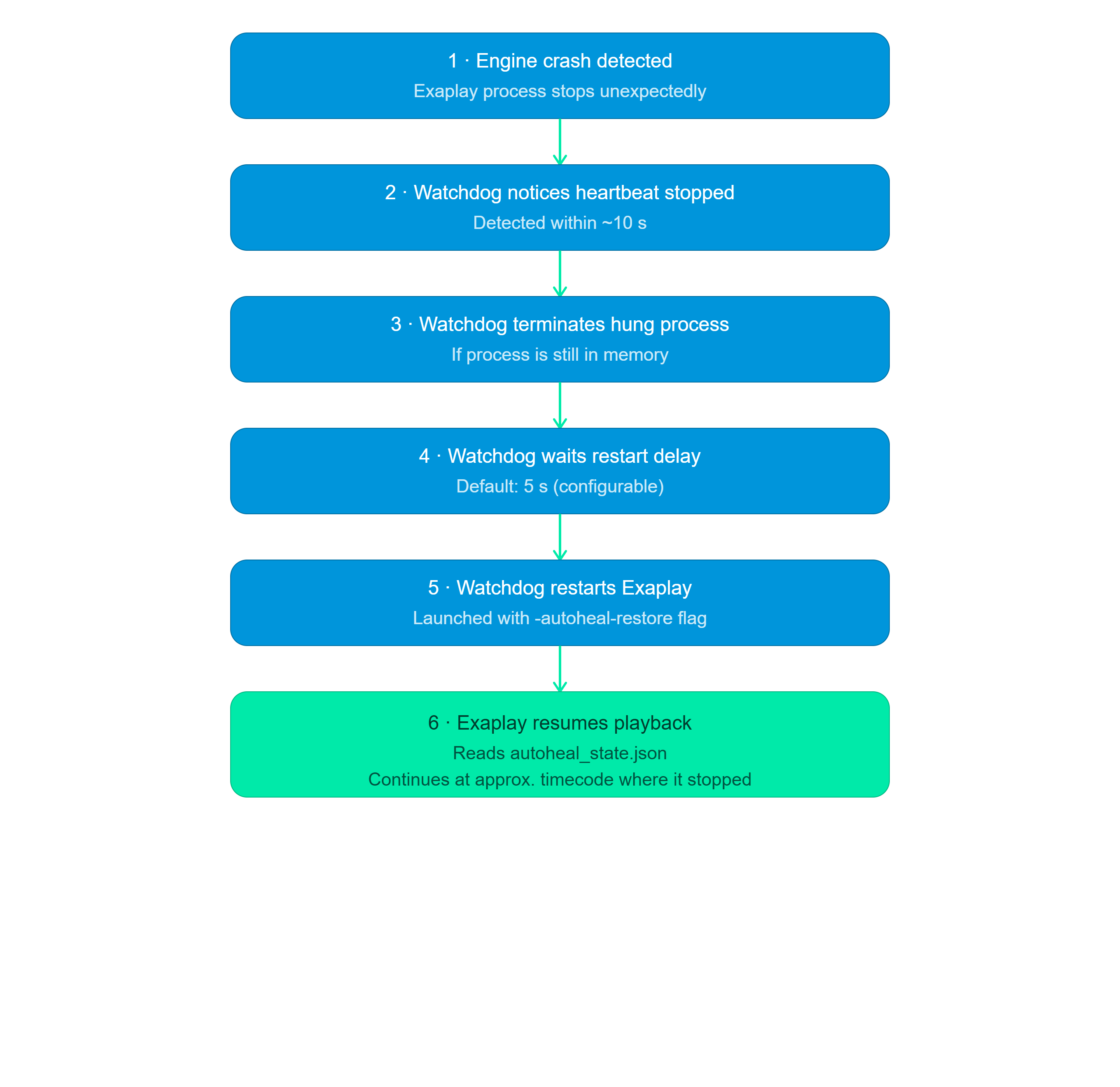
Automatic recovery needs Watchdog Restart switched on (Menu → Auto-Heal & Watchdog); it is off by default. With it on, the black screen lasts for the Restart Wait (5 s by default) plus the time the engine needs to start and load the show, then playback resumes.
Checking the Watchdog
If recovery did not happen, verify that Exaplay 3 Service, which contains the Watchdog, is running:
- Its tray icon is present, or
exaplay3-service.exeis listed in Task Manager → Details. - If it is not running, start Exaplay 3 Service from the Start menu. It is not a Windows service, so it does not appear in
services.msc; it starts from the Windows Startup folder when the user logs on. - Check that Watchdog Restart is on. It is a separate switch from Auto-Heal in the ☰ → Auto-Heal & Watchdog dialog (there is no Auto-Heal tab in Settings any more): Auto-Heal only saves the playback state, and with Watchdog restart off nothing restarts the engine to resume it.
Manual Recovery After a Crash
If automatic recovery fails, or if you want to restart manually:
- Check the system tray — the Exaplay icon may still be present (zombie process).
- Right-click the Exaplay tray icon and choose Close Exaplay, or kill the process in Task Manager.
- Restart Exaplay normally. A normal start does not resume the auto-heal state; to resume it, start
exaplay3.exe -autoheal-restore. - To start in safe mode, right-click the Exaplay Service tray icon and choose Start Exaplay (safe mode, no project) — or from a command prompt:This boots the engine with an empty project — the startup project, the last-project autoload and any auto-heal state are all skipped. It is the way out when the configured project itself crashes the engine at startup. The flag changes nothing on disk, so fix the cause from inside the safe session (turn off autoload in Settings → Startup, or load a known-good project) — otherwise the next normal start autoloads the same project again. If the crash loop involves the Watchdog relaunching the engine, quit Exaplay 3 Service first (tray icon → Quit Exaplay Service) and check Task Manager → Details for a background
exaplay3.exe -freshexaplay3.exe(the engine is a tray process; no window does not mean it is not running). On a client, also disable the master's autoload before editing startup settings locally — the master re-applies its autostart configuration to every online client within seconds.
Reading the Logs
All logs are in Documents\Exaplay3\logs\:
| File | Written by |
|---|---|
exaplay3_<date>T<time>.log | The engine — a new file for every start |
exaplay3-service.log | Exaplay 3 Service (the Watchdog) |
crash\exaplay3-crash-*.dmp | The engine, when it crashes |
crash\exaplay3-hang-*.dmp | The Watchdog, when it detects a hang |
Useful lines to look for:
| Log line | File | Meaning |
|---|---|---|
RESTART EXAPLAY | service | The Watchdog relaunched the engine after it stopped |
No restart | service | The engine stopped and Watchdog Restart is off |
CRASH LOOP DETECTED | service | Three short-lived runs in a row — restarting is disabled |
HANG DETECTED | service | The engine stopped writing its heartbeat |
RENDER HANG DETECTED | service | The engine heartbeats but renders no frames |
Auto-heal: Playback restored successfully | engine | Auto-Heal resumed playback |
Auto-heal: saved project path … does not match loaded … | engine | A different project loaded, so nothing was restored |
Auto-heal: Display count changed from … to … | engine | A display was connected or disconnected (only with Notify Output Changes on; also shown in the Monitor) |
Auto-Heal State File
The state file at Documents\Exaplay3\logs\autoheal\autoheal_state.json shows what Exaplay was doing when it stopped:
json
{
  "project": { "path": "C:\\Shows\\Festival.vpp", "name": "Festival" },
  "playback": {
    "active": true,
    "composition": "Main",
    "time": 125.45,
    "cue-index": 3,
    "cue-time": 45.2
  },
  "playback.compositions": [
    { "name": "Main", "time": 125.45, "cue-index": 3, "cue-time": 45.2 }
  ],
  "timestamp": 1771625673,
  "show-mode": true,
  "video-mute": false,
  "audio-mute": false
}playback.compositions— every composition that was playing, with its time (in seconds) and cue;playbackrepeats the first of themtimestamp— when the state was last saved, in seconds since 1970 (UTC); the file is checked every Save Interval (2 s by default) and rewritten when the state changed, and at least every 5 minutes while it stays the same
Repeated Crashes
If the engine dies three times in a row within 5 minutes of starting, the Watchdog stops auto-restarting to prevent a restart loop: the first restart resumes playback, the second starts in safe mode (empty project), and after the third it gives up. If the machine is paired with the VIOSO Cloud and Sentinel is on, a Crash loop alert is sent.
To investigate repeated crashes:
- Review the engine log for patterns — do crashes always happen at the same timecode, or when a specific clip plays?
- Try loading the project with
exaplay3.exe -fresh(skips auto-heal restore). - Update the GPU driver — many GL crashes are caused by outdated drivers.
- If the crash is consistently reproducible, report it with the log and project file.
Disabling Auto-Heal Temporarily
To start Exaplay without restoring the last auto-heal state:
exaplay3.exe -freshThis does not disable Auto-Heal for the session — it will continue saving state. It only skips the restore of the previous state.
To disable Auto-Heal entirely:
- Open Menu → Auto-Heal & Watchdog.
- Switch Auto-Heal off.
Warning: Disabling Auto-Heal means crashes will not be recovered automatically. Only disable for debugging purposes.
Reporting a Crash
For a problem that is still on screen, ☰ → Send log packs the end of the engine's current log, the output list, the fleet state and the version into one ZIP and saves it or mails it to support. After a crash the engine has restarted with a NEW log, so the crashed session's log is not in that package — attach the files below yourself.
When reporting a crash to support, include:
- The engine log of the session that crashed (
Documents\Exaplay3\logs\exaplay3_<date>T<time>.log) andexaplay3-service.log - The dump files in
Documents\Exaplay3\logs\crash\ - The autoheal_state.json file
- Windows Event Viewer → Application log entries around the crash time
- Exaplay version (burger menu → About)
- GPU driver version (Device Manager → Display Adapters)
- Steps to reproduce the crash (if known)