
Appearance
Museum Installation with User Panels
This guide covers a complete museum exhibit installation: unattended playback during visitor hours, staff-operated touchscreen kiosks that visitors interact with, and an easy-to-use maintenance panel for museum staff — all built without custom software.
What We Are Building
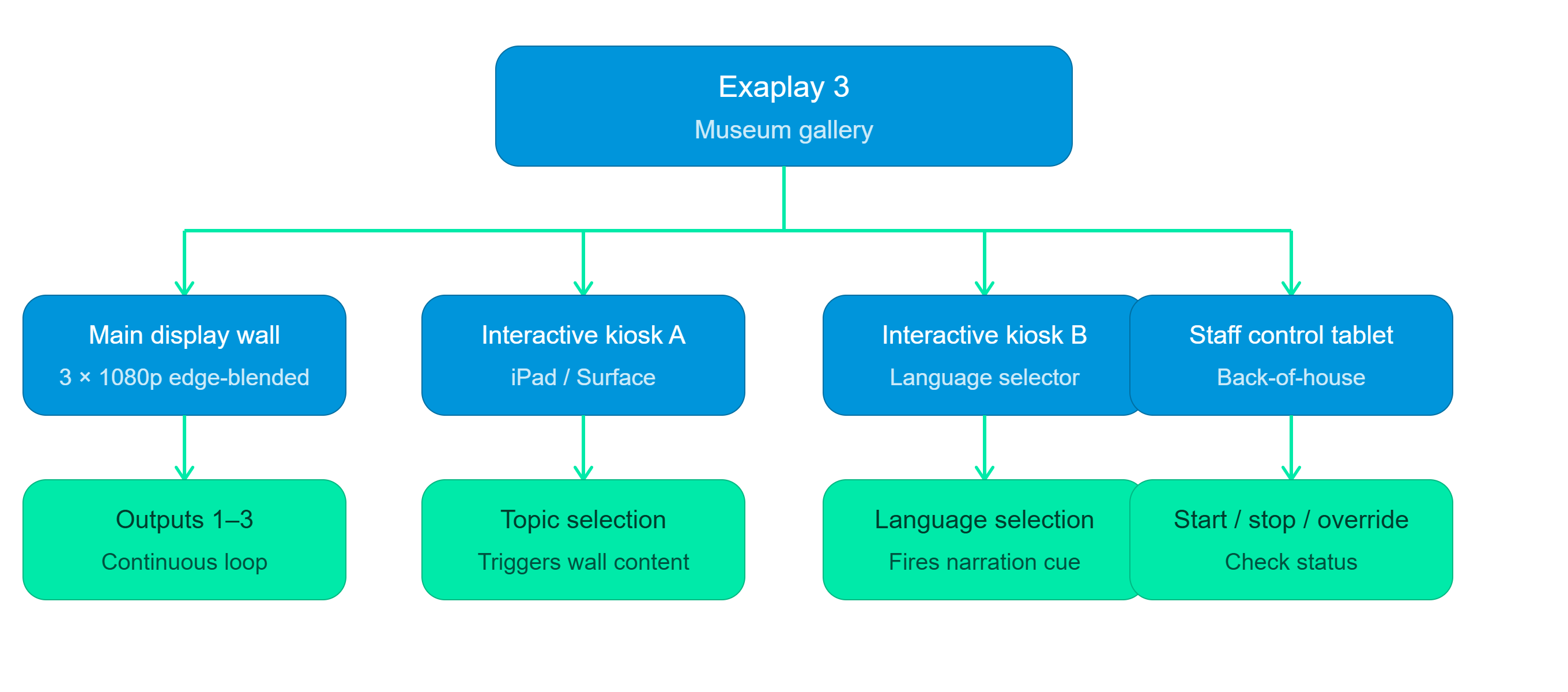
Everything is served from one Exaplay 3 instance. Staff and visitors access different User Panel views from their tablets — no app installation required.
Part 1 — Content and Compositions
Step 1.1 — Plan your content structure
A typical museum exhibit has one composition per thing a visitor can choose:
| Composition | Purpose |
|---|---|
Idle_Loop | Ambient background when no visitor is interacting (attract loop) |
Topic_A | Full-screen content for Topic A (e.g. "Ancient Egypt") |
Topic_B | Full-screen content for Topic B |
Topic_C | Full-screen content for Topic C |
Idle_Loop is a Timeline (or a Playlist) with Loop switched on in its Inspector. Each topic composition is a Timeline that plays once:
- Track 1 — background video
- Track 2 — narration audio
- Track 3 — overlay graphics (title, caption text)
Several languages
Exaplay has no action that switches a composition to another audio track. Build one topic composition per language (Topic_A_EN, Topic_A_FR, …) and let the visitor choose the language first — see Step 2.2.
Step 1.2 — Set up Outputs
- Open the STAGE tab.
- Use one screen for the wall (for example
Wall). - Open that screen (the arrow under its card) and drag each projector's output onto it. See Output Setup.
- If projectors overlap, load the VIOSO calibration for edge blending, or use the Projection Setup. See Projection Mapping.
- Select each composition and set its Plays on in the Inspector to the wall, so every composition fills the whole wall. See Output Setup.
- Check with Identify and Outlines in the Stage header, then switch them off again.
Step 1.3 — Return to idle at the end of a topic
A visitor starts a topic, and the exhibit should fall back to the attract loop when the topic is over. Put a cue at the end of each topic Timeline:
- Double-click the cue line at the end of
Topic_A. - In the Inspector set Action type to Play, Composition to
Idle_Loop, and Stop others to All other compositions. - Repeat for every topic composition.
When the topic reaches its end, Idle_Loop starts and the topic stops. See Cues on the Timeline.
Part 2 — Building User Panels
Panels are built in the Panel Designer. Everything below is described in full in the User Panel Builder.
Step 2.1 — Open the User Panels tab
- Open the Control view: the CONTROL tab in the header, or
http://<exaplay-ip>:8123/control. - Switch to the User Panels tab (Custom Panels in Easy Mode).
Step 2.2 — Create the Visitor Kiosk Panel
- Click Create panel, enter the Panel Title
Topicsand click Create panel. - Click the panel's picture (or Edit in Designer in the inspector). The Panel Designer opens in the Control tab.
- Click Add Item. Under Transport — composition, add Play for
Topic_A,Topic_BandTopic_C, and Play forIdle_Loop(the "back to start" button). - Select each of these buttons and type the same name, e.g.
Exhibit, into Group on the Inspector's Layout card. The buttons now form an exclusive group: tapping one stops the compositions the others started, so two topics never play on top of each other. - Type a caption for each button (Text card), e.g.
Ancient Egypt, and set the colours under Style. The panel's background is on the Panel card (click the empty canvas). - Set the Layout preset to the kiosk tablet (e.g. iPad Air).
The visitor panel now has four large tappable buttons.
With several languages: make the first page the language choice. On Topics, add three Page Jump items (English, Français, Deutsch); with Add Page in the page strip below the canvas create one page per language, each with that language's topic buttons (Topic_A_EN, …), the Idle_Loop button and a Page Jump → Back one page. Give all of these buttons the same group, Exhibit: an exclusive group spans every page, so a topic started from the French page stops an English topic that is still running.
Back to the start when the visitor walks away: on each language page, switch on the inactivity return on the Panel card, for example After 120 s, Press the Page Jump → Back one page, or the Idle_Loop Play button. See Part 5.
Step 2.3 — Create the Staff Control Panel
- Click Create panel, title
Staff Control. Give it a 4-digit PIN so visitors cannot use it. - In the Panel Designer, Add Item:
- Play of
Idle_Loopand of every topic, in one exclusive group as above. - Stop of each composition.
- Master Volume (under Custom Controls) — useful for lowering the sound during events or talks.
- Show Mode ON / Show Mode OFF (under System Actions) to take the whole wall dark and back.
- Play of
- To dim the picture, first put the composition's opacity on the Custom Controls tab (Add from scene, filter
alpha) — it is then offered under Custom Controls in Add Item. See Custom Controls.
Part 3 — Deploying to Kiosk Tablets
Every panel has its own address, built from its title (lowercased, spaces become -). Select the panel in Control → User Panels and click the copy icon beside its Address in the inspector to copy it.
Visitor Kiosk
Open this URL in the browser on the kiosk tablet:
http://<exaplay-ip>:8123/topics_panel.htmPut the browser in full-screen / kiosk mode (Chrome --kiosk flag, or an iPad kiosk app) to prevent visitors from navigating away.
Staff Tablet
http://<exaplay-ip>:8123/staff-control_panel.htmThe panel asks for its PIN. Or give staff the full Control view for advanced control:
http://<exaplay-ip>:8123/controlPart 4 — Unattended Operation (Visitor Hours)
Scheduler Setup
Configure Exaplay to start and stop the exhibit automatically:
- Open the Scheduler tab of the Control view (Schedule in Easy Mode).
- Put Play and Stop of
Idle_Loopon the Custom Controls tab first (Add from scene) — the Scheduler's Custom Control action fires those, since there is no dedicated "play composition" or "fade to black" action. - Add items:
| Time | Repeat | Action |
|---|---|---|
09:00 | Daily | Custom Control → Play of Idle_Loop |
18:00 | Daily | Custom Control → Stop of Idle_Loop (the wall goes black) |
A visitor who starts a topic just before closing time still sees it to the end; the end-of-topic cue then starts Idle_Loop again. To be sure the wall is dark overnight, add a 18:15 item that stops Idle_Loop again, or switch Show Mode off from the staff panel. For a nightly reboot, switch on ☰ → Auto-Heal & Watchdog → Scheduled Reboot and set its Reboot Time (default 03:00).
Auto-Heal and Watchdog
Enable crash recovery so that any crash is recovered without staff intervention:
- Open ☰ menu → Auto-Heal & Watchdog.
- Check that Auto-Heal is ON (the default) and Save Interval is
2s. - Switch Watchdog Restart ON (it is off by default), with Restart Wait
5s.
After a crash the Watchdog restarts Exaplay and it resumes what was playing.
Windows Auto-Start
- Open ☰ menu → Settings → Startup.
- Switch Autoplay at Startup ON, click Use current project, and choose
Idle_Loopas the Composition. - Set Delay after Player Start to about
30s, to allow the projectors and displays to connect.
With Windows logging on automatically, the exhibit comes back by itself after a power cut. See Permanent Installations for the full Windows configuration checklist.
Part 5 — Returning to Idle (Auto-Reset)
Museums want interactive content to return to the idle loop when the visitor is done. Two mechanisms work together:
- The end-of-topic cue from Step 1.3: every topic plays once and then hands over to
Idle_Loop. It runs in the engine, so it works even when no tablet is connected. - The panel's inactivity return: when nobody has touched the kiosk page for a set time, the page presses a button for the visitor. On the
Topicspanel and on each language page, click the empty canvas in the Designer, switch Inactivity return on, set After (for example120s) and pick the button under Press: theIdle_LoopPlay button, which also stops the running topic through theExhibitgroup, or a Page Jump back to the language choice. See Inactivity return.
The inactivity return runs in the kiosk's browser. With two tablets on the same page, each presses the button after its own idle time; pressing Play of a composition that is already playing changes nothing, so this is harmless. It presses once and then waits for the next visitor, so it never loops. Set the idle time longer than a visitor needs to read a page, and keep the end-of-topic cue as well: it returns a finished topic to idle even while someone is still touching the page.
Part 6 — Remote Monitoring
Staff can monitor the exhibit remotely (from the museum office or from home) without physically visiting the gallery:
http://<exaplay-ip>:8123/control— the Control view shows which composition is playing, and the Scheduler tab whether today's items have run.http://<exaplay-ip>:8123/— the full interface; the Performance Diagnostics icon in its header shows FPS, CPU, RAM and VRAM, so you can see whether the system is under stress.- Control → Monitor — the network traffic the engine receives and answers. See Monitor.
If the exhibit is accessible over the museum's network from outside the gallery, save the Control view URL on the museum's intranet.
Summary Checklist
- [ ] Compositions created: Idle_Loop + one per topic (and per language)
- [ ] An end-of-topic cue in every topic: Play
Idle_Loop, Stop others - [ ] User Panels created: Topics (visitor kiosk) and Staff Control (with a PIN)
- [ ] Topic buttons in one exclusive group (across all language pages)
- [ ] Inactivity return on the kiosk pages (e.g. 120 s →
Idle_LoopPlay or Page Jump to the start) - [ ] Kiosk tablet URLs configured with
_panel.htmaddresses (e.g./topics_panel.htm) - [ ] Browsers in kiosk/full-screen mode
- [ ] Scheduler configured for opening/closing times
- [ ] Auto-Heal on and Watchdog Restart on
- [ ] Autoplay at Startup configured, Windows logs on automatically
- [ ] Remote monitoring URL saved for staff