
Appearance
Projector Control (PJ-Link)
Exaplay 3 can switch projectors on and off, mute their picture and select their input directly over the network using PJ-Link, the vendor-neutral projector control protocol. Devices are managed in the Control View's TCP Devices tab and can be exposed to end users through the User Panel Builder.
3.2 adds multi-device management: bulk range-add and live power-status polling. 3.3 adds the on-demand Refresh status button below. 3.5 moves the polling into the engine: it runs whether or not a browser is open.
Adding Projectors
Walkthrough
☰ menu → Walkthroughs → Running the show → Switching projectors with PJLink adds a projector, switches it on, mutes its picture and sets up a range of them — recorded from the real application.
Open the Control View (the Control tab, or http://<engine-ip>:8123/control) and go to the TCP Devices tab (hidden in Easy Mode). Under PJLink projectors you have two ways to add devices.
Add a single projector
Click Add projector and fill in (the dialog is titled Add projector):
| Field | Description | Default |
|---|---|---|
| Device Name | Label shown on the device card and in user panels (required) | — |
| IP Address | The projector's network address (required) | — |
| Port | PJ-Link control port | 4352 |
| Password (if required) | PJ-Link authentication password (leave empty if disabled) | (empty) |
Add a range of projectors
For a wall of identical projectors on sequential IP addresses, click Add range to create many at once:
| Field | Description | Default |
|---|---|---|
| Base Name | Name prefix; each device is numbered (Projector #1, Projector #2, …) | Projector |
| Base IP Address | IP address of the first projector — the last octet is incremented per device | — |
| Start Number | First index used in the generated names | 1 |
| Count | How many projectors to create (up to 256) | 4 |
| Port | PJ-Link control port | 4352 |
| Password (if required) | Shared PJ-Link password applied to every device in the range | (empty) |
A preview lists the names and addresses before you confirm with Add projectors. The range stops at .255 — it never rolls over into the next subnet, so fewer devices than Count may be created.
Live Power Status
Each projector card shows a power-status badge so you can see each projector's state without leaving the Control View. The engine asks every configured projector for its power state every 30 seconds, one projector after the other, whether or not a browser is open — and a few seconds after every power command (from a button, a cue, a panel or the scheduler). Every open browser shows the same result; none of them talks to the projectors for it. Hover a badge for the reason behind it and when the projector was last checked.
| Badge | Meaning |
|---|---|
| On / Off | What the projector reported |
| Warming up / Cooling | The projector is between states |
| Unreachable | No answer: nothing accepted the connection within 1.5 s, or the projector did not greet. Check that it is powered at the mains, its IP address and port 4352 |
| Error | The projector answered, with an error — for example a wrong or missing password (see below) or Unavailable time (ERR3) while it is busy |
| Unknown | The answer did not contain a power state, or this machine does not poll (see below) |
| Not polled yet | The projector was just added; the engine asks it within seconds |
Next to All projectors on / All projectors off, a Refresh status button asks the engine to check every projector now instead of at the next 30-second poll — useful right before a show. The button shows a spinner and reads "Refreshing…" while the engine's check is running.
On a multiclient rig only the master (or a standalone machine) polls — several machines asking one projector the same question would only add load. A client machine shows Unknown and its Refresh status button is disabled; open the master's Control View to see the status.
Controls
Each device card provides:
| Control | PJ-Link command | Action |
|---|---|---|
| Power on | POWR 1 | Turn the projector on |
| Power off | POWR 0 | Turn the projector off |
| Input | INPT 11 … INPT 51 | Select the input (RGB 1/2, Video 1/2, Digital 1/2, Storage 1, Network 1) |
| Mute video | AVMT 11 | Blank the picture (on many projectors this closes the shutter) |
| Mute audio | AVMT 21 | Mute the projector's audio |
| Unmute all | AVMT 30 | Clear video and audio mute |
To change a device's name, IP, port or password, select its card and press Edit… in the Inspector's Projector card; Remove there (or Del) deletes it.
At the top of the section, All projectors on and All projectors off send a power command to every configured projector, one after the other — handy for show start and end.
Commands are sent by the engine the browser is connected to, so that machine must be able to reach the projectors on the network. A projector that does not accept the connection within 1.5 seconds is reported as unreachable at once, instead of holding the command for the operating system's much longer connect timeout.
Devices are saved to the project (.vpp) and to the browser's local storage, so they travel with the project.
Exposing Projectors to End Users
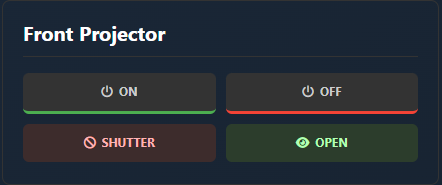
PJ-Link devices can be added to a User Panel so non-operators get simple power and picture-mute buttons without the full Control View. See User Panel Builder → Adding TCP / PJLink Devices.
Password-protected projectors
PJ-Link authentication is handled for you: when a projector announces that it wants a password, Exaplay answers with the digest the protocol requires (MD5 over the projector's own one-time challenge plus your password) in the same packet as the command. Enter the password in the device's Password field and nothing else is needed — it is stored with the device, travels with the project, and is sent on every command, including scheduled actions and the power-status poll.
The password is stored as readable text in the project file and in the browser's local storage, like the rest of the device settings. Treat a project file that contains projector passwords accordingly.
Leave the field empty for a projector that has no password set. A password typed in for a projector that does not ask for one is simply not used; the projector decides.
Two failures are reported separately, because the remedy differs:
| Message | What it means |
|---|---|
| The projector rejected the PJLink password (ERRA) | The password reached the projector and was wrong. Some projectors also lock out for a while after repeated failures — power-cycle the projector if a corrected password keeps being rejected. |
| this projector requires a PJLink password, but none is configured for it | The projector asked for a password and the device's Password field is empty. Nothing was sent. |
Before 3.3.9 the password was collected but never actually used, so only projectors with no password set could be controlled. If you are on an older build, that is the cause.