
Appearance
Stream Deck with Bitfocus Companion
Bitfocus Companion turns an Elgato Stream Deck (or a Stream Deck+, an XKeys panel, a tablet) into a control surface. The Exaplay module puts your compositions, your cue lists — one key per cue — your command buttons and the show-wide switches (Blank, Show mode, Audio mute …) on its keys. The keys show Exaplay's live state: a composition key turns green while it plays, a cue key while it is the current cue, Blank turns red while the wall is dark.
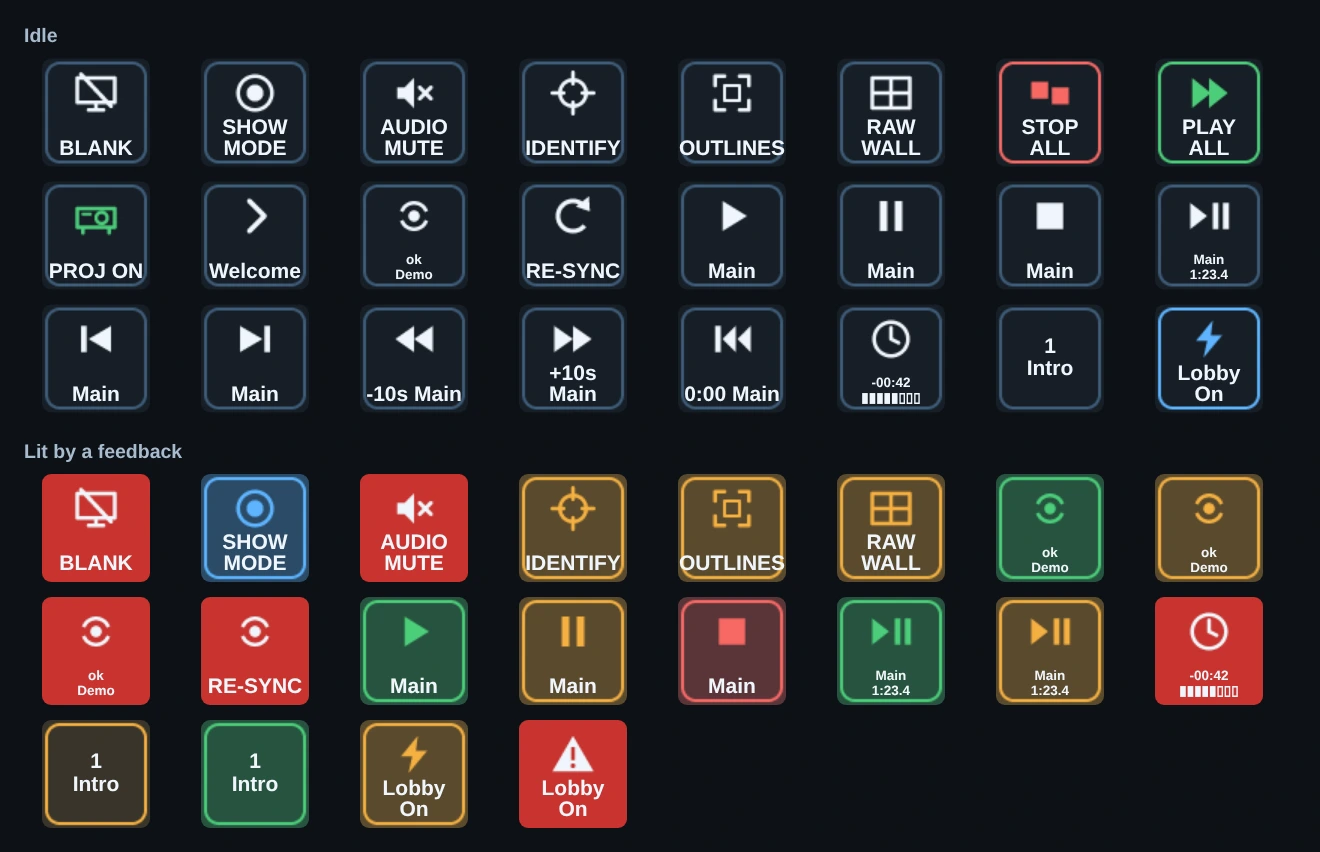
The keys wear the Exaplay look: the outlined square of the transport buttons in Produce & Play, with the caption underneath. A state lights the outline and the symbol — green playing, amber paused or a command button running, red stopped, blue Show mode — and Blank and Audio mute fill the whole key red, the way the Exaplay header does.
Only Exaplay on the deck?
A deck plugged into the Exaplay master can also be driven by Exaplay itself, without Companion: see Stream Deck — built in.
What you need
- Companion 4.2 or later on any PC (Windows, macOS, Linux, or a Companion Pi) with a network connection to the Exaplay machine.
- The Exaplay module package,
vioso-exaplay-<version>.tgz. It ships with Exaplay — no download from the internet, no Node.js, nothing else to install. - In a multi-client rig: the address of the master. Companion talks to the master only; the master passes everything on to its clients.
1. Get the module package
The Exaplay installer puts the package on the Exaplay machine:
C:\Program Files\Exaplay 3\integrations\companion\vioso-exaplay-<version>.tgzThe Start menu opens that folder too: Exaplay 3 → Show-control integrations, then companion.
Companion runs on another PC? Open the Exaplay web interface there (http://<Exaplay IP>:8123), go to Control → Integrations, and press Download on the Bitfocus Companion card. The file comes straight from the Exaplay machine; the Companion PC needs no access to the internet. A USB stick works as well.
Which version?
Take the package that came with your Exaplay. It is built from the same release as the engine, so the two always know the same commands.
2. Import it into Companion
- Open Companion's web interface (on the Companion PC usually
http://127.0.0.1:8000). - Go to Modules and press Import module package.
- Choose
vioso-exaplay-<version>.tgz.
Companion lists it as VIOSO: Exaplay 3.
3. Add the connection
- Connections → Add connection, search for Exaplay, and add it.
- Engine address: the IP address of the Exaplay machine (the master in a multi-client rig).
- Leave the ports as they are unless you changed them in Exaplay (Settings → Communication):
| Field | Default | Where Exaplay sets it |
|---|---|---|
| TCP port | 8100 | TCP Listen |
| HTTP port | 8123 | the web interface's port |
| OSC port | 8000 | OSC Listen |
| OSC prefix | exaplay | OSC Prefix |
- Save. The connection turns green once both links stand: the TCP connection for commands and the status feed for the keys.
For a second Exaplay engine — a separate show, not a client of the first — add a second connection.
Companion and Exaplay on the same PC
With the default TCP Listen *:8100 (every network, the loopback address included) 127.0.0.1 works as well as the PC's network address. If TCP Listen names one IP address instead of *, Exaplay listens on that address only — use it, not 127.0.0.1.
4. Put keys on your Stream Deck
In Buttons, open the Presets tab, choose your Exaplay connection, and drag presets onto your pages.
| Folder | Keys |
|---|---|
| Show | Blank, Show mode, Audio mute, Identify, Outlines, raw wall, Stop all, Play all, projectors on / off, Spaces page back / forward, a connection key that flashes red when the link is lost, Refresh, Re-sync, Last error |
| Transport: composition | Play, Pause, Stop, a play/pause toggle with the time, Previous, Next, the current cue with a countdown, the remaining time (amber, then red, near the end), the next cue, seek −10 s / +10 s, back to the start |
| Cues: composition | one GO key per cue — green while it is the current cue, amber while it is next |
| Command buttons | one key per command button of the show — amber while its commands run (whoever pressed it), red if Exaplay refused the last press |
| Dials: composition | for a Stream Deck+: volume, opacity, seek (press = play/pause) and a cue picker (turn to pick, press to fire) |
| Dials: engine | the master volume |
The Cues and Command buttons folders are read from the open show when Companion connects, after a project is loaded, and when you press Refresh. Add a cue in Exaplay, press Refresh, and its key appears in the presets.
Test: press Play on a composition key. It turns green within a fraction of a second — the colour comes from Exaplay's status, not from the key press, so a green key means Exaplay really plays.
5. Your own keys
Every preset is an ordinary Companion button: change its text, colour or actions. To build one from scratch, add an action from your Exaplay connection and pick the composition from the list — or type its ID or name in the text field next to it, which wins over the list (use it for variables, or for a composition you have not created yet).
Useful pieces:
- Actions: play, pause, stop, toggle, next / previous, cue go (by index or name), jump to a time, seek, loop, volume and opacity (set or nudge), master volume, Show mode, Blank (with a fade), Audio mute, Identify, Outlines, raw wall, Spaces page, projectors, Command button: press, Inputs, and a raw TCP / OSC / HTTP line for anything else.
- Feedbacks: composition state, current / next cue, time running out, progress colour, every show-wide switch, connected, connection lost, command button running / failed.
- Variables, for key text — for example
$(exaplay:comp_comp1_time),$(exaplay:comp_comp1_remaining_mmss),$(exaplay:comp_comp1_cue_name),$(exaplay:blank). The connection's ? in Companion lists them all; replaceexaplaywith your connection's label if you renamed it.
A command button is the cleanest way to put a whole sequence on one key: build it once in the Control tab (start two timelines, wait, fade the lobby), and the Stream Deck key only presses it by its ID. The sequence stays in the show file, where the operator can see and test it.
Good to know
- Unknown is not off. While Exaplay has not reported a state (no connection yet, an older engine), the key stays unlit and its text shows
?. The play/pause toggle sends nothing while it does not know whether the composition plays. - Nothing is sent twice. If Exaplay does not answer a command within 3 seconds, the press is reported as failed in
$(exaplay:last_error)instead of being repeated later. - Dials start from Exaplay's value, never from a guess: the first turn reads the current value, so a change made in the editor meanwhile is kept.
- Firewall: the Exaplay PC must let in TCP
8100(commands), TCP8123(status feed, command buttons, Stop all, projectors) and UDP8000(Outlines and raw wall). See Ports. - Older Exaplay (before 3.5): set Blank, Audio mute, Identify, Play all over to OSC in the connection's settings, and the remaining time of a Timeline shows
?.
Troubleshooting
| What you see | What to check |
|---|---|
Connection red, log says ECONNREFUSED | The engine address — on the same PC, see above. Is TCP 8100 open in the firewall? Is Exaplay running? |
| Connection red from another PC | Can the Companion PC reach the Exaplay machine (ping)? In a multi-client rig, is it the master's address? |
Log says status feed refused: HTTP 200 | The engine is older than the status feed (Exaplay 3.5). Commands work; the keys stay unlit and show ?. Update Exaplay, or switch Use the status feed off. |
Keys never light up, text ? | TCP 8123 blocked, or Use the status feed switched off in the connection's settings. |
| A cue or command button is missing in the presets | Press Refresh (Show folder) after changing the show; $(exaplay:lists_state) says ok once it has been read. |
| A command button key turns red | Exaplay refused the press; the reason is in $(exaplay:button_last). A button that was deleted or renamed in the show needs a fresh preset. |
Updating from the earlier Exaplay module (1.x)
Companion's module list carried an earlier Exaplay module (version 1.x). When Companion updates it to 2.0, it moves your existing buttons over by itself: play / pause / stop, set cue, volume, volume ±, jump to time, and the transport-mode and cue-active feedbacks. A composition number such as 1 still means comp1.
The old display feedbacks stay, marked (1.x), and the setting Buttons from module 1.x — switched on by the update — keeps the old variables (playback_status_comp1, current_time_comp1 …) working. For new buttons use the presets above; once no button uses the old ones any more, switch the setting off.
See also
- Connecting External Systems — which route for which system: Home Assistant, Node-RED, smart plugs, your own panel.
- External Show Control — every integration that ships with Exaplay.
- Status Push reference — the live status the keys read.
- TCP API reference — the commands behind the actions.