
Appearance
Audio Settings
Configure audio output devices and timecode input in Config → Audio Settings.
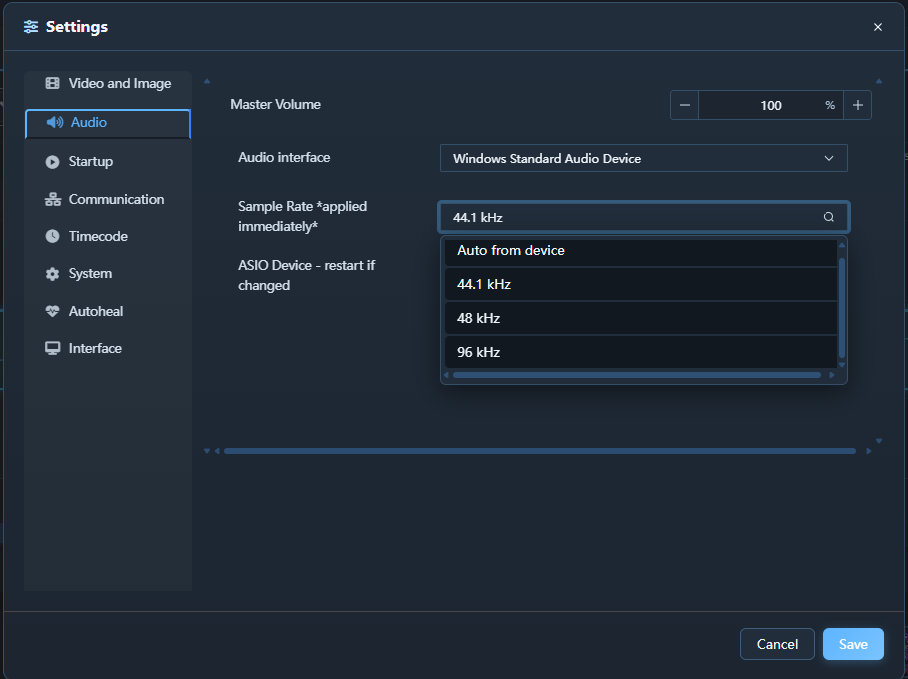
Driver Selection
| Option | Description |
|---|---|
| ASIO | Low-latency professional audio (requires an ASIO-compatible interface) |
| WASAPI | Windows audio subsystem (works with any sound card) |
| DirectSound | Legacy Windows audio (higher latency; use only if WASAPI is unavailable) |
Recommendation: Use ASIO whenever possible for latency below 5 ms. Many ASIO drivers support buffer sizes as small as 32 or 64 samples.
Device Selection
After choosing a driver, select the audio device from the Device drop-down. ASIO devices may have a Control Panel button to open the vendor's driver settings.
ASIO driver loading (3.2): the ASIO loader is now fault-tolerant — a single faulty or misbehaving ASIO driver no longer hides all of the other available audio devices, so the rest of your interfaces still appear in the device list.
Audio Free-Sync
Audio Free-Sync lets audio run free on the soundcard clock instead of being continuously re-synced to the engine/transport playhead. When enabled there is no periodic cue-snap, which removes the small resync click you can otherwise hear — this works best for shorter clips.
| Setting | Description | Default |
|---|---|---|
| Audio Free-Sync | Run audio on the soundcard clock — no resync click | Off |
Leave it off for long-form content where the audio must stay locked to the timeline; turn it on for short cues where a click-free start matters more than perfect long-term lock.
New in 3.2.
Sample Rate and Buffer Size
| Setting | Recommended |
|---|---|
| Sample rate | Match the sample rate of your audio source (typically 48000 Hz) |
| Buffer size | 256–512 samples for ASIO; larger buffers reduce CPU overhead |
Output Channel Routing
For multi-channel audio interfaces, assign clips or screen groups to output channel pairs:
- Click + Route in the routing table.
- Choose the Source (a screen or a specific clip).
- Choose the Output channels (e.g. channels 3-4).
Timecode Input (LTC)
| Setting | Description |
|---|---|
| LTC Enabled | Enable LTC reception |
| LTC Input Channel | The audio input channel carrying the LTC signal |
| Frame Rate | 24, 25, 29.97 DF, or 30 fps |
Connect the LTC source to the configured input channel. When valid LTC is received, the Transport bar shows TC: Locked.
Monitoring Levels
Use the Monitor section to adjust the monitoring output level independently of the main mix. Useful for checking audio in a headphone mix without affecting the main house output.