
Appearance
Timeline
The Timeline is the primary composition tool. It arranges clips in time across multiple tracks and displays the playhead position.
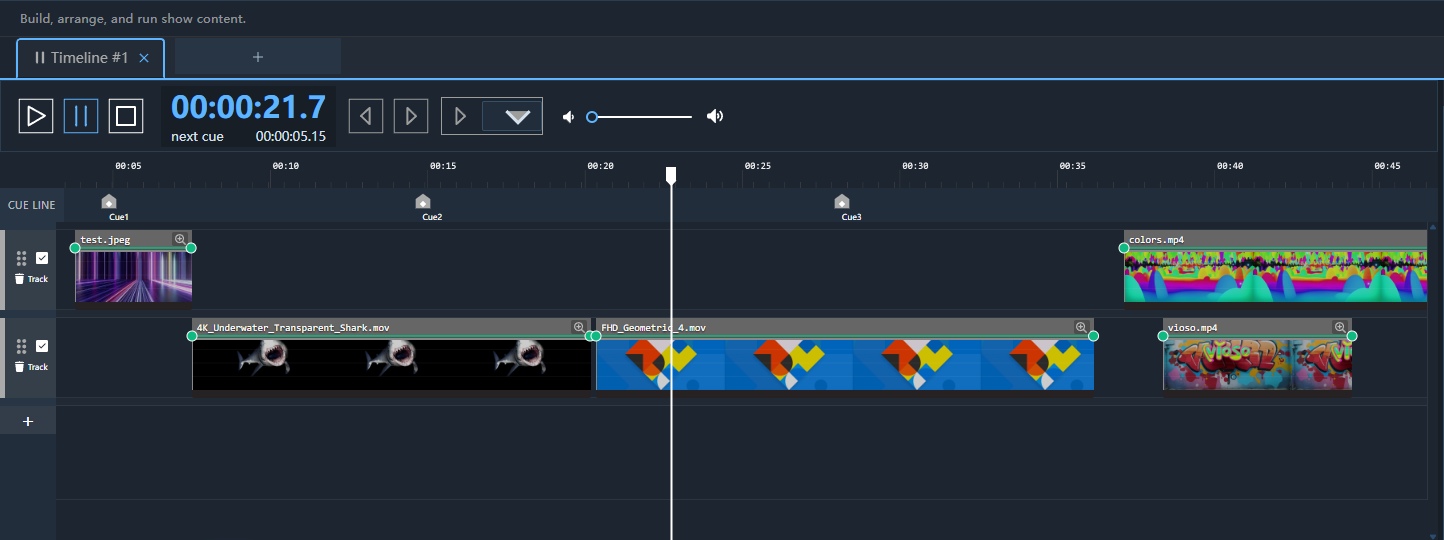
Anatomy of the Timeline
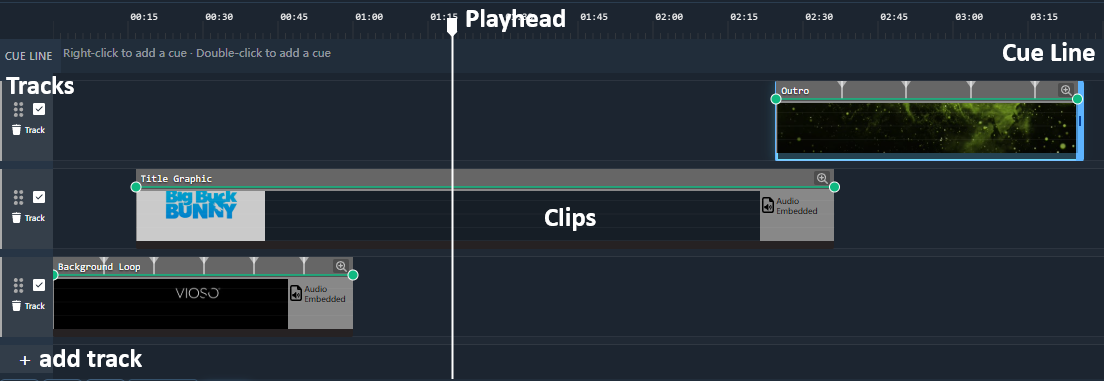
Tracks
- Each screen can have an unlimited number of tracks.
- Tracks are stacked with Track 1 at the bottom (rendered first, lowest layer).
- Click + Track to add a new track above the current stack.
- Use Insert track above to add a track directly above a specific existing track instead of at the top (new in 3.2).
- Add a Data Track to emit keyframe values over OSC / UDP / TCP / Art-Net / DMX or drive Operator Control readouts — see Data Tracks (new in 3.2).
- Drag the track header to reorder.
Duplicating a composition copies its full content, including every track (3.2 fixes an earlier case where some tracks were dropped). Right-click a composition tab and choose Duplicate.
Clips
| Action | How |
|---|---|
| Add | Drag from File Browser |
| Move | Drag the clip body |
| Trim start | Drag the left edge |
| Trim end | Drag the right edge |
| Delete | Select + Delete key |
| Duplicate | Ctrl+D |
| Split | Position playhead and press S |
| Snap to grid | Hold Ctrl while dragging |
Playhead
- Click anywhere on the ruler to jump to that time.
- Drag the playhead handle to scrub.
- The timecode display in the Transport bar always reflects the playhead position.
Zoom and Scroll
| Action | How |
|---|---|
| Zoom in / out | Ctrl + scroll wheel |
| Scroll horizontally | Shift + scroll wheel or drag the scrollbar |
| Fit all clips | Press F (fit to view) |
| Go to start | Home key |
| Go to end | End key |
Loop Region
Set a loop region by right-clicking on the ruler and choosing Set Loop Start / End. Press L to toggle looping of the region during playback.
Transitions
Overlapping clips on the same track creates an automatic crossfade. The overlap duration determines the crossfade length. Adjust the transition type in the Inspector.