
Appearance
Playlist
The Playlist is an alternative to the Timeline for shows where playback is driven by discrete cues rather than a continuous time ruler — typical in theatre, corporate events, and touring.
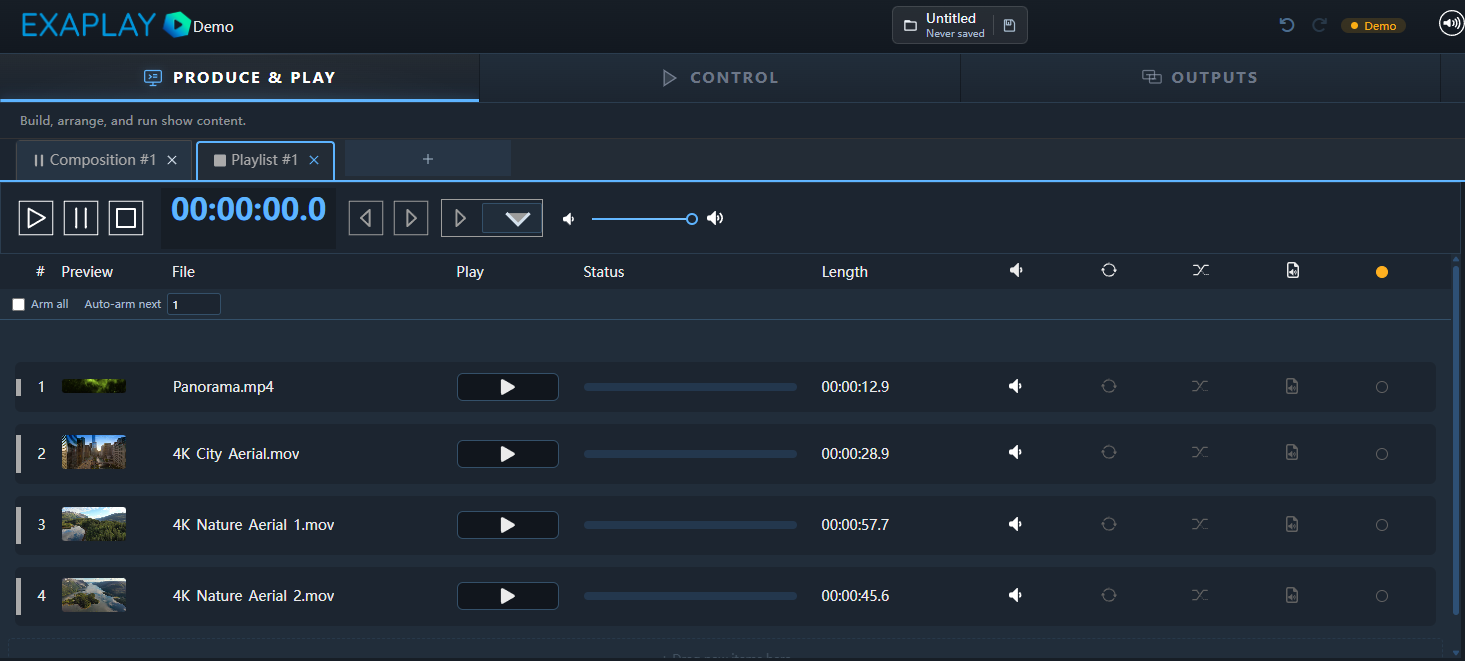
Creating a Playlist Composition
When you create a new composition (the + button in the composition tab bar), choose Playlist as the composition type instead of Timeline. The selected composition's editor area then shows the Playlist with its cue rows.
Anatomy of a Cue
| Property | Description |
|---|---|
| Number | Auto-incremented integer; can be manually set (e.g. 101, 101.5) |
| Name | Human-readable label shown in the operator view |
| Action | What the cue does (see below) |
| Pre-wait | Delay between the previous cue finishing and this cue firing (seconds) |
| Post-wait | Delay after this cue's action before auto-following the next (seconds) |
| Auto-follow | When enabled, the next cue fires automatically after post-wait |
| Hot Key | Optional keyboard shortcut for direct triggering |
Cue Actions
| Action | Description |
|---|---|
Go to timecode | Jump the playhead to a specific timecode and play |
Play | Resume from current position |
Stop | Stop playback |
Fade to black | Fade all outputs to black over a specified duration |
Load composition | Switch to a different composition on one or more screens |
Set volume | Ramp audio to a target level |
Fire OSC | Send an OSC message to an external device |
Running a Show with Cues
- In the Operator Control view, cues appear as a vertically scrolling list.
- The current cue is highlighted.
- Press Space or the Go button to execute the highlighted cue and advance.
- The list scrolls automatically to keep the next cue visible.
Creating Cues
- Click + Cue in the Playlist toolbar.
- Fill in the properties in the inline editor.
- Drag the cue row to reorder it.
- Right-click a cue for Duplicate, Delete, or Insert Before/After options.
Importing and Exporting Cues
Cues are saved inside the .vpp project file. You can also export the Playlist as a CSV file (Playlist menu → Export CSV) to share it with stage managers or import into another show.