
Appearance
Frame Blending & Transitions
Exaplay 3 supports GPU-accelerated frame blending between clips on the same track and flexible transition effects at clip boundaries.
Crossfade (Overlap Transition)
The simplest transition is a crossfade: overlap two clips on the same track and Exaplay blends between them over the overlap duration.
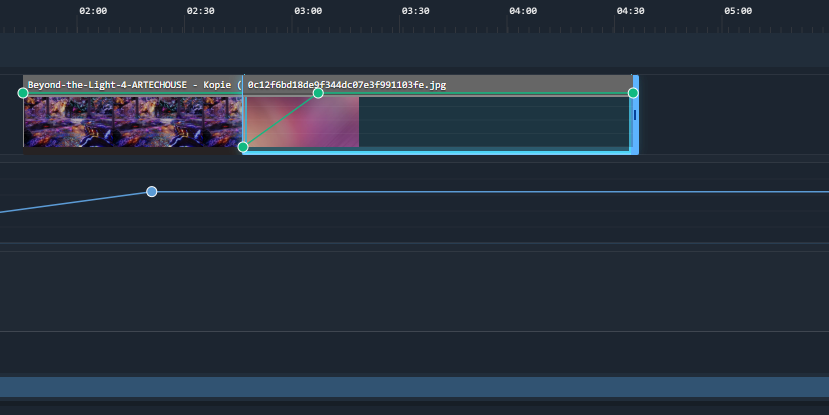
The overlap length determines the crossfade duration. Adjust it by dragging either clip edge in the Timeline.
Transition Types
Set the transition type for each clip in the Inspector → Transitions section.
In Transition
Applied when the clip enters (fades in or appears).
| Type | Description |
|---|---|
| Cut | No transition — clip appears immediately |
| Crossfade | Alpha blend from 0 to 1 over the overlap |
| Wipe → Left | Content wipes in from the right edge |
| Wipe → Right | Content wipes in from the left edge |
| Wipe ↑ | Content wipes in from the bottom |
| Wipe ↓ | Content wipes in from the top |
| Fade to Black | Fades out the outgoing clip to black, then fades the new clip in |
Out Transition
Mirror of the In Transition, applied as the clip exits.
Transition Duration
Transition durations are determined by the overlap length between adjacent clips. You can also set them numerically in the Inspector:
- In Duration — length of the fade-in (seconds)
- Out Duration — length of the fade-out (seconds)
Frame Blending
Frame blending smooths slow-motion or speed-changed clips by blending adjacent source frames together, reducing the stroboscopic effect of frame repetition.
Enable it per-clip in Inspector → Playback → Frame Blend.
| Mode | Description |
|---|---|
| Off | No blending — each frame is held until the next |
| Mix | Adjacent source frames are averaged (50/50 alpha blend) |
| Optical Flow | Motion-estimated intermediate frames (GPU-intensive) |
Performance note: Optical Flow frame blending uses additional GPU shader passes. On complex 4K content it can reduce available frame budget. Use Mix for most cases.
Alpha Channels
Clips with alpha channels (HAP Alpha, NotchLC, PNG) blend their alpha through the normal compositing stack. The blend mode in the Inspector controls how each layer's alpha interacts with layers beneath it:
| Blend mode | Behaviour |
|---|---|
| Normal | Standard alpha over compositing |
| Add | Pixel values added — good for light, fire, glows |
| Multiply | Pixel values multiplied — good for shadows, darkening |
| Screen | Inverse multiply — good for bright elements |
Common Recipes
Hard Cut Between Two Videos
- Set In Transition: Cut and Out Transition: Cut on both clips.
- Avoid any overlap between clips.
Slow Logo Fade-In Over Background
- Place logo (PNG with alpha) on Track 2, background video on Track 1.
- Set In Transition: Crossfade, Duration: 3.0 s on the logo clip.
Black Between Acts
- Set Out Transition: Fade to Black, Duration: 2.0 s on the outgoing clip.
- Set In Transition: Crossfade, Duration: 2.0 s on the incoming clip.
- Leave a gap between them on the timeline; the black frames fill the gap.