
Appearance
External Show Control — IN/OUT Commands
This guide explains how to connect Exaplay 3 to an external show control system (ETC Eos lighting console, Medialon, QLab, Crestron, Q-SYS, CueLab, Alcorn McBride, a custom PLC, or any other device that can send network commands). It covers every supported protocol, with tested command examples and a troubleshooting checklist for each direction.
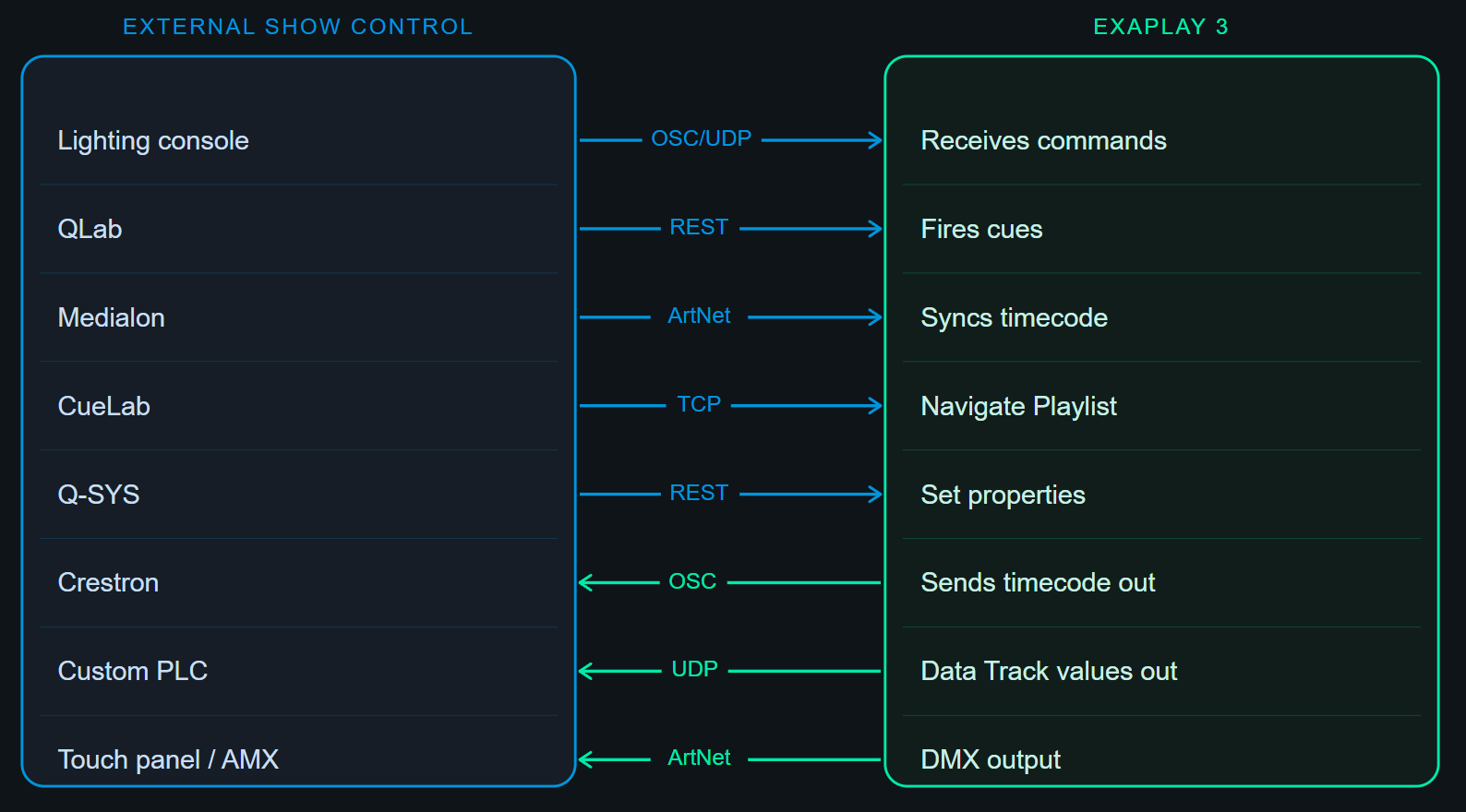
Part 1 — Commands INTO Exaplay (Incoming)
1A — HTTP Control (most flexible)
Any device that can send an HTTP POST request can control Exaplay.
Fire a cue by name:
bash
curl -X POST http://192.168.1.5:8123/cue/trigger \
  -H "Content-Type: application/json" \
-d '{"name": "Scene 1 - Opening"}'Fire a cue by number:
bash
curl -X POST http://192.168.1.5:8123/cue/trigger \
  -H "Content-Type: application/json" \
-d '{"number": 3}'Set a property value (e.g. opacity of a layer):
bash
curl -X POST http://192.168.1.5:8123/data \
  -H "Content-Type: application/json" \
-d '{"type":"exaObj","path":"comp.Main.layer.0.opacity","values":{"value":75}}'Play a composition (look up the composition UID via GET /project first):
bash
curl -X POST http://192.168.1.5:8123/project \
  -H "Content-Type: application/json" \
-d '{"req":"composition.play","src-uid":12345678}'The same POST /project endpoint also supports composition.pause, composition.stop, composition.set-time, composition.next and composition.prev. See the REST API reference for the full list.
Stop all playback:
bash
curl -X POST http://192.168.1.5:8123/stopTip: To find the correct path for any property, open it in the Inspector, click the 🔗 link icon, and read the path in the panel options.
1B — OSC (Open Sound Control)
OSC is supported by virtually every professional show control system.
Exaplay OSC listen port: 8000 (default — configurable in Config → Network → OSC)
The address pattern is /<prefix>/<composition-id>/<command> — the prefix defaults to exaplay and <composition-id> is the composition's variable name (e.g. comp_main).
| OSC Address | Arguments | Action |
|---|---|---|
/exaplay/<comp>/play | (none) | Start the named composition |
/exaplay/<comp>/pause | (none) | Pause the named composition |
/exaplay/<comp>/stop | (none) | Stop the named composition |
/exaplay/<comp>/cuetime | f or i (seconds) | Seek to position (client instances only) |
/exaplay/<comp>/cue | i (cue index) | Fire a cue by index in a Timeline or Playlist |
/exaplay/global/showmode | s (on/off/toggle) or i/f (1/0) | Set global Show Mode |
/exaplay/global/restart | (none) or s (project/clean) | Restart exaplay (reload current project, or clean for empty) |
/timecode (configurable) | f, i, or s (HH:MM:SS:FF) | Drive timecode-slaved compositions |
Note: OSC dispatching is keyed by composition variable name — to fire a cue by name (across all compositions), use the HTTP endpoint
POST /cue/triggerinstead.
Example — ETC Eos console firing cue 3 in comp_main:
In the Eos Macro editor, add a Network command:
/exaplay/comp_main/cue 3
UDP to 192.168.1.5:8000Example — Qlab sending OSC:
- In Qlab, add a Network cue.
- Set Type to OSC message.
- Set destination to
192.168.1.5:8000. - Set message:
/exaplay/comp_main/play.
Example — Show Mode ON/OFF via OSC:
/exaplay/global/showmode "on"
/exaplay/global/showmode "off"
/exaplay/global/showmode "toggle"Example — Restart exaplay via OSC:
/exaplay/global/restart              # restart and reload the current project
/exaplay/global/restart "project"    # same as above (explicit)
/exaplay/global/restart "clean" # restart with no project loaded1C — ArtNet Timecode
Not available in this build. ArtNet timecode receive is not yet wired up, so a lighting console cannot drive Exaplay over ArtNet TC today. Use OSC, LTC, or MTC for frame-accurate sync instead (see Timecode & ArtNet Sync). The steps below describe the planned behaviour.
For frame-accurate sync driven by a lighting console (when available):
- Open Config → Network → ArtNet.
- Enable Receive ArtNet Timecode.
- Ensure the console and Exaplay are on the same subnet (ArtNet timecode is broadcast and not addressed to a universe).
On the lighting console side, enable ArtNet Time Code output on the same subnet.
Exaplay's Transport bar shows TC: Locked (green) when the sync is established.
Supported frame rates: 24, 25, 29.97 DF, 30 fps.
1D — LTC (Linear Timecode via Audio)
- Connect the LTC output from your console to an audio input on the Exaplay ASIO interface.
- Open Config → Audio Settings → Timecode Input.
- Select the channel, set the frame rate to match the console.
- The Transport bar shows TC: Locked when the signal is detected.
1E — TCP Text Protocol
Exaplay accepts persistent TCP connections that carry simple comma-delimited commands. This is ideal for Medialon, Alcorn McBride, Crestron/AMX, and any custom PLC that works natively with raw TCP sockets.
Default port: 8100 (configure in Config → Network → TCP Listen)
Command format: COMMAND,COMPOSITION_ID[,ARGUMENT] followed by \r or \r\n
Retrieve composition variable names first:
→ get:complist
← comp_main,Main Show
← comp_lobby,Lobby Loop
← ENDCommon transport commands:
→ play,comp_main
← OK

→ stop,comp_main
← OK

→ showmode:on
← OK

→ showmode:off
← OK

→ get:showmode
← 1

→ get:status,comp_main
← 1,42.1230,2527,2,0.0000
(STATUS, TIME_SECONDS, FRAME, CUEINDEX, TOTAL)Playlist navigation:
→ next,comp_lobby
← OK

→ set:cue,comp_lobby,3
← OKUse the same command pattern for additional transport, status, and Playlist actions.
If UDP control listen is enabled, the same text commands are available over UDP, including:
showmode:on
showmode:off
showmode:toggle
get:showmodePart 2 — Commands OUT of Exaplay (Outgoing)
2A — OSC Output
Exaplay can transmit its current playback position and custom events to any OSC listener.
Configure OSC output:
- Open Config → Network → OSC Output.
- Enter the destination IP and port (e.g.
192.168.1.20:9000). - Choose the Timecode OSC Address pattern.
Exaplay sends /timecode/hh/mm/ss/ff to the configured destination on every frame during playback.
Custom OSC via Data Tracks:
Any Data Track can output to an OSC address. This lets you send a value (float) to any OSC address at any moment in the timeline:
Data Track "LightingMaster"
  Output Type: OSC
  OSC Address: /eos/fader/1/value
  Destination: 192.168.1.20:8000

Keyframes: fade from 0 to 1.0 over 5 seconds2B — ArtNet DMX Output
Exaplay can drive lighting fixtures, dimmers, and LED controllers directly over Art-Net, independent of any lighting console. This is useful for installations where Exaplay is the only show control system.
See ArtNet & DMX Output for the full guide.
2C — UDP Output
Any Data Track can output raw UDP datagrams to any device that accepts them:
Data Track "MotionRig"
  Output Type: UDP
Destination: 192.168.1.30:9500The current interpolated value is sent as a 4-byte big-endian float on every frame.
Part 3 — Verifying Communication with the Monitor
The Monitor tab is the single most important tool for diagnosing show control integration issues.
How to Use the Monitor Tab
- Open the Control View (
/control). - Click the 📡 Monitor tab.
- Trigger a command from the external system.
- Check the Event Log for an entry.
What Good Looks Like
| Protocol | Event Log entry |
|---|---|
| HTTP trigger | POST /cue/trigger — 200 OK from 192.168.1.20 |
| OSC received | OSC /exaplay/comp_main/play from 192.168.1.20:8000 |
| ArtNet TC locked | ArtNet TC 00:01:23:15 from 192.168.1.20 — TC LOCKED |
| ArtNet DMX sent | ArtNet OpDmx → Universe 0 → 192.168.1.50 |
| OSC sent (outgoing) | OSC /eos/fader/1/value 0.75 → 192.168.1.20:8000 |
If an expected entry is missing, the packet never reached Exaplay — see Part 4.
Part 4 — Troubleshooting
No incoming commands received
| Check | What to do |
|---|---|
| IP address | Open Monitor tab → Host Information card → confirm the correct IP address |
| Port | Confirm the sending device is targeting the correct port (REST: 8123, OSC: 8000, TCP: 8100) |
| Firewall | Allow inbound UDP 8000 and TCP 8123, 8100 in Windows Defender Firewall |
| Subnet | Both devices must be on the same subnet (e.g. 192.168.1.x / 255.255.255.0) |
| OSC address | OSC addresses are case-sensitive — /exaplay/comp_main/play ≠ /Exaplay/comp_main/play |
Windows Firewall — allow Exaplay ports:
batch
netsh advfirewall firewall add rule name="Exaplay HTTP" dir=in action=allow protocol=TCP localport=8123
netsh advfirewall firewall add rule name="Exaplay TCP Control" dir=in action=allow protocol=TCP localport=8100
netsh advfirewall firewall add rule name="Exaplay OSC" dir=in action=allow protocol=UDP localport=8000
netsh advfirewall firewall add rule name="Exaplay ArtNet" dir=in action=allow protocol=UDP localport=6454ArtNet timecode not locking
ArtNet timecode receive is not available in this build — it cannot lock regardless of network setup. Use OSC, LTC, or MTC for external timecode sync. The checks below apply to the planned ArtNet TC feature.
| Check | What to do |
|---|---|
| Network | Exaplay and console must be on the same subnet for ArtNet broadcast (ArtNet timecode is not addressed to a universe) |
| Frame rate | Project frame rate (Config → Video Settings) must match the console's TC frame rate |
| Monitor Event Log | ArtNet TC packets should appear in the log — if not, the network is blocking the packets |
OSC going out but console not receiving
| Check | What to do |
|---|---|
| Destination IP | Confirm the console's IP in Config → Network → OSC Output |
| Destination port | Confirm the console's OSC receive port matches the configured destination port |
| Console OSC enabled | Many consoles require OSC receive to be explicitly enabled |
| Firewall on the console machine | Ensure the console's firewall allows incoming UDP on the OSC port |
| Monitor Event Log | Outgoing OSC messages should appear in the log — confirm they are being sent |
HTTP control returns 404 or connection refused
| Check | What to do |
|---|---|
| Engine running | The engine (not just the UI) must be running — check the tray icon |
| Port | HTTP control uses port 8123 — ensure no other app is using this port |
| Endpoint path | Check the exact endpoint path (case-sensitive); verify the property path in the Inspector if needed |
| JSON format | Request body must be valid JSON; Content-Type: application/json header is required |
Part 5 — Quick Reference
Incoming commands summary
| Protocol | Port | Enable in |
|---|---|---|
| REST HTTP | 8123 (TCP) | Always on |
| OSC | 8000 (UDP) | Config → Network → OSC |
| ArtNet TC (receive) | 6454 (UDP) | Config → Network → ArtNet |
| LTC | ASIO audio input | Config → Audio → Timecode Input |
| TCP Text Protocol | 8100 (TCP) | Config → Network → TCP Listen |
| WebSocket events | 8123 (WS) | Always on (same port as HTTP) |
Outgoing commands summary
| Protocol | Port | Enable in |
|---|---|---|
| OSC output | Configurable UDP | Config → Network → OSC Output |
| ArtNet DMX | 6454 (UDP) | Data Track → Output Type: ArtNet |
| UDP raw | Configurable | Data Track → Output Type: UDP |
| WebSocket (effects) | 3001 (WS) | Effects Server (auto-started) |
Part 6 — Integration Examples by System
ETC Eos / Ion
- Enable OSC Rx on Exaplay (port 8000).
- In Eos, create a Macro with a Network cue: OSC
/exaplay/comp_main/cue 1→ target192.168.1.5:8000. To trigger a cue by name (any composition), use a Network cue of type String sending an HTTPPOSTtohttp://192.168.1.5:8123/cue/triggerwith body{"name":"My Cue"}instead. - For bidirectional: configure Eos OSC Tx to send timecode, and Exaplay OSC Rx to receive it.
Qlab (Mac)
- Add a Network cue in Qlab.
- Select OSC or HTTP based on preference.
- For OSC: target
192.168.1.5:8000, address/exaplay/comp_main/play(or/exaplay/comp_main/cuewith an integer argument to fire a specific cue). - For HTTP (fires a cue by name across all compositions): target
http://192.168.1.5:8123/cue/trigger, method POST, body{"name":"My Cue"}.
Medialon / Alcorn McBride
Both systems support TCP socket connections natively — this is the recommended integration path.
- Configure a TCP Device in Medialon/Alcorn targeting
192.168.1.5:8100. - Send commands as ASCII strings with
\ror\r\nterminators (e.g.play,comp_main\r). - Alternatively, use the HTTP control interface — both systems also support HTTP GET/POST natively — targeting port
8123.
Use the same command pattern for other playback and Playlist actions.
Crestron / AMX Touch Panels
Crestron and AMX processors can control Exaplay over the TCP Command Protocol (recommended for cue navigation) or via the HTTP control interface (recommended for property control and status queries).
Option A — TCP (SIMPL+ / SIMPL# Pro)
Use the built-in TCP/IP client symbol (TCPClient in SIMPL+) to open a persistent connection to Exaplay on port 8100.
// SIMPL+ pseudocode
TCP_CLIENT ExaplayClient;
STRING txBuf[100], rxBuf[100];

FUNCTION PlayComp(STRING compId)
    txBuf = compId + "\x0D\x0A";    // "play,comp_main\r\n"
    ExaplayClient.SendData(txBuf);
END_FUNCTIONIn SIMPL#:
csharp
var client = new TCPClient("192.168.1.5", 8100, 4096);
client.ConnectToServer();
client.SendData(Encoding.ASCII.GetBytes("play,comp_main\r\n"), 16);Common commands for a touch-panel button map:
| Button | Command sent |
|---|---|
| Play | play,comp_main\r\n |
| Stop | stop,comp_main\r\n |
| Cue 1 | set:cue,comp_main,1\r\n |
| Next | next,comp_main\r\n |
| Volume 80% | set:vol,comp_main,80\r\n |
Option B — REST (HTTP Client)
Use Crestron's HttpClient (SIMPL# Pro) or a third-party REST module:
csharp
var http = new HttpClient();
http.Post(
    "http://192.168.1.5:8123/cue/trigger",
    "application/json",
    "{\"name\":\"Scene 1 - Opening\"}"
);Tip: Use HTTP control for status feedback (for example polling
GET /status) and the TCP protocol for low-latency button presses.
Q-SYS (QSC)
Q-SYS cores run a Lua 5.3 scripting environment with built-in TcpSocket and HttpClient objects. Both work well with Exaplay.
TCP integration (recommended — persistent connection, low latency)
Add a Scriptable Controls component in Q-SYS Designer and use the following Lua snippet:
lua
-- Q-SYS Lua: Exaplay TCP control
local EXAPLAY_IP   = "192.168.1.5"
local EXAPLAY_PORT = 8100
local sock         = TcpSocket.New()
local connected    = false

local function connect()
  sock:Connect(EXAPLAY_IP, EXAPLAY_PORT)
end

sock.EventHandler = function(s, evt, err)
  if evt == TcpSocket.Events.Connected then
    connected = true
    print("Exaplay: connected")
  elseif evt == TcpSocket.Events.Disconnected then
    connected = false
    Timer.CallAfter(connect, 5)   -- auto-reconnect after 5 s
  elseif evt == TcpSocket.Events.Data then
    local resp = s:Read(s:Lines())
    print("Exaplay response: " .. resp)
  end
end

local function send(cmd)
  if connected then
    sock:Write(cmd .. "\r\n")
  end
end

-- Wire up Named Controls
Controls["Play"].EventHandler = function()
  send("play,comp_main")
end

Controls["Stop"].EventHandler = function()
  send("stop,comp_main")
end

Controls["Next"].EventHandler = function()
  send("next,comp_main")
end

Controls["SetCue"].EventHandler = function()
  -- value of a Named Control slider = cue number
  send(string.format("set:cue,comp_main,%d", math.floor(Controls["SetCue"].Value)))
end

connect()HTTP integration (for one-shot triggers or status polling)
lua
-- Q-SYS Lua: fire a cue via REST
HttpClient.Download({
  Url     = "http://192.168.1.5:8123/cue/trigger",
  Method  = "POST",
  Headers = { ["Content-Type"] = "application/json" },
  Data    = '{"name":"Scene 1 - Opening"}',
  EventHandler = function(tbl, code, data, err)
    if code == 200 then
      print("Cue fired OK")
    else
      print("Error: " .. tostring(err))
    end
  end
})Note: Q-SYS
TcpSocketkeeps the TCP session open across multiple triggers, which is more efficient than a new HTTP request per cue. Use TCP for real-time control and HTTP for infrequent or complex requests.
CueLab
CueLab (by Avolites/Cogenta) supports OSC and REST HTTP output — both work natively with Exaplay.
OSC setup (simplest)
- In CueLab, open Settings → Network.
- Under OSC Output, add a destination: IP
192.168.1.5, Port8000. - For each CueLab cue that should trigger Exaplay, add an OSC Action addressed at the target composition (e.g.
comp_main):- Address:
/exaplay/comp_main/cue - Argument (integer): cue index
- Address:
| CueLab OSC Action | What Exaplay does |
|---|---|
/exaplay/comp_main/play | Start composition comp_main |
/exaplay/comp_main/stop | Stop composition comp_main |
/exaplay/comp_main/pause | Pause composition comp_main |
/exaplay/comp_main/cue 3 | Fire cue index 3 in comp_main |
/exaplay/comp_main/cuetime 12.5 | Seek comp_main to 12.5 s (client instances only) |
REST setup (more control)
- In CueLab, create a cue with a Web Request action.
- Set Method to
POSTand URL tohttp://192.168.1.5:8123/cue/trigger. - Set Body to
{"name":"Scene 1 - Opening"}and Content-Type toapplication/json.
Bidirectional — receive Exaplay timecode in CueLab
- In Exaplay, open Config → Network → OSC Output.
- Set destination to
<CueLab machine IP>:<CueLab OSC Rx port>(check CueLab Settings → Network → OSC Input). - Exaplay will send
/timecode/hh/mm/ss/ffon every frame — CueLab can use this to auto-follow Exaplay's timeline.
Summary Checklist
- [ ] Engine IP address confirmed (Monitor tab → Host Information)
- [ ] Firewall rules added for ports 8123 (TCP), 8100 (TCP) and 8000 (UDP)
- [ ] OSC Rx enabled on the correct port
- [ ] OSC Tx configured with the correct destination IP/port
- [ ] ArtNet sync: Exaplay and console are on the same subnet for ArtNet broadcast (if using ArtNet sync)
- [ ] LTC audio channel and frame rate configured (if using LTC)
- [ ] HTTP control tested from the external system
- [ ] Monitor → Event Log shows incoming commands from the external system
- [ ] Monitor → Event Log shows outgoing commands to the external system
- [ ] Full show run-through with all external triggers verified