
Appearance
Monitor & Network Discovery
The Monitor view gives you real-time visibility into every active connection and protocol event flowing through the Exaplay system — essential for diagnosing connectivity issues with OSC devices, TCP fixtures, and network hardware.
Opening the Monitor
In the Control View (/control), click the 📡 Monitor tab (or Monitor in Normal Mode).
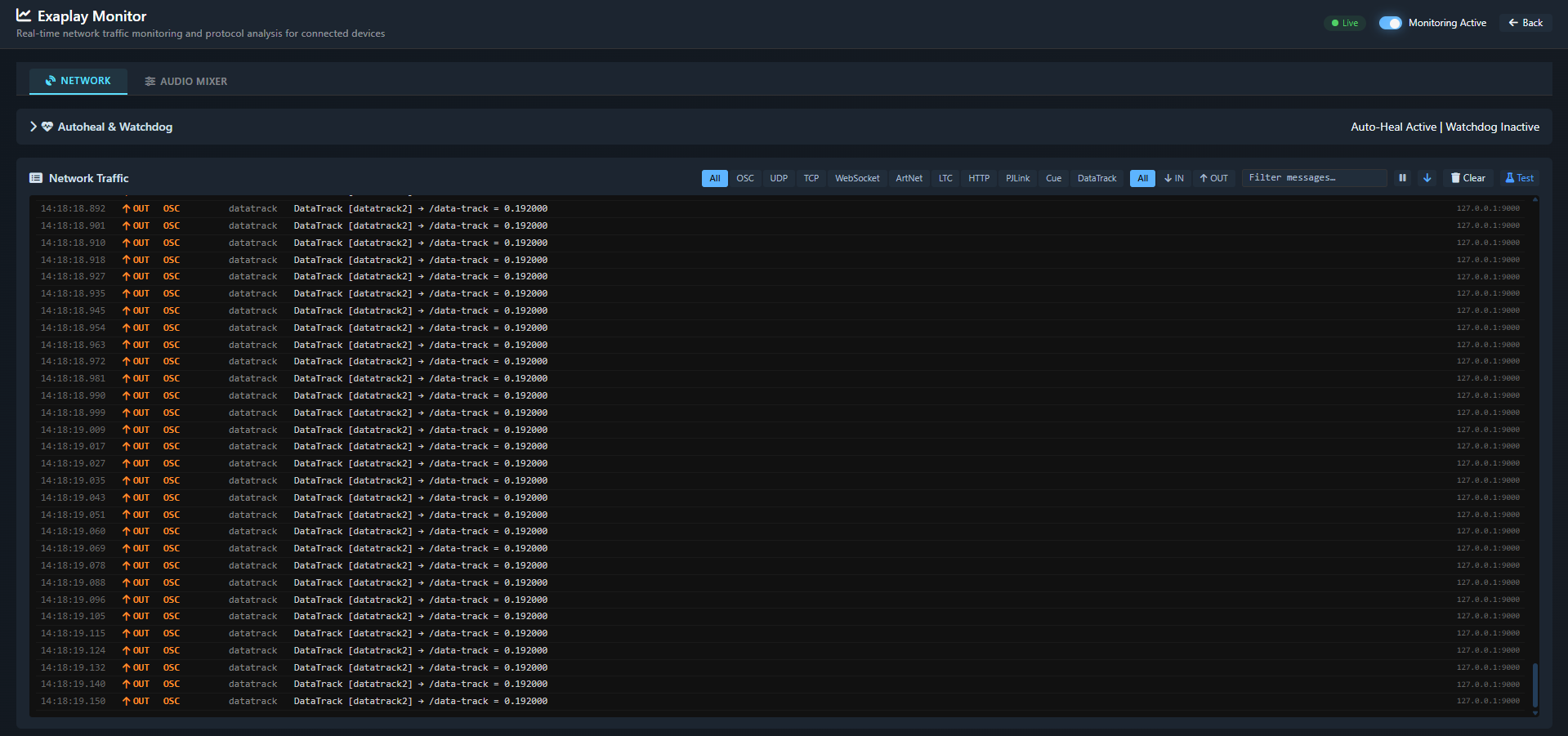
What the Monitor Shows
Active Connections
A live table of every inbound and outbound connection:
| Column | Description |
|---|---|
| Type | Protocol (HTTP, WebSocket, OSC, TCP, ArtNet, etc.) |
| Direction | Inbound ↓ or Outbound ↑ |
| Remote | IP address and port of the remote party |
| Status | Connected, Disconnected, or Error |
| Duration | How long the connection has been active |
| Last Activity | Timestamp of the last message exchanged |
Host System Information
A compact card shows the engine host's:
- Hostname
- Platform (Windows 10 / 11)
- Network interfaces — all IP addresses on all adapters
This is particularly useful when operators need to know what IP address to give external devices so they can connect to Exaplay.
Event Log
A scrolling log of protocol events in chronological order:
| Event type | Examples |
|---|---|
| Cue fired | Cue "Title In" triggered by operator |
| OSC received | OSC /play from 192.168.1.10:8000 |
| TCP command | PJLink POWR? → Projector 1 |
| ArtNet received | ArtNet TC 01:23:45:12 from 192.168.1.20 |
| WebSocket | WS client connected: 192.168.1.55 |
| Remote command | Cue "Opening" triggered from control system |
Auto-Start
Monitoring starts automatically when you open the Monitor tab. Close the tab to stop collecting events.
Use Cases
Verifying OSC Connectivity
- Open the Monitor tab.
- Send an OSC message from your console/controller.
- Confirm the message appears in the Event Log with the correct address and value.
- If no entry appears, the OSC packet is not reaching Exaplay (check firewall / network config).
Diagnosing a Non-Responding Projector
- Open the Monitor tab.
- Click a PJLink projector control button (ON/OFF) in the Devices tab.
- In the Event Log, look for the outgoing TCP command and the response.
- If no response appears, the projector may be offline or on the wrong IP/port.
Finding the Engine IP Address
- Open the Monitor tab.
- Read the Network Interfaces card — it lists all adapters and their IP addresses.
- Share the relevant IP with anyone who needs to connect a browser, OSC device, or ArtNet node.