
Appearance
Workflows
This section provides end-to-end workflow guides for the most common Exaplay 3 use cases. Each guide walks through the full process from project creation to show delivery.
Workflow Guides
| Guide | Best for |
|---|---|
| Live Events & Concerts | Music concerts, festivals, touring shows — cue-driven with real-time flexibility |
| Theatre & Performing Arts | Scripted shows with precise timecode, Playlist workflows, and operator control |
| Permanent Installations | Digital signage, museums, lobbies — unattended, scheduler-driven, auto-heal |
| Museum Installation with User Panels | Interactive museum exhibits with visitor touchscreen kiosks and staff control |
| Corporate Events & Conferences | Keynotes, product launches — presenter-paced slides and video playback |
| Projection Mapping | Multi-projector architectural and stage mapping setup from scratch |
| Dome Projection | Full-dome and immersive dome setups — fisheye single projector or multi-projector ring |
| Attraction Ride Control | Dark rides and themed experiences — timecode slave, Data Tracks, DMX/OSC/UDP automation |
| External Show Control | Connecting to ETC Eos, Qlab, Medialon, Crestron — OSC, REST, ArtNet, LTC in/out |
Choosing the Right Workflow
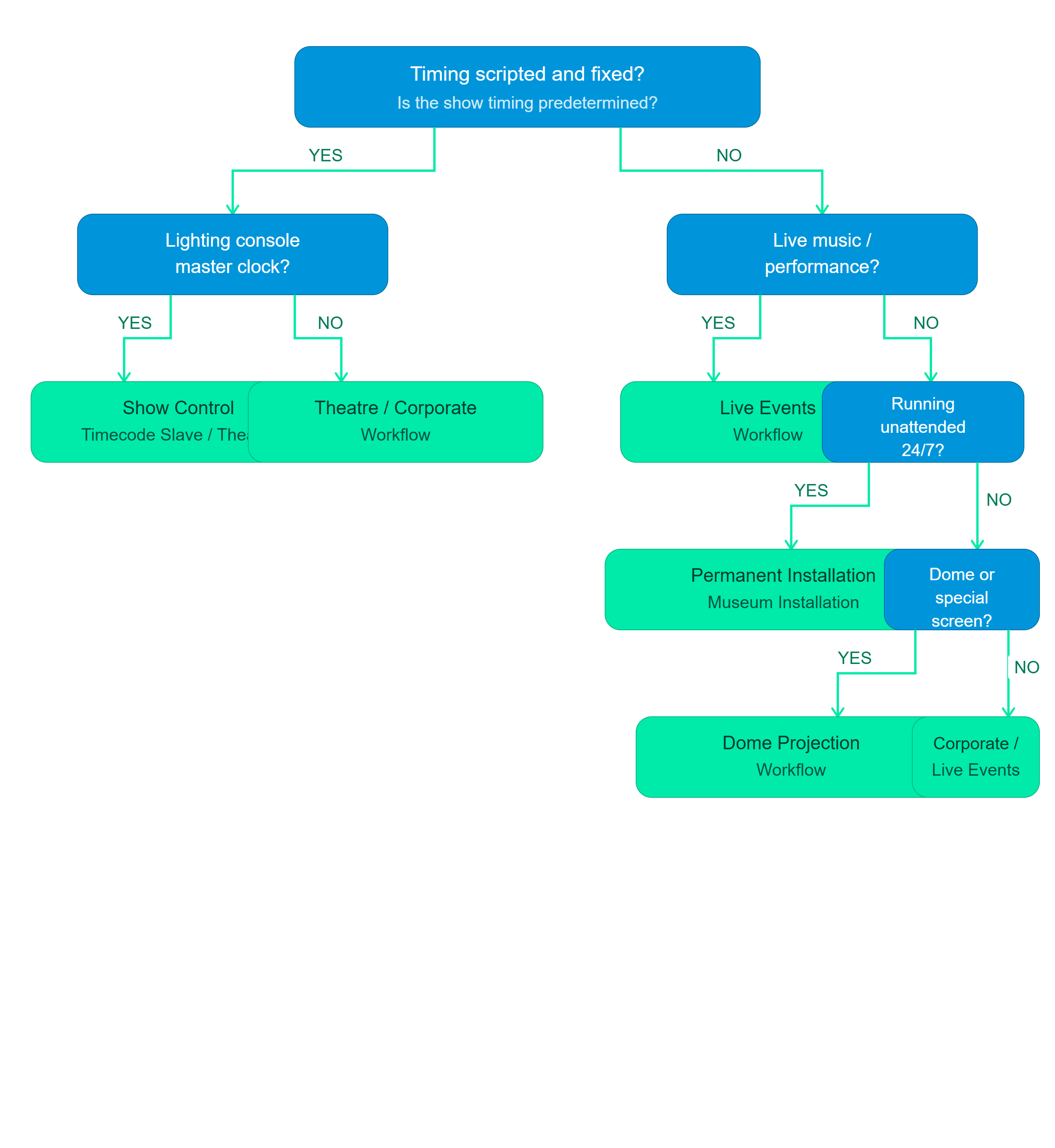
Common Principles
Regardless of workflow, these Exaplay practices apply universally:
- Save early and often —
Ctrl+Ssaves the.vppproject file. - Use HAP or HAP Q for 4K and above — GPU decoding avoids CPU bottlenecks.
- Test on the show system — preview on the actual output hardware before the event.
- Label everything — give screens, cues, tracks, and compositions descriptive names.
- Use the Operator Control view (
/control) for running shows, not the Editor. - Enable Auto-Heal for any unattended or touring deployment.