
Appearance
Media Playback
Exaplay 3 is built for smooth, glitch-free playback of large media files at high frame rates.
Supported Formats
| Format | Container | Notes |
|---|---|---|
| HAP | MOV, AVI | GPU-decoded; recommended for 4K+ |
| HAP Q | MOV, AVI | Higher quality HAP; 2× file size |
| HAP Alpha | MOV, AVI | HAP with transparency channel |
| HAP R | MOV, AVI | BC7 / BPTC variant; high-quality GPU-decoded RGB(A) (new in 3.2) |
| NotchLC | MOV | High-quality with alpha; GPU-decoded |
| H.264 / AVC | MP4, MOV | Hardware-accelerated via QuickSync; High 4:4:4 Predictive profile via software fallback |
| H.265 / HEVC | MP4, MOV | Hardware-accelerated via QuickSync; 4:4:4 chroma (RExt) via software fallback |
| Apple ProRes | MOV | Via Medialooks decoder (Windows) |
| PNG / JPEG / BMP | — | Still images |
| TIFF / PSD | — | High-bit-depth stills |
| WAV / AAC / MP3 | — | Audio-only |
Codec Recommendations
For the best performance with 4K content:
- HAP Q — highest quality, GPU-decoded, no CPU bottleneck
- NotchLC — excellent for content with transparency
- H.264 with hardware decode — good quality, uses the GPU's fixed-function decoder (NVDEC, QuickSync, AMD AMF, or DXVA)
Avoid software-decoded codecs (standard H.264 without hardware acceleration, MPEG-2) for streams above 1080p/60.
H.264 Encoding Tips for Best Playback
When encoding H.264 content for Exaplay, use these settings for optimal decode performance:
- Profile: High (4:2:0 chroma) — universally supported by hardware decoders
- B-frames: 0–2 — fewer B-frames reduce decode latency
- Keyframe interval: 1–2 seconds — enables fast seeking and buffer fill
- Bitrate mode: CBR or capped VBR — avoids storage throughput spikes
See also: Medialooks H.264 encoding options
Looping
Set the Loop property in the Inspector to:
| Value | Behaviour |
|---|---|
Once | Play once and stop on the last frame |
Loop | Loop the entire clip |
Ping-pong | Play forward then reverse, continuously |
∞ Infinite | Loop without a defined end time |
Trimming In and Out Points
In the Inspector, Start and End set the in and out points within the source file. Only the trimmed region is decoded and played — no pre-buffering of unused frames.
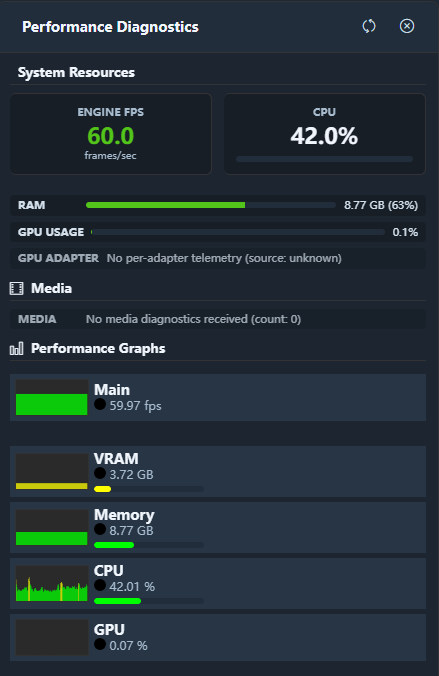
Performance Diagnostics
Use the built-in Performance Diagnostics panel (accessible via the header toolbar) to monitor:
- Engine FPS (green ≥ 57 fps, yellow 48–57 fps, red < 48 fps)
- Per-clip buffer health and decode time
- CPU and RAM utilisation
Offline Media
If a media file is missing on load, its clip shows a red Missing Media badge. Re-link it by right-clicking the clip and choosing Re-link Media.