
Appearance
Corporate Events & Conferences
Corporate events — keynotes, product launches, award ceremonies, all-hands meetings — typically involve presenter-paced playback, scripted video segments, speaker support graphics, and multiple simultaneous screens.
Typical Setup
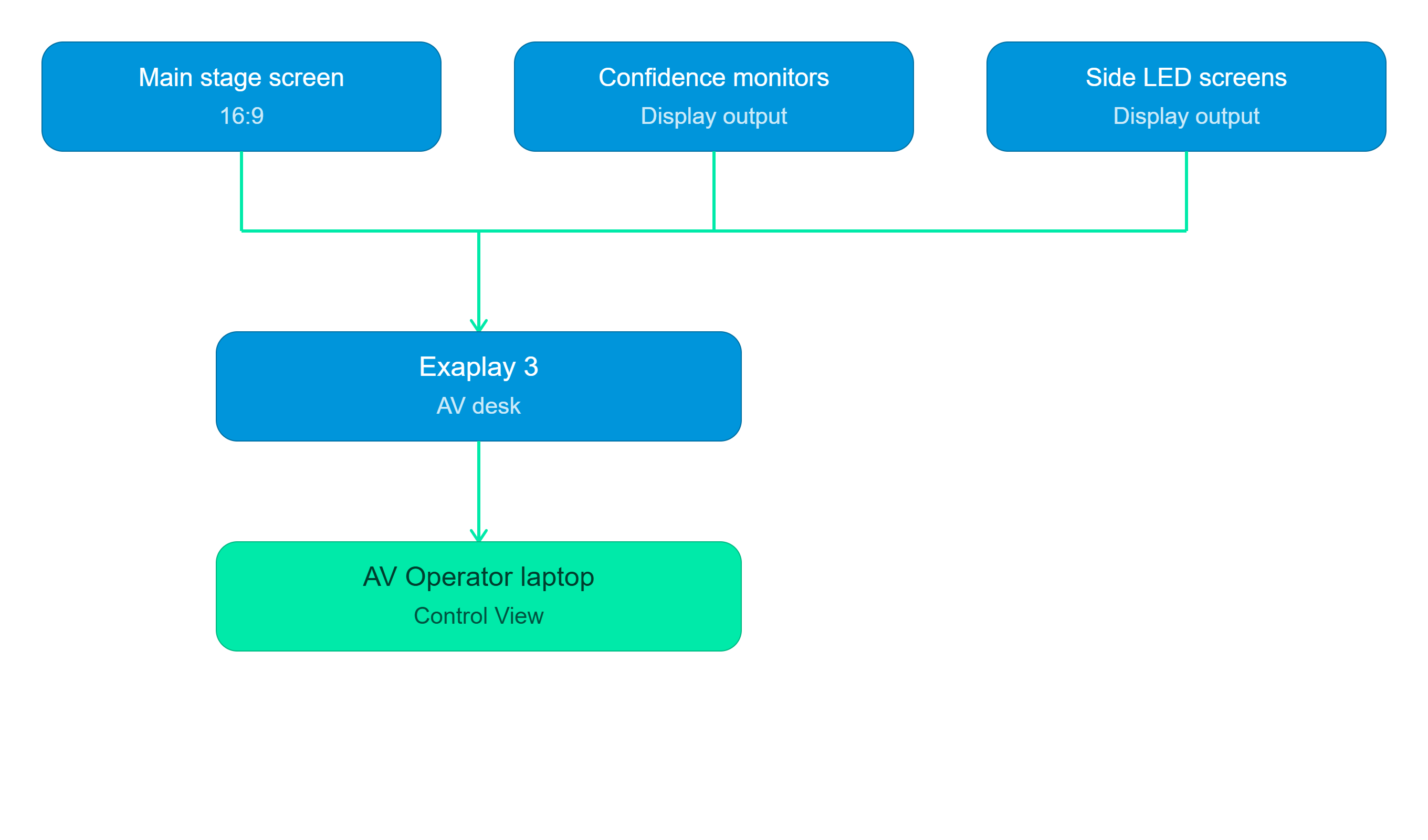
Content Types in Corporate Shows
| Type | Notes |
|---|---|
| Brand videos | Produce at 1920×1080 or 3840×2160 in H.264 or HAP |
| Presentation bumpers | Animated lower thirds, wipes; use HAP Alpha for transparency |
| Speaker support slides | Export as image sequence (PNG) or use a shared presentation source |
| Product showcase loops | HAP Q for highest quality during demo periods |
| Live camera feed | Capture card input or NDI from broadcast switcher |
Phase 1 — Pre-Show Preparation
1.1 Coordinate with the Creative Team
Receive all video assets at least 24 hours before the event. Confirm:
- All files are in the agreed codec and resolution
- File names match the script numbering
- Transparency (alpha) is handled correctly (HAP Alpha for elements over a background)
1.2 Build the Show File
A corporate show usually has a flat Playlist structure — one cue per video element:
| Cue # | Name | Action |
|---|---|---|
| 1 | Pre-show loop | Play loop composition: Pre_Show |
| 2 | Welcome video | Go to timecode: 00:00:00:00 |
| 3 | Speaker 1 intro lower third | Load layer on overlay track |
| 4 | Product video 1 | Go to timecode: 00:02:30:00 |
| 5 | Panel discussion — live camera | Switch to live feed composition |
| 6 | Award reveal | Go to timecode: 00:45:00:00 |
| 7 | Closing video | Go to timecode: 01:20:00:00 |
| 8 | Post-show loop | Play loop composition: Post_Show |
1.3 Set Up User Panels for the Presenter AV Tech
Create a User Panel with just the most critical controls:
- Large Go button
- A few key cue buttons (e.g. "Presenter support ON", "Lower third off")
- Master volume fader
This gives the on-stage AV technician a simplified, touch-friendly interface on a tablet.
Phase 2 — Show Day
2.1 Run-Through
- Walk through every cue with the AV director.
- Confirm timings: each video plays for the correct duration, transitions are smooth.
- Test the live camera feed.
- Verify audio levels on all video elements.
2.2 Presenter Briefing
- Brief the presenter on the cue flow: "When you say X, I'll fire the video."
- Confirm the confidence monitor feed is routed correctly.
- If the presenter is self-cueing, share the User Panel URL on their device.
2.3 Last-Mile Checks
| Check | Method |
|---|---|
| All outputs displaying test pattern | Config → Outputs → Show Test Pattern |
| Audio routing correct | Play test video, listen on PA and monitors |
| Camera feed live | Check File Browser → Live Feeds |
| Backup plan if main PC fails | Have export ZIP on USB + backup PC ready |
Phase 3 — Show Operation
Presenter-Paced Operation
The AV operator watches the stage (or prompt screen) and fires cues:
- Pre-show loop runs on auto-play.
- As presenter approaches lectern → fire Cue 2 (Welcome video).
- After welcome video, presenter begins speaking → output returns to live camera or slides.
- Each video element is fired manually at the right moment.
Split-Screen Content
For events where both the main screen and side screens show different content:
- Use separate compositions assigned to each output.
- Use the screen tabs in the header to preview each output independently.
- Cues can target a specific screen or fire on all screens simultaneously.
Phase 4 — Post-Event
- Save the final project.
- Export the project (burger menu → Export Project) as an archive.
- Label and store the archive.
- Note any issues in the AV report for future reference.