
Appearance
Experience Designer (VIOSO) Integration
Exaplay 3 can stream a live preview of any screen as an MJPEG texture into VIOSO Experience Designer, where the stream can be mapped onto 3D objects as a live texture. The integration is built into the Outputs view and requires no extra software on the Exaplay side.
How It Works
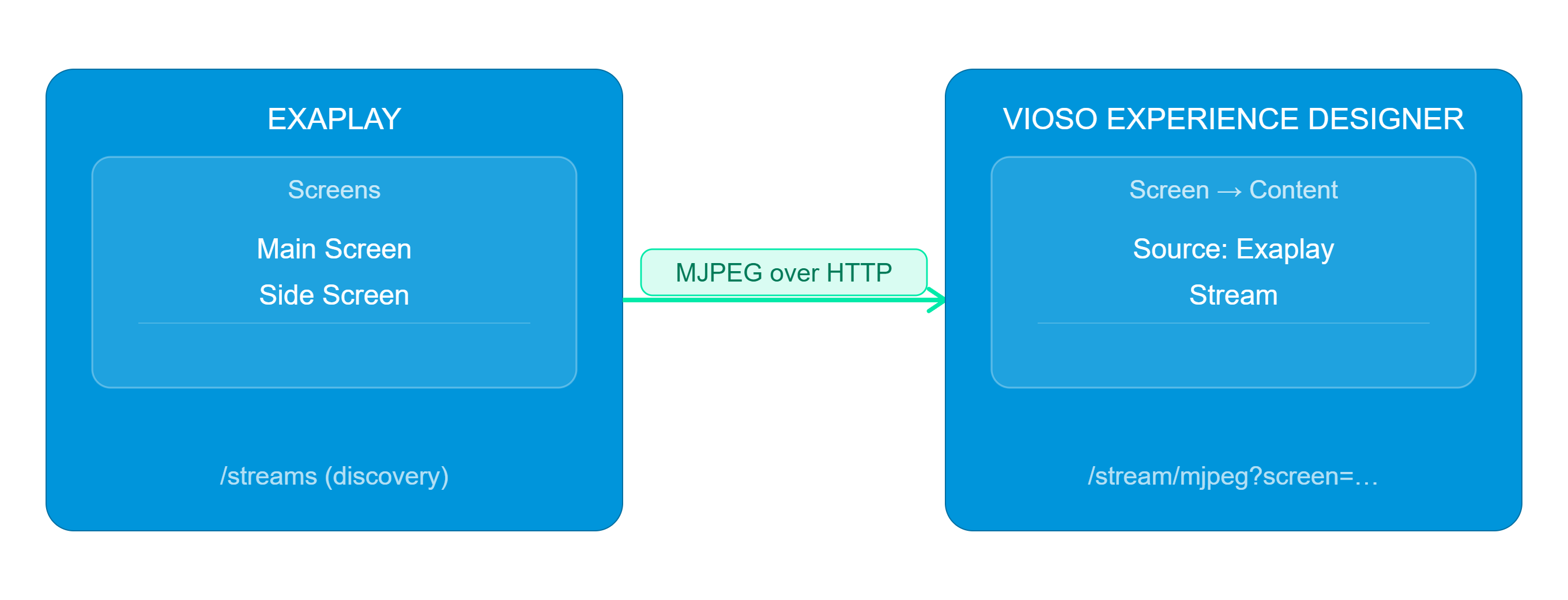
Exaplay exposes:
- A discovery endpoint (
GET /streams) that lists every screen in the current project with its varname, dimensions, and stream URL. - One MJPEG endpoint per screen (
GET /stream/mjpeg?screen=<varname>) that the Experience Designer pulls as a live texture.
Opening the Integration Panel
- Open the Outputs view from the main navigation.
- In the left sidebar, click Connect to Experience Designer.
- The right panel switches from the per-screen inspector to the Experience Designer information page.
Workflow
- In Exaplay, open the integration panel as above. Note the Available preview streams table — every screen in the project gets one MJPEG URL.
- Click Open designer.vioso.com. The Experience Designer launches in a new browser tab.
- In the Experience Designer:
- Select a Screen object.
- Open its Content settings.
- Change the content type from None / Image File to Exaplay Stream.
- The Experience Designer auto-discovers all available streams from the Exaplay instance and lets you pick which screen drives which 3D object.
The mapping is live — anything that plays back on the chosen Exaplay screen (Timeline, Playlist, scheduler) shows up immediately on the 3D object's surface.
Stream Table Reference
The Available preview streams card lists, for each screen in the current project:
| Column | Meaning |
|---|---|
| Name | Human-readable screen name from the project. |
| Varname | Internal variable name used in the URL. Always lowercase, no spaces. |
| Size | Render resolution of the screen in pixels. |
| MJPEG URL | Read-only field with the full HTTP URL. The Copy button puts it on the clipboard so you can paste it into the Experience Designer manually if auto-discovery is unavailable. |
Click the ↻ Refresh button at the top of the card to re-query the engine after adding or removing screens in the project.
The Discovery endpoint shown at the bottom of the card is the URL the Experience Designer uses internally to enumerate streams (http://<engine-host>/streams). It can also be called from custom integrations.
URL Format
Both endpoints are plain HTTP and require no authentication on the local network:
GET http://<engine-host>:8123/streams
GET http://<engine-host>:8123/stream/mjpeg?screen=<varname>The MJPEG stream is a standard multipart/x-mixed-replace boundary stream that any modern browser, Experience Designer build, or third-party MJPEG client can consume.
Tips
- Frame rate of the MJPEG stream tracks the rendering frame rate of the source screen — there is no separate "preview fps" knob for this integration.
- The MJPEG endpoint is the same one used by the Output Preview. Several consumers can pull the same screen concurrently.
- If the Experience Designer cannot reach the Exaplay machine, check that both are on the same subnet and that the engine's HTTP port (default
8123) is not blocked by Windows Firewall. - To use the integration over the internet, expose the engine's port through a VPN or reverse proxy — direct exposure of
8123to the public internet is not recommended.
Related Pages
- Output Setup — configure the screens that show up in the streams list
- Projection Mapping — VIOSO warp/blend workflow for direct output
- Network Settings — engine port and listen-address configuration