
Appearance
File Browser
The File Browser lives at the bottom of the Main Editor, inside the Media & Live panel below the active Timeline or Playlist. This keeps the right sidebar dedicated to the Inspector and gives the composition area the full editor width.
The Media & Live panel can be resized by dragging its top edge, and collapsed by dragging it down to the minimum height when you need maximum vertical space for the Timeline.

Tabs
| Tab | Content |
|---|---|
| Media | Local video, image, and audio files |
| Live Feeds | NDI streams and capture-card inputs |
| Targets | Configured output screens (for nesting) |
Media Tab
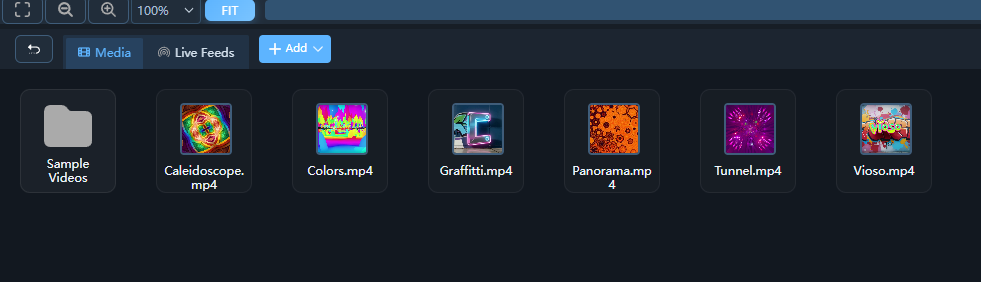
Browsing Files
- Click the folder icon to select a root directory.
- Subdirectories appear as expandable nodes in the tree on the left.
- Files are shown as thumbnails on the right.
Supported Formats
| Type | Formats |
|---|---|
| Video | MP4, MOV, AVI, HAP, HAP Q, HAP Alpha, NotchLC, H.264, ProRes |
| Image | PNG, JPEG, BMP, TIFF, PSD |
| Audio | WAV, AAC, MP3 |
Adding Media to the Timeline
Drag a thumbnail from the File Browser and drop it onto any track in the Timeline. The clip is inserted at the drop point.
Tip: Hold Ctrl while dragging to create a copy instead of moving the original reference.
Live Feeds Tab
Shows all detected NDI sources and capture-card inputs. Drag a live feed to a timeline track the same way as a media file.
Targets Tab
Shows configured output screens. Drag a target to nest one screen's output inside another — useful for complex multi-layer compositions.