
Appearance
Crashes & Recovery
The Application Crashed — What Happens Next?
Exaplay 3 includes an Auto-Heal system and a Watchdog Service that work together to recover automatically from crashes.
Automatic Recovery Timeline
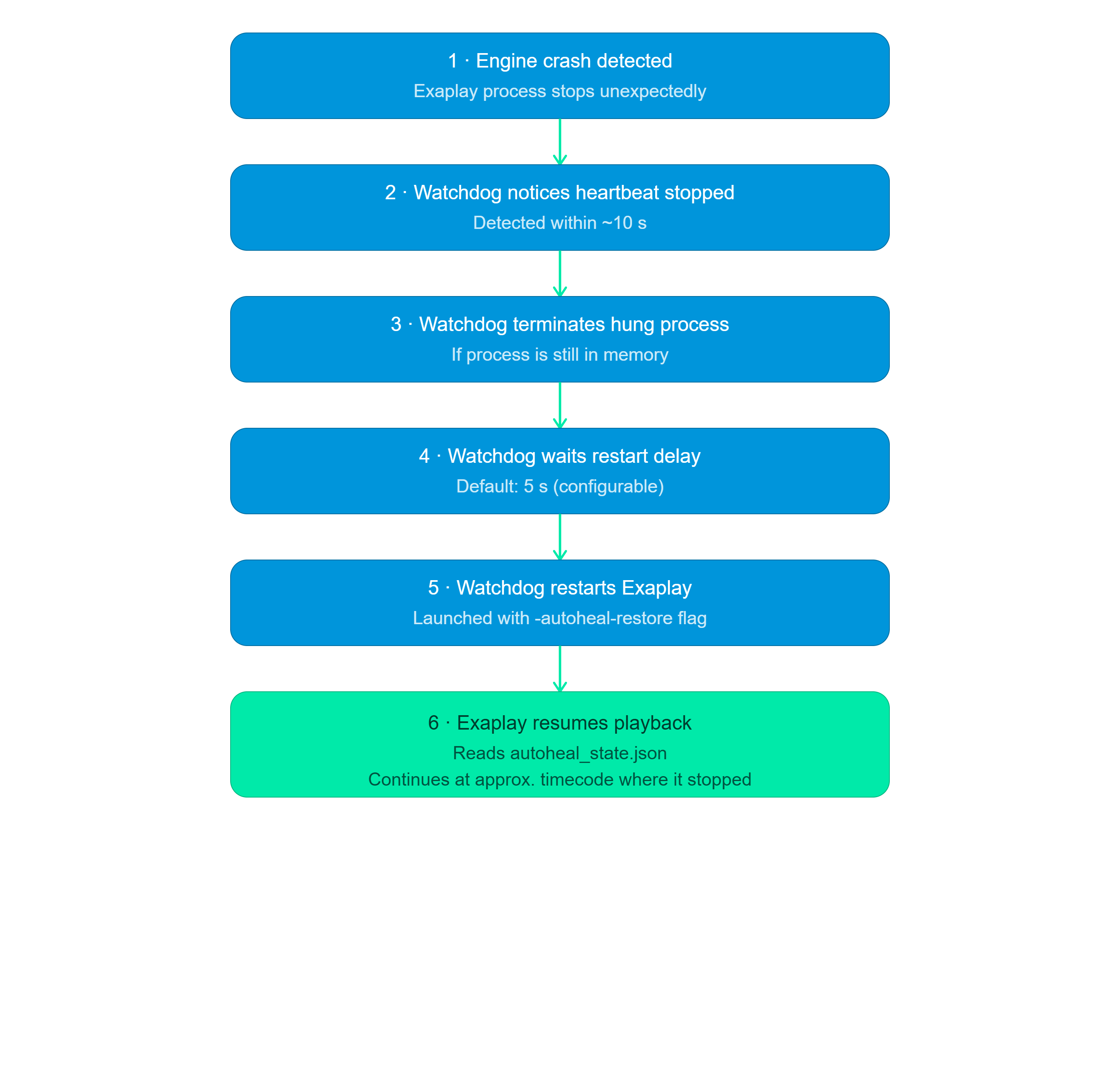
If Auto-Heal is properly configured, the black screen should last 10–20 seconds before playback resumes automatically.
Checking the Watchdog Service Status
If recovery did not happen, verify the Watchdog Service is running:
powershell
# Check status
Get-Service -Name "Exaplay3Watchdog"

# Start it if stopped
Start-Service -Name "Exaplay3Watchdog"

# Restart it
Restart-Service -Name "Exaplay3Watchdog"Or via Services (services.msc) — look for Exaplay 3 Watchdog.
Manual Recovery After a Crash
If automatic recovery fails, or if you want to restart manually:
- Check the system tray — the Exaplay icon may still be present (zombie process).
- Right-click the tray icon and choose Exit, or kill the process in Task Manager.
- Restart Exaplay normally. If Auto-Heal state exists, it will offer to restore playback.
- To ignore the auto-heal state and start fresh, use the
-freshflag:exaplay3.exe -fresh
Reading the Crash Log
The engine log is at:
Documents\Exaplay3\logs\exaplay3.logUseful sections to look for:
| Log entry | Meaning |
|---|---|
[ERROR] GL_OUT_OF_MEMORY | VRAM exhausted — reduce media load |
[ERROR] Failed to open media | A media file is corrupt or inaccessible |
[CRASH] Access violation at 0x… | Unexpected internal error — share with support |
[WATCHDOG] Restart triggered | Watchdog detected the crash and restarted |
[AUTOHEAL] State restored | Auto-Heal successfully resumed playback |
Auto-Heal State File
The state file at Documents\Exaplay3\logs\autoheal\autoheal_state.json shows what Exaplay was doing when it crashed:
json
{
  "project.path": "C:\\Shows\\Festival.vpp",
  "project.name": "Festival",
  "playback.active": true,
  "playback.composition": "Main",
  "playback.time": 125.45,
  "playback.cue-index": 3,
  "playback.cue-time": 45.20,
  "timestamp": "2026-02-20T22:14:33Z"
}playback.time— the timecode (in seconds) when the crash occurredtimestamp— when the state was last saved (should be within the last 2–5 seconds of uptime)
Repeated Crashes
If Exaplay crashes repeatedly (more than 3 times within 5 minutes), the Watchdog stops auto-restarting to prevent a restart loop. This is the Max Restarts safety limit.
To investigate repeated crashes:
- Review the engine log for patterns — do crashes always happen at the same timecode, or when a specific clip plays?
- Try loading the project with
exaplay3.exe -fresh(skips auto-heal restore). - Try disabling frame blending on clips near the crash timecode.
- Update the GPU driver — many GL crashes are caused by outdated drivers.
- If the crash is consistently reproducible, report it with the log and project file.
Disabling Auto-Heal Temporarily
To start Exaplay without restoring the last auto-heal state:
exaplay3.exe -freshThis does not disable Auto-Heal for the session — it will continue saving state. It only skips the restore of the previous state.
To disable Auto-Heal entirely for a session:
- Open Settings → Auto-Heal.
- Set Enable Auto-Heal to OFF.
Warning: Disabling Auto-Heal means crashes will not be recovered automatically. Only disable for debugging purposes.
Reporting a Crash
When reporting a crash to support, include:
- The engine log (
Documents\Exaplay3\logs\exaplay3.log) - The autoheal_state.json file
- Windows Event Viewer → Application log entries around the crash time
- Exaplay version (burger menu → About)
- GPU driver version (Device Manager → Display Adapters)
- Steps to reproduce the crash (if known)