
Appearance
Tab Navigation & Views
Exaplay 3 has two levels of tab navigation: the main view tabs in the header bar and the sub-header tabs inside the Main Editor view.
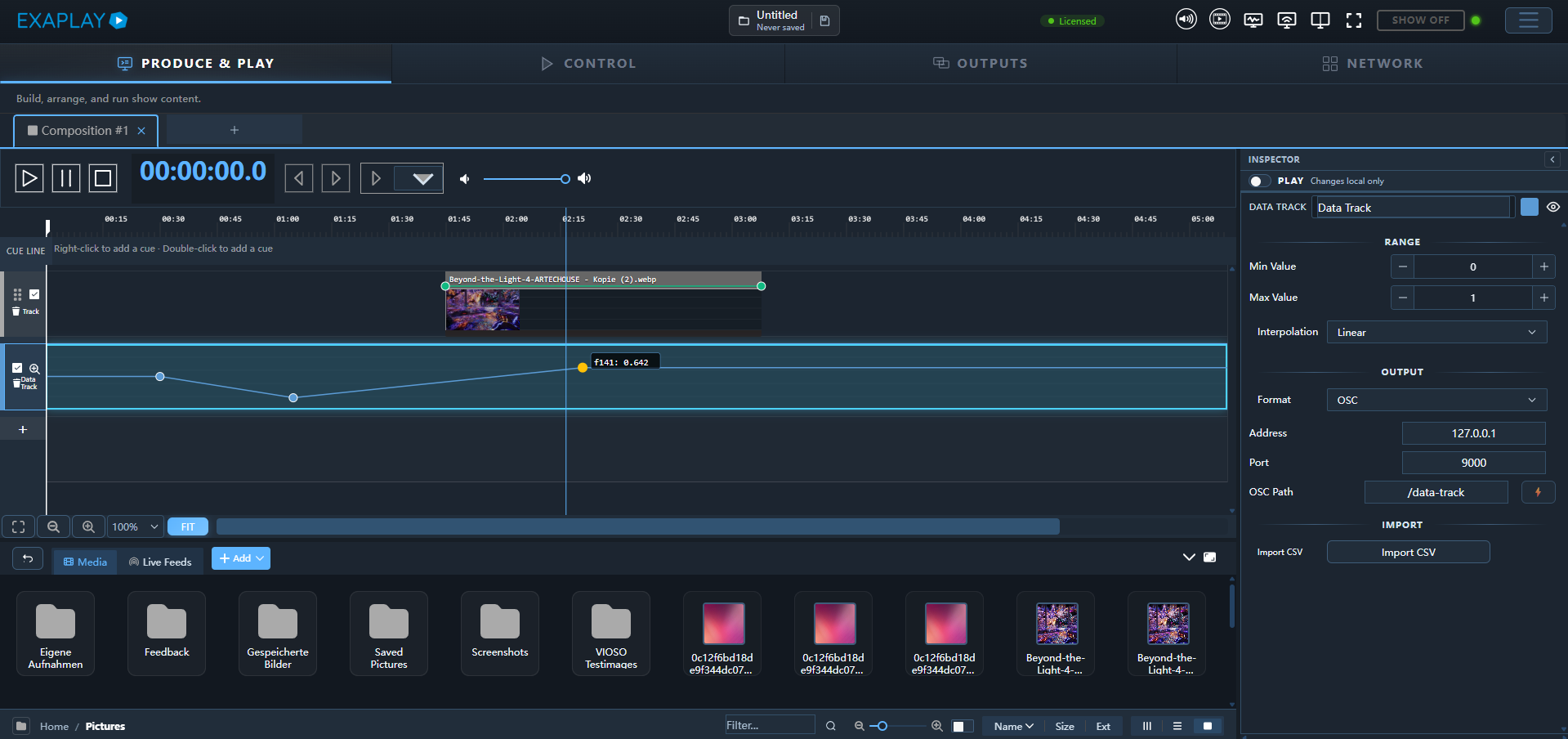
Main View Tabs (Header)
The header bar contains up to five tabs that switch the entire page:
| Tab | Path | Purpose | Visibility |
|---|---|---|---|
| PRODUCE & PLAY | / | Full composition editor — programming and design | Always |
| CONTROL | /control | Operator control view — show running | Hidden in ControlBuddy mode |
| OUTPUTS | /outputs | Display and output configuration | Hidden in Easy Mode |
| WARP & BLEND | /warpblend | Warp and blend editor for projection calibration | Debug mode only; hidden in Client Mode |
| NETWORK | /systems | Networked Exaplay instances — discovery, sync, and multi-client management | Hidden in Easy Mode and Client Mode |
The active tab is highlighted with the primary accent colour and a glowing underline.
Visibility Rules
Not every machine shows the same top-level tabs:
- Easy Mode hides advanced setup views such as OUTPUTS, NETWORK, and WARP & BLEND
- Client Mode hides NETWORK and WARP & BLEND, and the machine becomes read-only for show editing
- Control Buddy Mode hides the embedded CONTROL tab from the main editor shell
- Debug Mode is required before WARP & BLEND appears
Sub-Header Tabs (Inside PRODUCE & PLAY)
When you are in the PRODUCE & PLAY view, the sub-header below the header shows the composition tabs. Each composition is either a Timeline or a Playlist:
| Composition type | What it shows |
|---|---|
| Timeline | Clip arrangement across tracks and time |
| Playlist | List of discrete show cues |
Click any composition tab to switch to that composition's editor. The Media & Live panel sits at the bottom of the editor, below the active Timeline or Playlist.
Control View Tabs
Inside the Operator Control view (/control) a horizontal tab bar provides access to:
| Tab (Normal Mode) | Tab (Simple Mode) | Purpose |
|---|---|---|
| Compositions | ▶️ Playback | Composition and Playlist playback controls |
| Custom Controls | 🎚️ Controls | Custom sliders, toggles, and buttons |
| TCP Devices | 📺 Devices | PJLink projectors and TCP device control |
| Scheduler | 📅 Schedule | Time-based automatic scheduling |
| User Panels | 🎨 Custom Panels | Build and manage end-user panels |
Simple Mode
Toggle Simple Mode (checkbox in the top-right of the Control View header) to replace technical terminology with friendlier labels and hide advanced setup details such as command snippets and raw IP addresses. See Simple Mode.
Outputs View
The OUTPUTS view contains two section switcher buttons:
| Section | Purpose |
|---|---|
| Screens & Fields | Configure virtual screens and composition fields |
| Outputs | Create and arrange displays (size + position), bind them to a physical output or a machine, and assign them to screens |
Network View
The NETWORK view shows all Exaplay instances discovered on the local network. See Multi-Client Setup for a full guide.
Key features:
- Systems list — auto-discovered remote Exaplay instances with UP/DOWN status
- Active Sync — automatically push media files to remotes every 10 seconds
- Copy Files — manually copy the sync folder contents to all online remotes
- Per-remote status — see sync status (idle, syncing, ok, error) for each machine
User View Tabs
The User View (/user) shows a dynamic tab strip — one tab per User Panel configured by the operator. Tabs are colour-coded with the panel's accent colour.
If no panels have been configured, the User View shows a prompt to visit the Control Panel to create panels.
Direct panel links can also open a single panel immediately using its readable URL, for example:
http://<engine-ip>:8123/main-stage-controls_panel.htm