
Appearance
Timecode & ArtNet Sync
Exaplay 3 can synchronise to external timecode sources for frame-accurate integration with lighting consoles, audio systems, and show-control systems — and it can also act as a timecode master that sends LTC and OSC out to drive other equipment.
Supported Sync Sources
| Source | Protocol | Typical Use |
|---|---|---|
| ArtNet | UDP/IP (ArtNet 4) | Lighting consoles, timecode distribution |
| LTC | Audio signal | Traditional linear timecode on tape or audio output |
| OSC | UDP/IP | Software timecode, custom show control |
| MTC | MIDI | Hardware MIDI controllers, legacy DAW integration |
Timecode Modes
The global mode is set in Config → Timecode → Timecode Mode:
| Mode | Direction | Behaviour |
|---|---|---|
| Disabled | — | Exaplay drives its own clock; no external TC is consumed or emitted. |
| OSC Timecode (slave) | Receive | Locks to OSC timecode received on the configured listen port. |
| LTC (slave) | Receive | Decodes LTC from an audio input channel. |
| MTC (slave) | Receive | Locks to MIDI Timecode from a Windows MIDI device. |
| Master (send TC) | Send | A chosen composition becomes the timecode source. Exaplay broadcasts that timecode as OSC and/or LTC to other equipment. |
Changing the mode shows the relevant settings group below it. After editing settings, click Apply & Restart Timecode.
Framerate & Global Offset
These two settings apply in every mode:
- Framerate —
24,25,29.97 DF, or30 fps. Must match the timecode framerate of your sync source (or, in Master mode, the rate you want to send). - Global Offset — seconds (positive or negative) added to the timecode value before it is consumed (slave modes) or sent (master mode). Use this to slip Exaplay against an external source.
Receive: ArtNet Timecode
Not available in this build
ArtNet timecode receive is not yet wired up in the current build — there is no UI control to enable it, and incoming ArtNet timecode is not consumed. Use OSC, LTC, or MTC (below) for external timecode sync. This section documents the planned behaviour.
When available, the flow will be:
- Open Config → Network → ArtNet.
- Enable Receive ArtNet Timecode.
- Ensure the Exaplay machine is on the same subnet as the ArtNet source.
ArtNet timecode (OpTimeCode) is not addressed to a universe, so there is nothing to match on the Exaplay side — any timecode broadcast on the network is received.
When valid ArtNet timecode is received, the Transport bar shows a green TC: Locked indicator and the playhead locks to the incoming timecode.
Receive: LTC
- Connect the LTC source to an audio input on your audio interface.
- Open Config → Timecode, set Timecode Mode to LTC (slave).
- Pick the Input Channel (ASIO devices list named channels; the PortAudio path shows numbered channels).
- Choose the Sample Rate that matches the audio input (44.1 / 48 / 96 kHz).
Receive: OSC Timecode
- Open Config → Timecode, set Timecode Mode to OSC Timecode (slave).
- Adjust OSC Address if your sender uses something other than the default
/timecode. - The OSC listen port is configured globally under Config → Communication → OSC.
Receive: MTC
- Connect a MIDI interface that emits MTC.
- Open Config → Timecode, set Timecode Mode to MTC (slave).
- Pick the MIDI Input Device from the drop-down.
Chase Settings (slave modes)
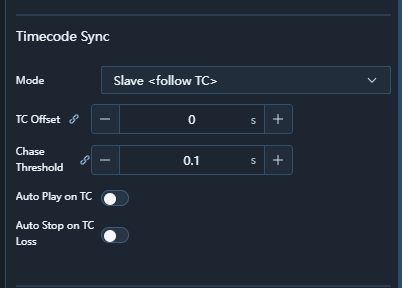
When a slave mode is active, the Chase Settings group controls how the playhead follows external TC:
| Setting | What it does |
|---|---|
| Jump Threshold | If incoming TC differs from the local clock by more than this many seconds, Exaplay jumps instead of smoothing. |
| Smoothing | 0 = hard follow, 1 = heavy averaging. Higher values mask jitter at the cost of latency. |
| Freewheel Time | If the TC signal disappears, keep running on the local clock for this many seconds before stopping. |
Send: Master Timecode Mode
In Master mode Exaplay generates timecode from a chosen composition and transmits it to other equipment. This lets Exaplay act as the show's timecode source — useful when you want a media composition to drive lighting, audio, or other media servers.
Setup
- Open Config → Timecode, set Timecode Mode to Master (send TC).
- Master Composition — pick the composition whose playhead drives the outgoing timecode. The composition's transport (play/pause/seek) is what listeners follow.
- Set Framerate to the rate you want to send (
24/25/29.97 DF/30). Note that29.97 DFis reported on the wire as30. - Set Global Offset if you need the outgoing timecode to lead or trail the composition (for cueing other devices early).
- Enable one or both of:
- OSC Timecode Out — sends a tightly-paced OSC bundle to all OSC clients configured under Communication → OSC Clients.
- LTC Timecode Out — encodes LTC onto an audio output channel.
- Click Apply & Restart Timecode to commit and start the broadcaster.
OSC Output
When OSC Timecode Out is enabled, every tick sends an OSC bundle to the configured OSC Address (default /timecode) carrying three arguments:
| Type | Value |
|---|---|
float32 | Master composition time in seconds (including the Global Offset). |
int32 | Framerate as 24, 25, or 30 (29.97 DF reports as 30). |
string | Wall-clock timecode formatted as HH:MM:SS:FF. |
The bundle is sent to every client listed in Communication → OSC Clients — there is no per-client toggle, so the same timecode reaches all of them. To deliver to a single target only, leave just that one client enabled.
LTC Output
When LTC Timecode Out is enabled, Exaplay encodes LTC onto a chosen audio output channel:
- LTC Output Channel — when the engine runs on ASIO, this is a named channel of the active ASIO device. On PortAudio, it is a numbered channel of the selected device.
- LTC Output Device (PortAudio only) — pick the output device.
Default Output Devicefollows the Windows default. - The encoder automatically tracks the engine's audio sample rate, so changing the audio rate at runtime restarts the encoder at the new rate (no pitch shift on the LTC carrier).
Wire the right channel to your destination
LTC is a square-wave audio signal — route the chosen channel to a balanced output and feed it into the LTC input of the receiving device. Mixing LTC into a program-audio bus will produce audible noise.
Master + Slave at the same machine
Master mode is mutually exclusive with the slave modes — Exaplay is either consuming external timecode or generating its own, not both. To have Exaplay's master TC drive a second Exaplay instance as a slave, point the second instance's OSC or LTC receiver at the first.
Sending Timecode (legacy OSC-out for slave modes)
Even when running in a slave mode, Exaplay can be configured to forward the locked timecode as OSC:
- Open Config → Communication → OSC Clients.
- Add the destination IP, port, and OSC address.
Slave-mode forwarding does not include the framerate or formatted-string fields used by Master mode — only the seconds value at the configured address.
Frame Rate
Set the project frame rate in Config → Video Settings → Frame Rate. This must match the timecode frame rate of your sync source (slave modes) or your downstream consumers (master mode).